Chapter 2 - Installing Software Installing the Terason DICOM Utility
Terason t3000 / Echo Ultrasound System User Guide 48
d. Click Apply.
3. Configure the Send Settings tab (settings apply to a server where DICOM files are
stored):
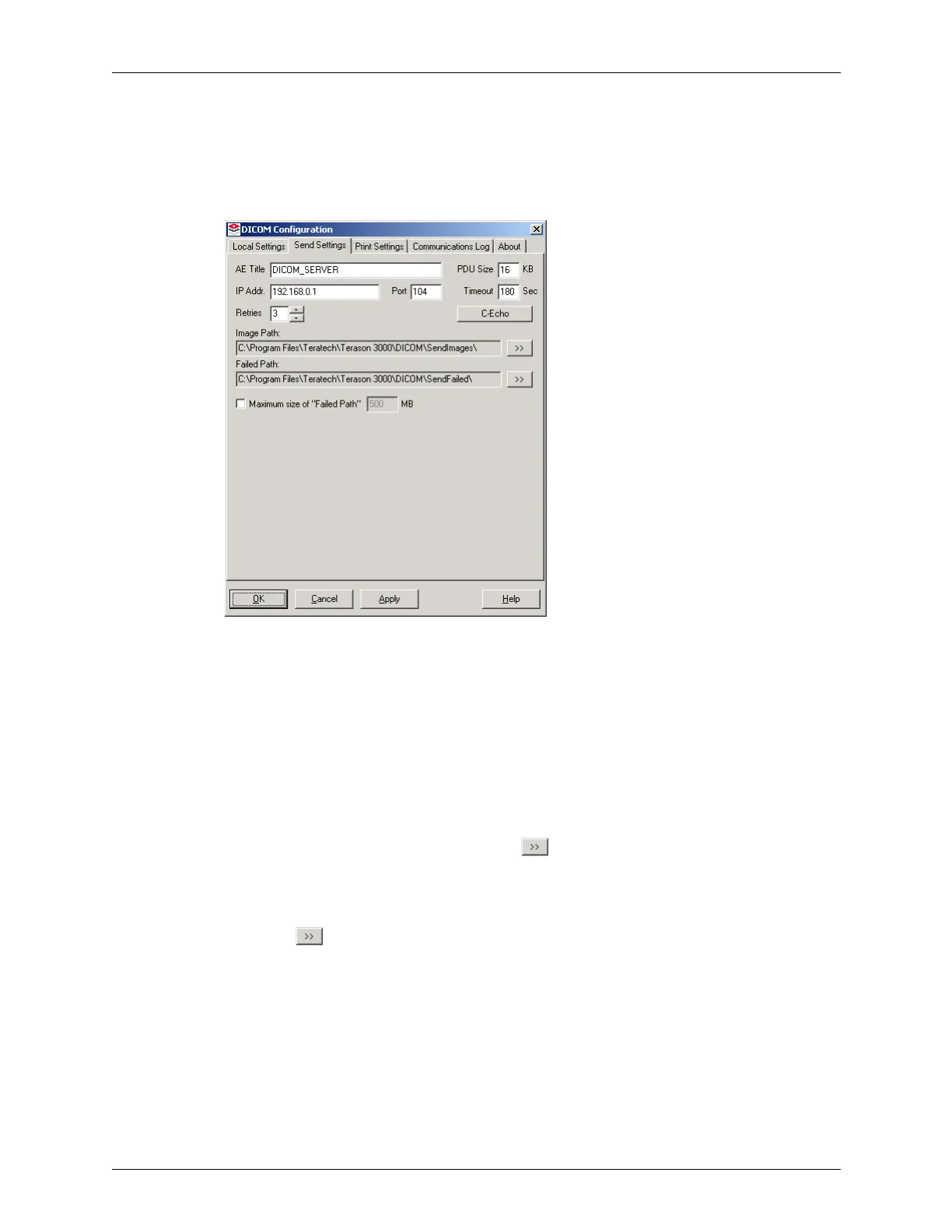
a. Click the Send Settings tab to bring it to the front.
DICOM Configuration Window / Send Settings Tab
b. Enter the name of your DICOM server in the AE Title field.
c. Enter the IP address or DNS node name of the DICOM server in the IP Addr. field.
d. Enter the DICOM server’s port number in the Port field.
e. If your DICOM server requires different values, edit the PDU size, Timeout, and
Number of Retries boxes as necessary.
f. Click the C-Echo button to test whether or not the server is active on the network.
g. If necessary, you can change the image path (where the computer temporarily
stores DICOM files) by clicking the button and browsing to a different
location.
h. If necessary you can change the failed path (where the DICOM files are moved if
they cannot be successfully sent after the indicated number of retries) by clicking
the button and browsing to a different location.
i. To limit the disk space consumed by DICOM files in the Failed Path, you can select
the check box and enter a MB value. If you do, the system overwrites oldest files
first when the maximum size is reached.
j. Click
Apply.



 To Next Page