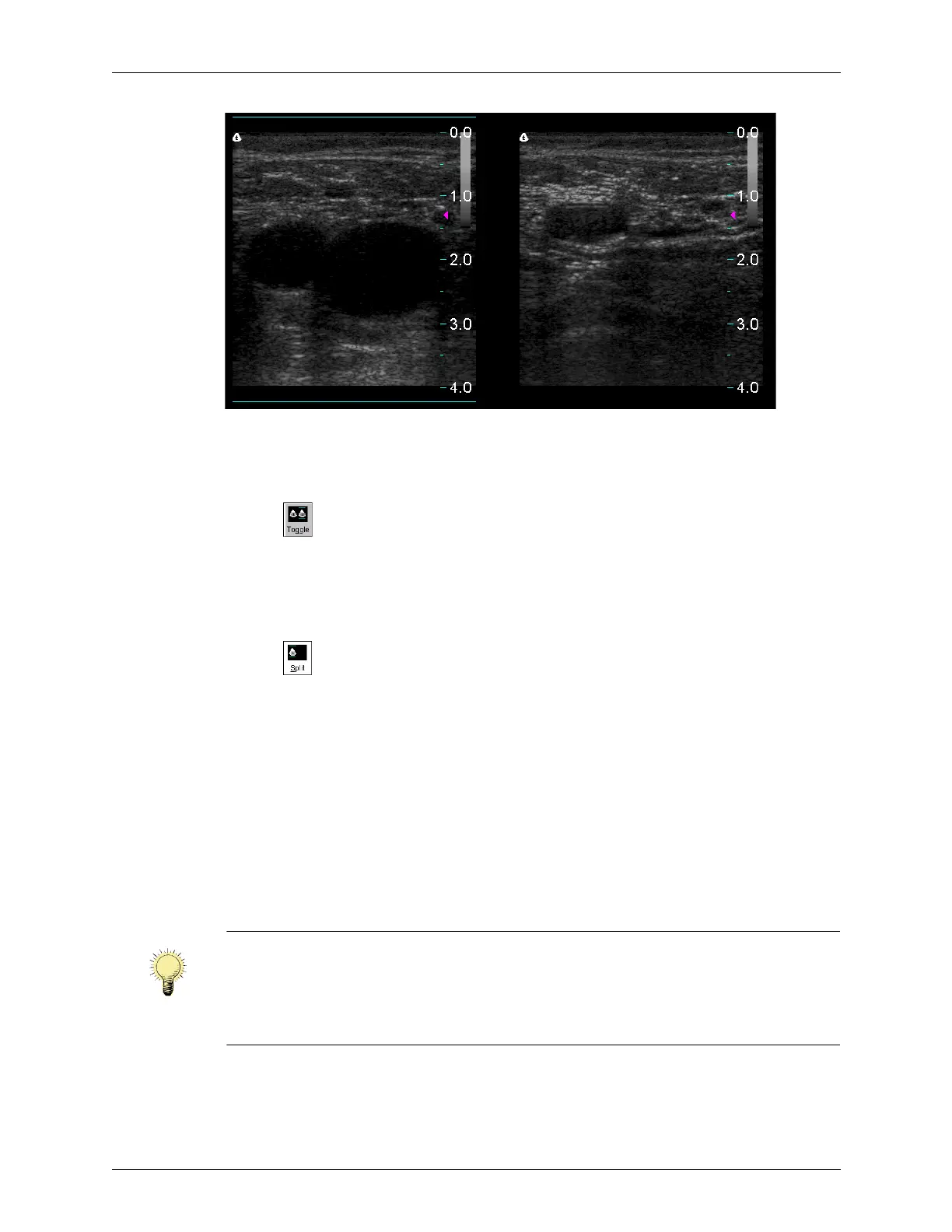
Chapter 4 - Acquiring Images Using Split Screen Mode
Terason t3000 / Echo Ultrasound System User Guide 80
Split Screen
The cyan bars at the bottom and top of a screen indicate the active screen.
To switch between the two screens, perform any of these actions:
• Click
• Click in the screen
• Select
View > Toggle Split Screen
•Type G when not in Text mode
You can exit split screen mode using any of these methods:
• Click
• Select a different exam
• Select M-Mode, PWD, or Triplex scan modes
• Select
View > Split Screen
•Type S when not in Text mode
When saving.ult images in Split Screen mode, only the active window is saved. If you
wish to save an image with both windows visible, save the image in a format other
than.ult. See Working With Image Files on page 131 for information on saving images and
loops.
When you exit Split Screen mode, the Terason software keeps the acquired data for the
active screen (the one with the cyan lines at the top and bottom) and discards the acquired
data for the other screen.
Note: If you create a custom exam in Split Screen mode, make sure the active window
contains the Image Control settings you want to save before you proceed. When
finished saving your custom exam, the Terason software displays a single screen in
the Image Display window. See Working With Exams on page 212 for information
on saving custom exams.



 To Next Page