FM-750 Display User Guide 27
Getting Started 3
You must calibrate the touchscreen before you can use the display; to do this,
follow the onscreen instructions.
• The Quick Start wizard. To configure your system properly, make sure that you
run the entire wizard. See The Quick Start Wizard, page 30.
Power down
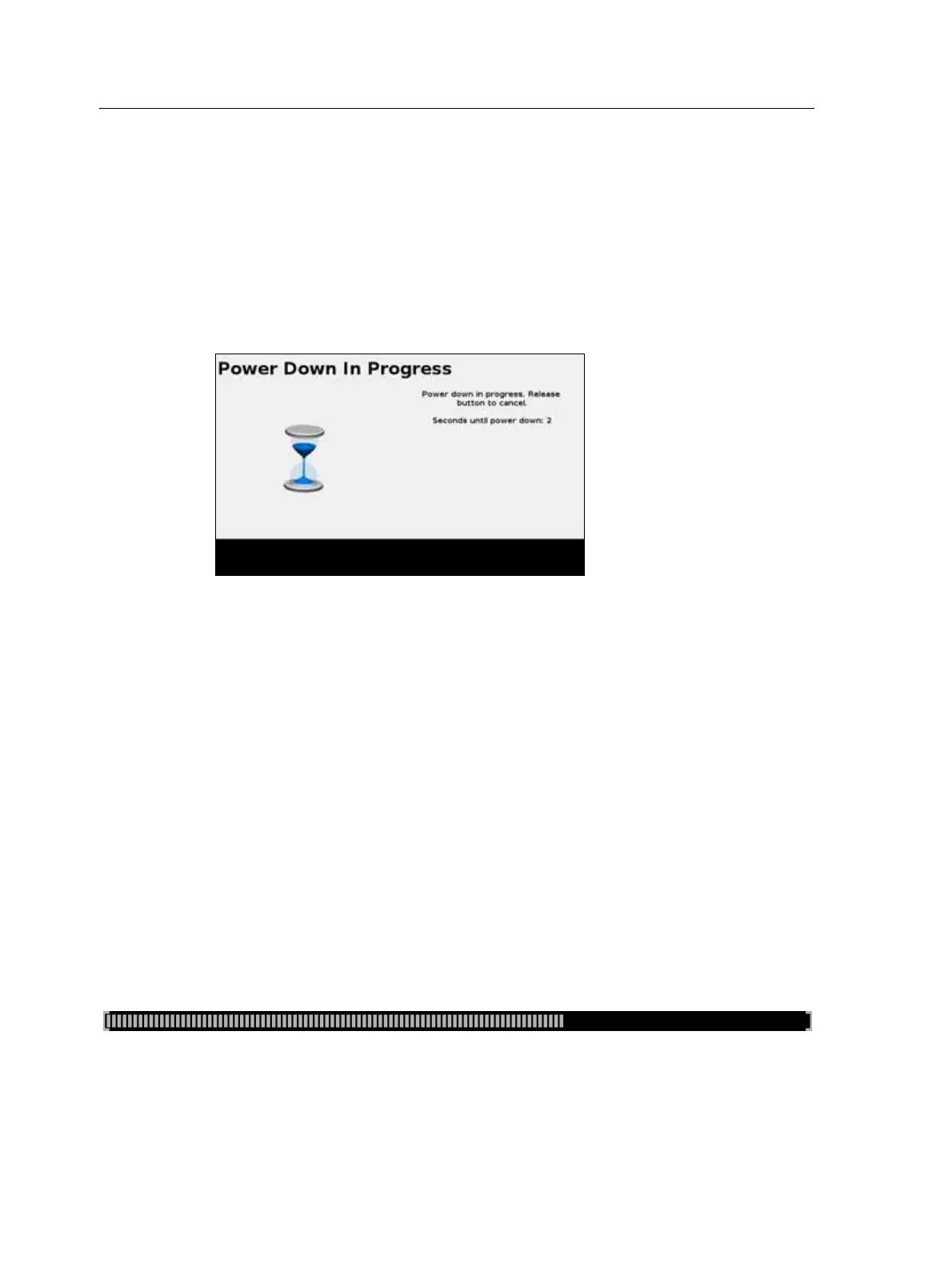
To turn off the FM-750 display, hold down the power button for three seconds. While
holding down the power button, the Power Down In Progress screen appears:
Note – To cancel the power down process, release the power button before the three second
countdown is complete.
Resetting the display
Occasionally, you may want to reset the display settings. There are two ways to do this:
• Soft reset. This returns all settings to the factory defaults. All saved field data
remains intact.
• Hard reset: This returns all settings to the factory defaults, and deletes all saved
data including any field data.
Note – Do not perform a hard reset unless it is absolutely necessary or you are instructed
to do so by technical support.
Soft reset
1. Power down the display and then power it on.
2. Wait until the status bar at the bottom of the second startup screen is over half
full:



 To Next Page