FM-750 Display User Guide 35
Getting Started 3
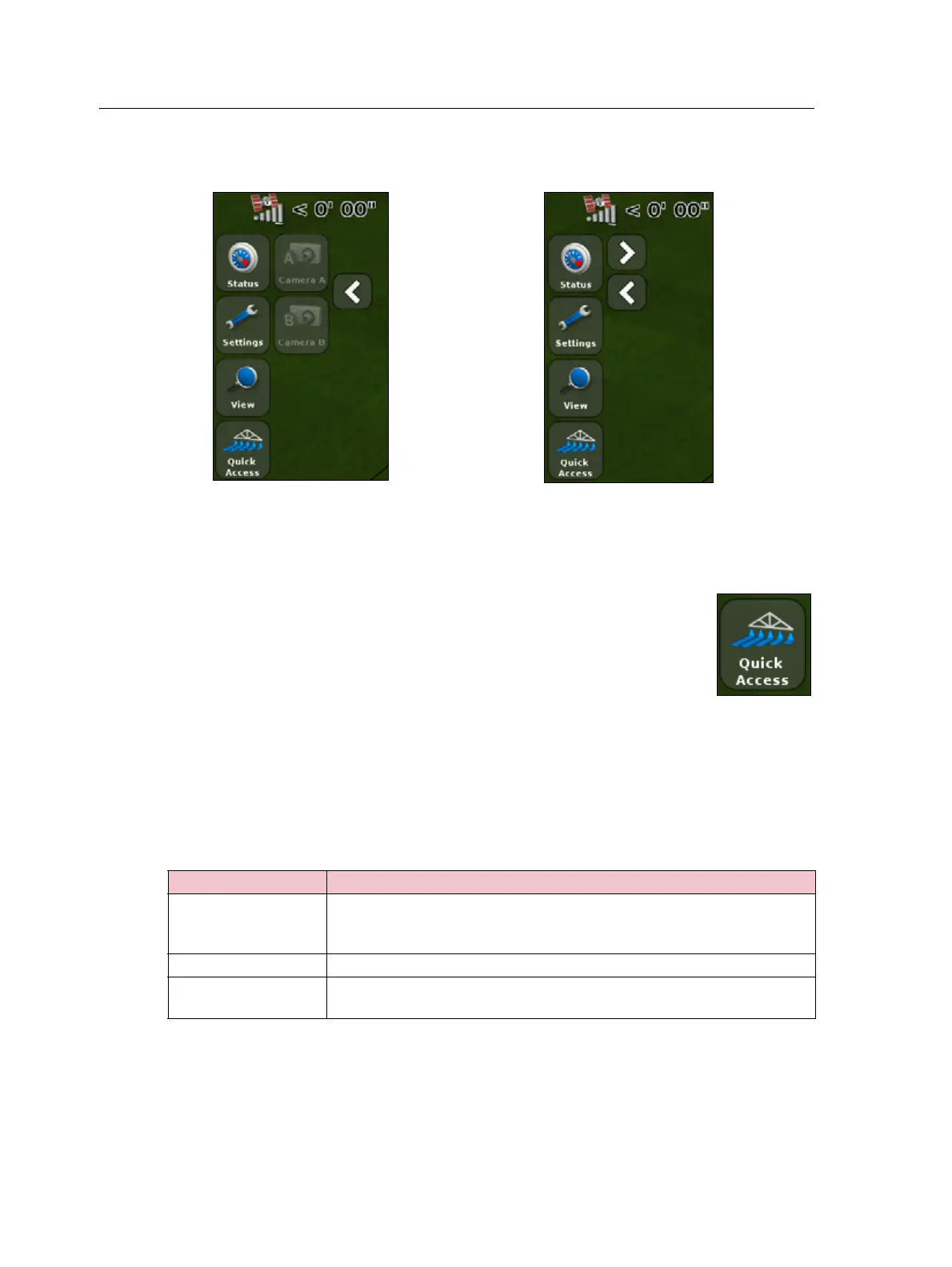
The following images show how the extended icons appear on the guidance screen
when they are expanded and collapsed:
Quick Access icon
You can use the Quick Access icon to quickly adjust common settings.
The items that appear in the Quick Access menu will vary depending
on the applications that you are currently running.
The following sections describe the items that may appear.
Note – The Quick Access icon only appears when you are running Field-IQ or a variable
rate controller.
Boom setup
Use this option to view and adjust the following settings:
Value ... Notes ...
Implement width Enter the width of the current implement. The display uses this value to
automatically calculated the swath spacing.
Enter a width between 1' 00" - 328' 01" (0.30 - 99.99 m).
Boundaries See Boundary setup, page 94.
Number of sections Enter the number of sections you want to control on the implement.
Enter a number between 1 - 10.



 To Next Page