FM-750 Display User Guide 105
Mapping and Guidance 6
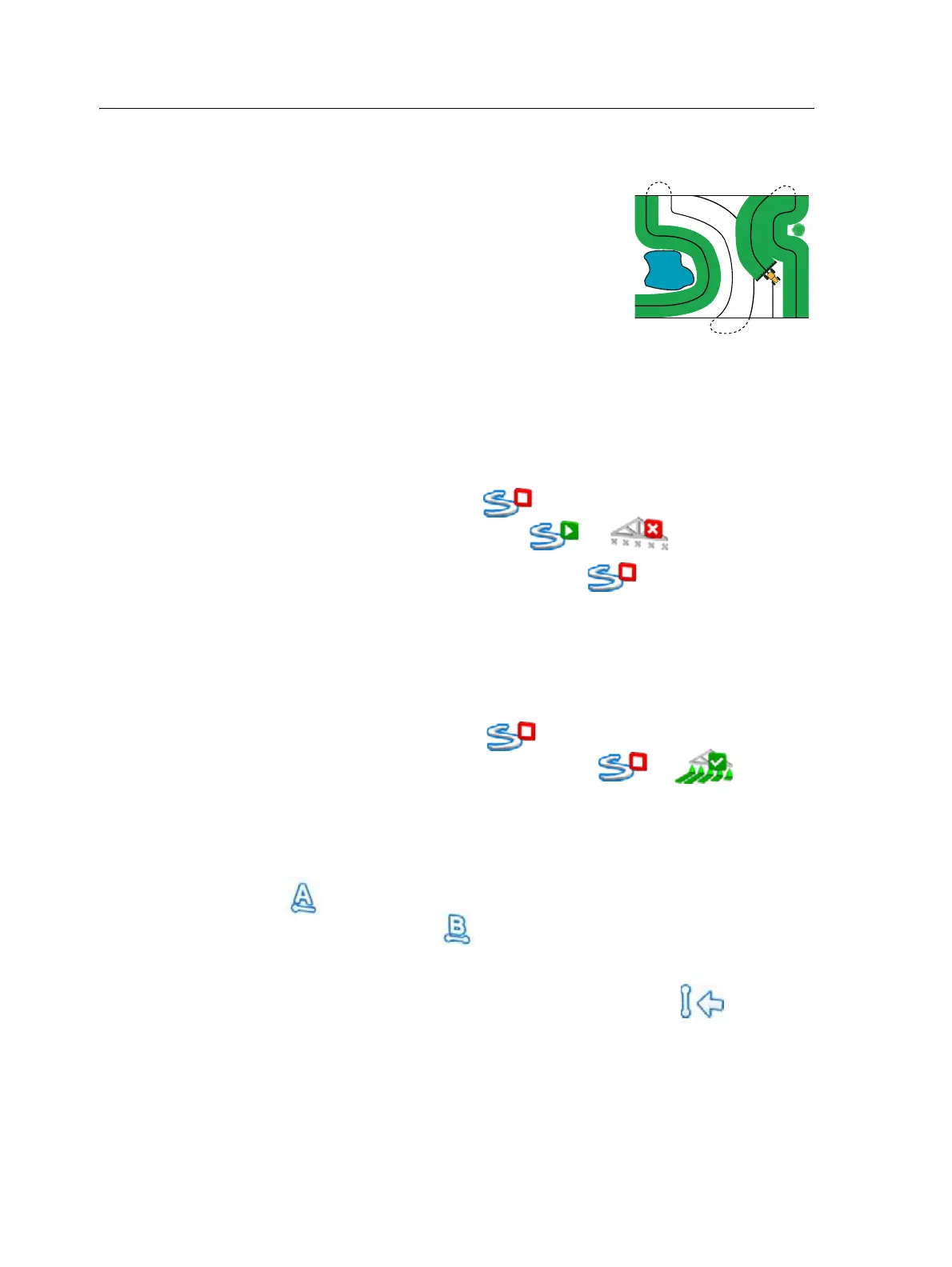
FreeForm
Use this pattern type to create curved and straight lines
for guidance in fields of any shape.
The display records the exact path you drive, and uses
this to generate the next guidance line.
To select the FreeForm recording option:
1. In the Settings screen, tap
Guidance and then
FreeForm Recording.
2. Tap
Manual or Record with coverage.
Recording a FreeForm curve
1. Drive to the start point of the FreeForm curve.
2. To:
– use Manual recording, tap .
– Record with Coverage tap either or .
While the display is recording the current path, appears on the guidance
screen.
3. Drive the curve. To record straight sections, you can use the pause feature. See
Creating straight sections on Headland or Curve swaths, page 96
4. To finish recording, do one of the following:
– If Auto U-Turn Detection is on, perform a tight U-turn.
– For Manual recording, tap .
– If you are using Record with Coverage, tap or .
Note – If Auto U-Turn Detection option is off, you must manually stop recording at the end
of each pass and then start recording again at the beginning of the next pass.
Using the FreeForm pattern to define a straight AB line
1. Tap and then drive to the end of the line.
2. At the end of the line, tap .
Switching to another line
To switch from the current FreeForm guidance line to another, tap .
The first time you tap the icon, guidance snaps to the next nearest curve. Continue
tapping the icon to cycle through other guidance lines.
Note – To use this feature, the vehicle must be within 1.5 swath widths of a FreeForm curve.



 To Next Page