122
V2.6 | 8/30/2022 | 1120758
How to set up HDR with Baumer Camera Explorer
1. Start the Camera Explorer. Open the camera. Select the prole GenICam Guru
if necessary.
2. Make sure HDR is inactive (Category: HDRControl → HDREnable = False).
Congure the lighting situation as it will be for the planned application.
3. Open the Diagram Tool [F7]. Activate the Selection. Select the brightest area
in the image.
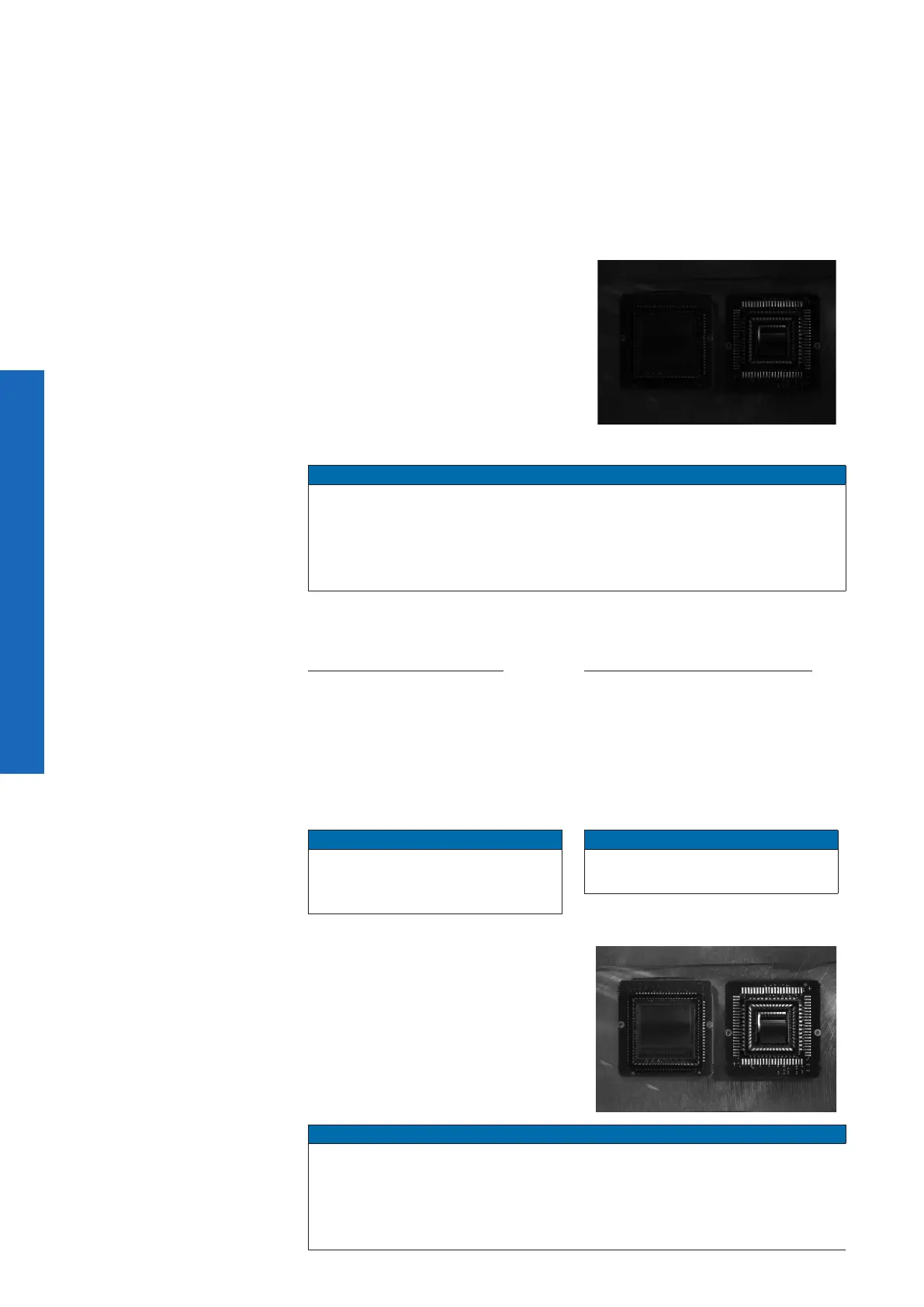
4. Set the exposure time (Category: Ac-
quisitionControl → ExposureTime) of
the camera so that the histogram peak
value is between the values of 175 to
235.
→ Now you do not lose information in
the bright area.
5. Stop the camera.
Notice
Do not use the feature (Category: AcquisitionControl → AcquisitionStop) in
the feature tree.
This has other inuences on the image acquisition too.
Use the button on the toolbar of the Camera Explorer or [F11].
6. Activate HDR (Category: HDRControl → HDREnable = True).
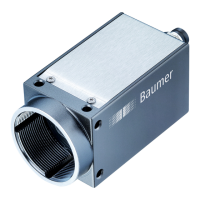
7. Gain-Controlled (row-based)
Select the gain ratio with the HDRGain-
RatioSelector feature.
Select the value for HDRGainRatioSe-
lector so that the dark image areas
contain sufcient gray value informa-
tion.
Notice
HDRGainRatioSelector is set by
default to the value of 12dB (high-
est possible gain).
Exposure-Controlled (row-based)
Select the exposure ratio with the
HDRExposureTimeRatio feature.
Select the value for HDRExposure-
TimeRatio so that the dark image ar-
eas contain sufcient gray value infor-
mation.
Notice
HDRExposureTimeRatio is set by
default to the value of 16.
8. Start the camera again.
Notice
Do not use the feature (Category: AcquisitionControl → AcquisitionStart) in
the feature tree.
This has other inuences on the image acquisition too.
Use the button on the toolbar of the Camera Explorer or [F12].


 To Next Page