99
Creating Embroidery Patterns Containing Text
Advanced Operations for Entering Text
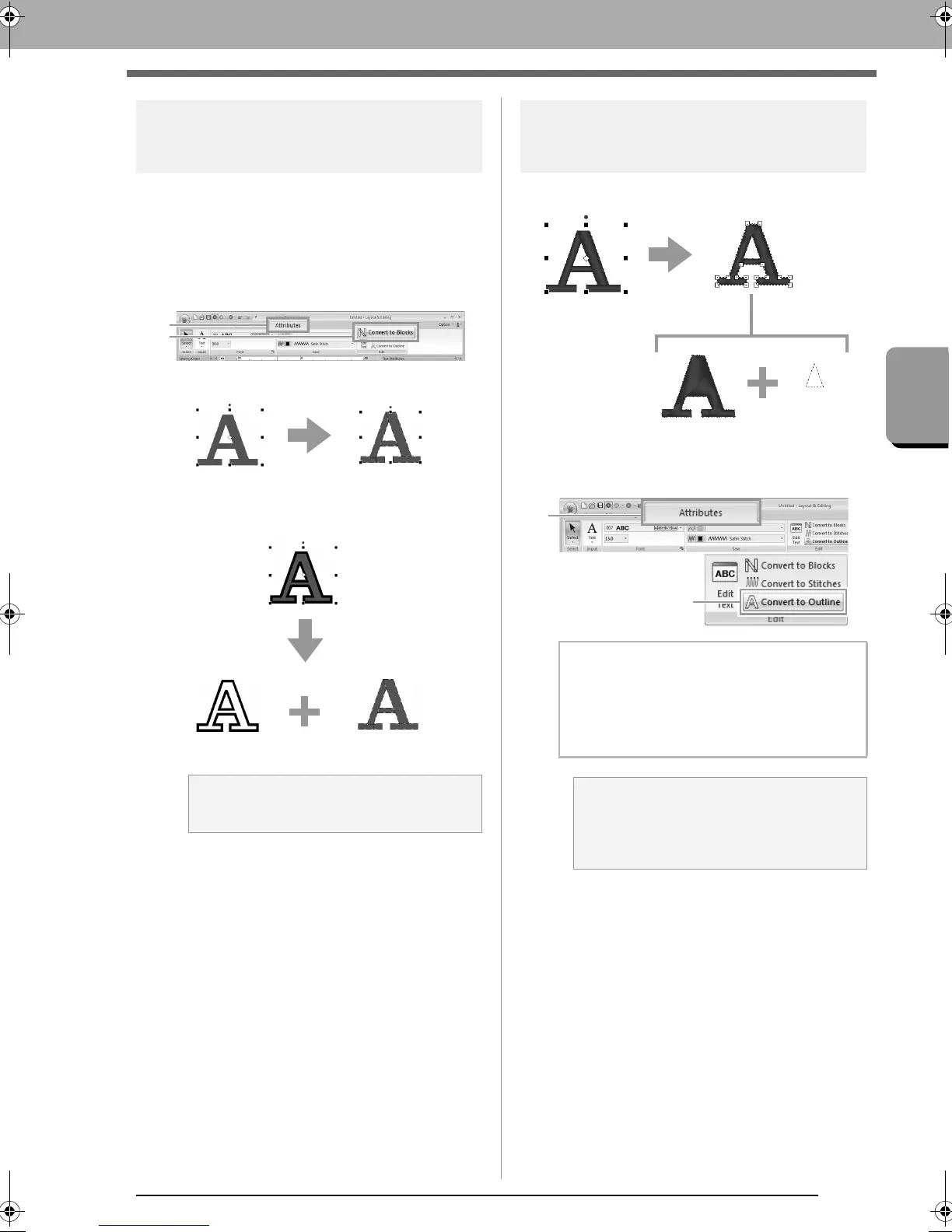
Converting text to blocks
Text can be converted into blocks (manual punching
data), allowing you to adjust the shape of the
characters.
1. Select the text or monogram text.
2. Click 1, then 2.
If line sewing was specified for the text, the
line sewing is converted to an outline.
c
For details on editing blocks or outlines,
refer to “Reshaping Embroidery Patterns”
on page 62.
Converting text to outline
pattern
1. Select text.
2. Click 1, then 2.
a Note:
Small Text cannot be converted into blocks.
b Memo:
Transformed shapes are grouped. In addition,
hole sewing is automatically specified for
openings (such as the triangle inside the letter
‘‘A’’).
a Note:
Text patterns created with built-in fonts 025
and 029, custom fonts or Small Text fonts
cannot be converted to outlines.
Text pattern Outline pattern
Hole sewing
XE8656-001.book Page 99 Monday, May 24, 2010 5:44 PM



 To Next Page
 Loading...


