137
Creating Embroidery Patterns Using Images
Importing Image Data
Importing Image Data
An imported image can be used with the Image To Stitch Wizard, as a template for manual punching, or for
printing onto iron-on transfer sheets or printable fabric when using Print and Stitch.
An image can be imported using any of the following four methods.
• From a file
• From a scanner (TWAIN Device)
• From a portrait image
• From the Clipboard
■ Image file formats
Images in the following formats can be imported.
- Windows bitmap (.bmp), Exif (.tif, .jpg), ZSoftPCX (.pcx), Windows Metafile (.wmf), Portable Network
Graphics (.png), Encapsulated PostScript (.eps), Kodak PhotoCD (.pcd), FlashPix (.fpx), JPEG2000
(.j2k), GIF (.gif)
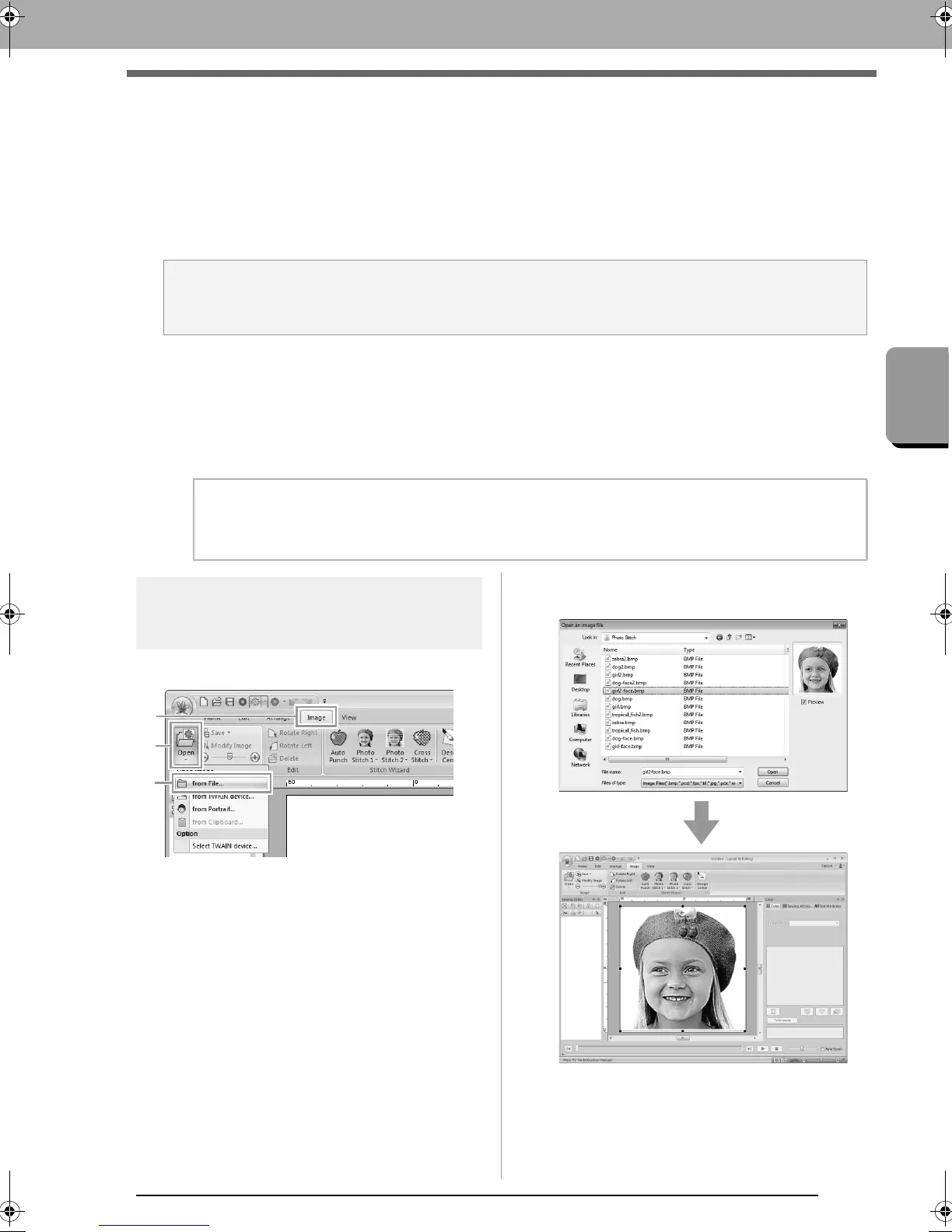
Importing image from a file
1. Click 1, then 2, then 3.
2. Select the drive, the folder and the file. Click
Open.
a Note:
Only one image can be added to the work area. If you try to display a different image, it will replace the
previous one.
b Memo:
If an EPS file doesn't contain a "Preview" image, it can not be displayed correctly. When you create a
file in EPS format, be sure to save it with preview image.
XE8656-001.book Page 137 Monday, May 24, 2010 5:44 PM



 To Next Page
 Loading...


