50
Editing Embroidery Designs
Editing Embroidery Designs
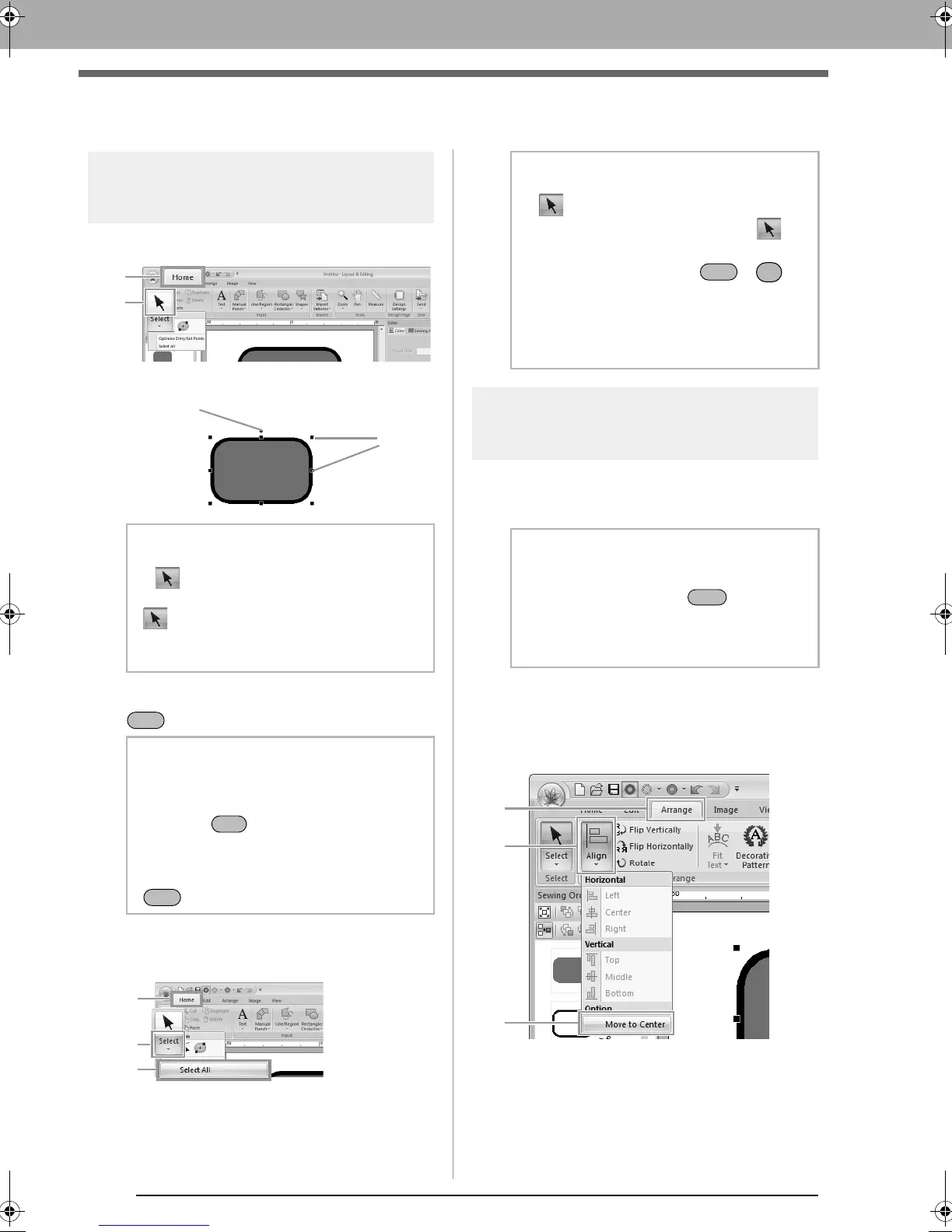
Selecting patterns
1. First, select the Select tool. Click 1, then 2.
2. Click the pattern.
3. To select an additional pattern, hold down the
key and click the other pattern.
■ Selecting all embroidery patterns
Click 1, then 2, then 3.
Moving patterns
■ Moving manually
Drag the selected pattern(s) to the desired location.
■ Moving embroidery patterns to
the center
Select the pattern(s), and then click 1, then 2, then
3.
b Memo:
• If is not displayed at
2
, click the arrow
at the bottom of the button, and then click
.
• The status bar shows the dimensions (width
and height) of the pattern.
b Memo:
• You can also select patterns by dragging
the pointer across the pattern.
• Press the key to select the next
pattern in the order that they were created.
• If multiple patterns are selected, a pattern
can be deselected by holding down the
key while clicking the pattern.
b Memo:
• If is not displayed, click the arrow at the
bottom of the button, and then click .
• All patterns can also be selected by
pressing the shortcut keys + .
• Locked embroidery patterns cannot be
selected.
c
“Locking embroidery patterns” on
page 74
b Memo:
• To move the pattern horizontally or
vertically, hold down the key while
dragging it.
• Pressing the arrow keys moves the
selected pattern.
A
XE8656-001.book Page 50 Monday, May 24, 2010 5:44 PM



 To Next Page
 Loading...


