46
Drawing Shapes
2. Click 1, then 2, then 3.
■ Canceling hole sewing
1. Select a pattern that has been set for hole
sewing.
2. Click 1, then 2, then 3.
Changing shapes of
overlapped patterns
Embroidery patterns created with the Rectangle,
Circle or Arc tools, Shape tools or the Line/Region
tools can be selected to remove overlapping regions
or to be merged.
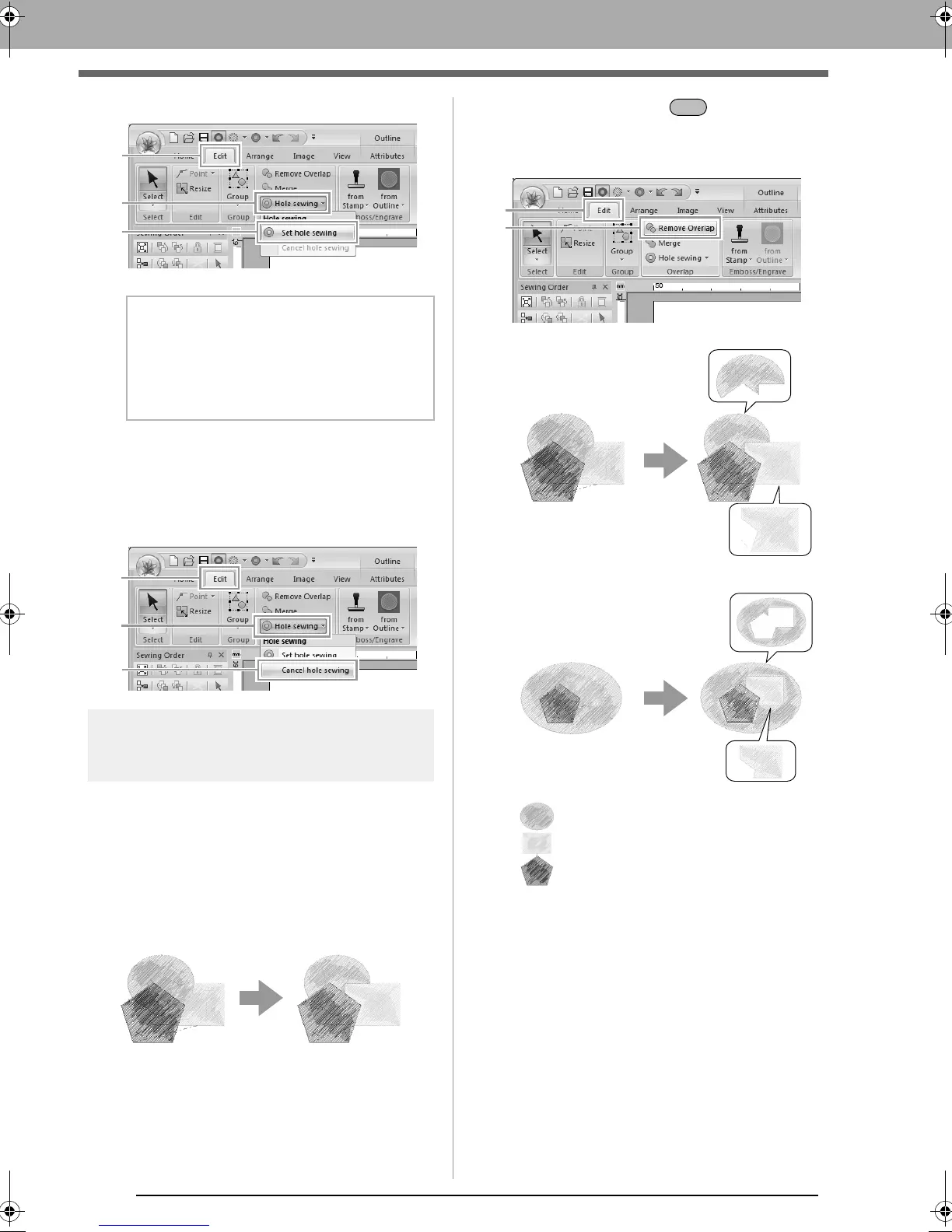
■ Removing overlapping
Overlapped patterns can be set so that the
overlapping region is removed.
1. While holding down the key, click two or
more overlapped patterns to select them.
2. Click 1, then 2.
• When partially overlapped
• When enclosed
b Memo:
To see better what the hole sewing setting
does, preview the patterns before and after
setting hole sewing.
c
“Stitch View” on page 70
First pattern in the sewing order
Second pattern in the sewing order
Third pattern in the sewing order
XE8656-001.book Page 46 Monday, May 24, 2010 5:44 PM



 To Next Page
 Loading...


