263
Saving Font Character Patterns
Saving Font Character Patterns
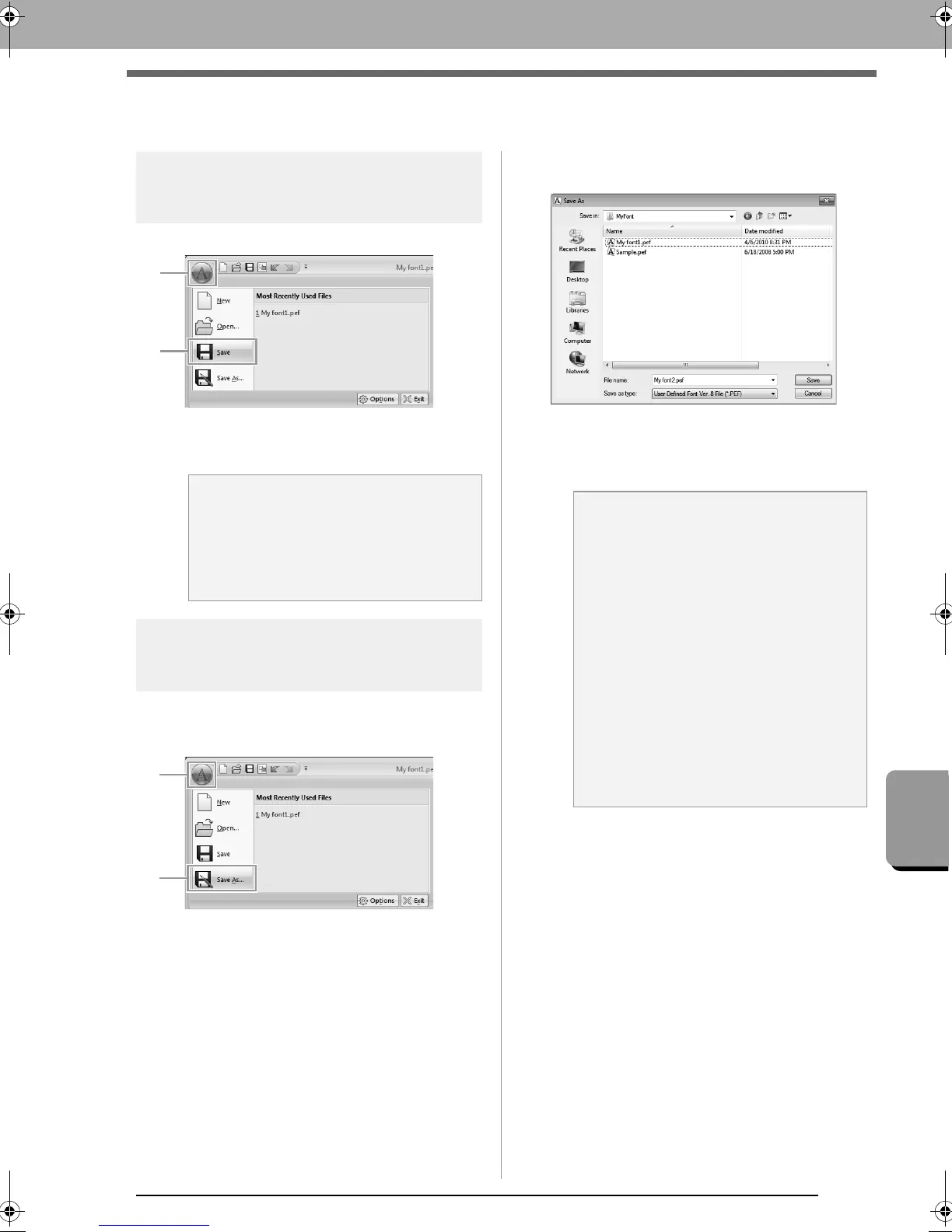
Overwriting
Click 1, then 2.
If no file name has been specified or if the
file cannot be found, the Save As dialog
box appears.
Saving with a new name
The font character patterns are saved as .pef files.
1. Click 1, then 2.
2. Select the MyFont folder at the following
location.
For example, (Drive where PE-DESIGN was
installed)\Program Files (Program Files
(x86))\Brother\PE-DESIGN NEXT\MyFont
And then type in the file name, then click Save.
a Note:
If any part of the character pattern extends
off the Design Page, a message appears.
Edit the character pattern so that no part
extends off the Design Page, and then save
it again.
a Note:
• The font will not be usable in the Layout &
Editing if it’s stored in a different folder.
• The created font is saved in the
MyFont
folder at the following location.
• Saved files can be used in Layout &
Editing.
c
“Step 5 Creating an embroidery
pattern using the created font
characters” on page 251
• If Layout & Editing has already started up
when a new character is saved in Font
Creator, that character will not appear in
the Font selector list in Layout & Editing. In
this case, exit Layout & Editing, and then
start it up again.
font.fm Page 263 Thursday, May 27, 2010 8:28 PM



 To Next Page
 Loading...


