77
Opening/Importing Embroidery Designs
Basic Layout & Editing Operations
Opening/Importing Embroidery Designs
Creating a new embroidery
design
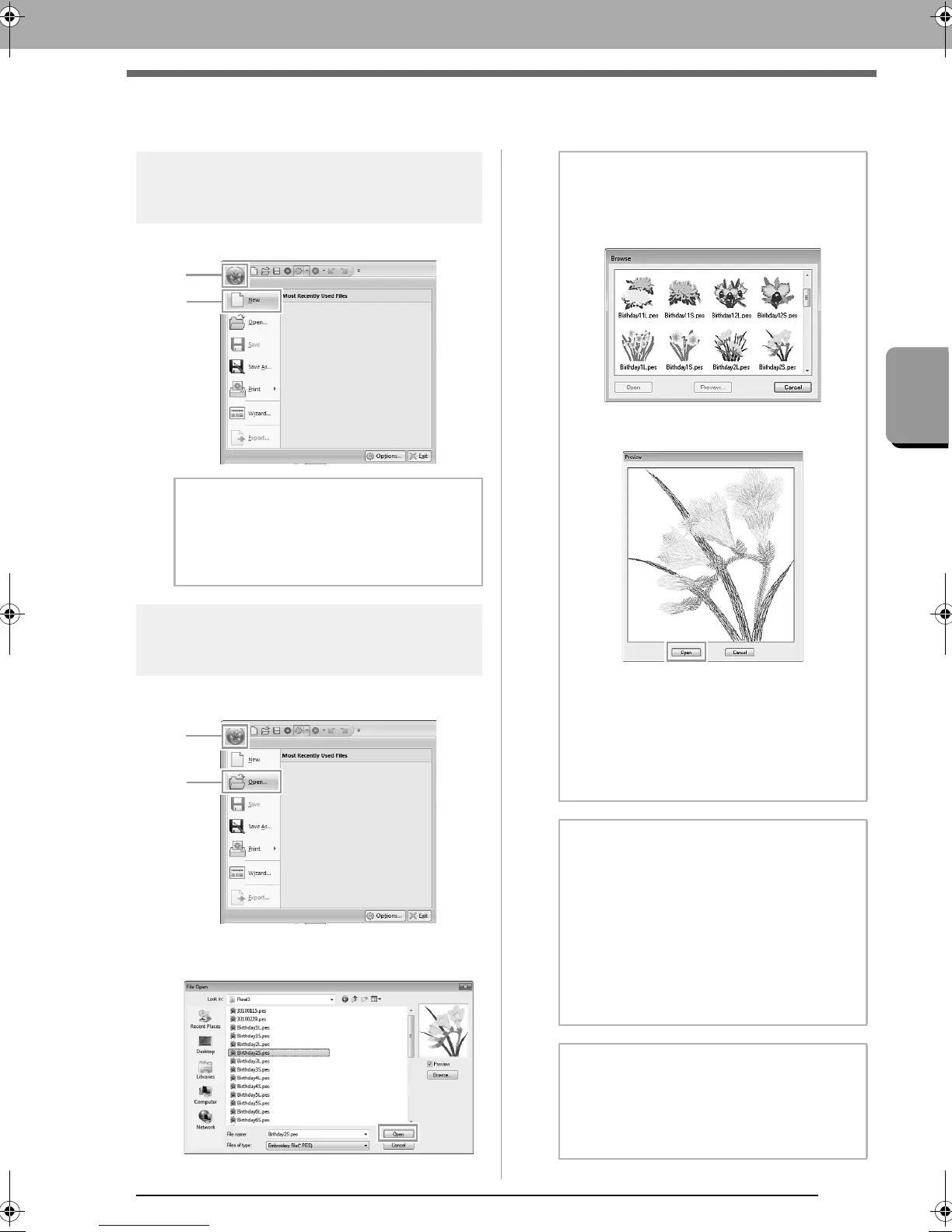
Click 1, then 2.
Opening a Layout & Editing
file
1. Click 1, then 2.
2. Select the drive, the folder and the file, and
then click Open, or double-click the file's icon.
b Memo:
The size of the Design Page can be changed.
c
“Specifying the Design Page Size
and Color” on page 85
b Memo:
• To view the data in the selected folder as
thumbnails in the
Browse
dialog box, click
Browse
.
To see a more detailed design, select a file,
and then click
Preview
.
• To open the displayed file, click
Open
.
• If no files are listed, there are no .pes files in
the selected folder. Select a folder
containing a .pes file.
• If the selected file is in a format other than
the .pes format, the message “Unexpected
file format” appears in the
Preview
box.
b Memo:
A file can be opened in any of the following
ways.
• Drag the embroidery design from file
Windows Explorer into the Layout &
Editing window.
• Double-click the embroidery design file
in Windows Explorer.
• Double-click the embroidery design file
in Design Database.
b Memo:
Multiple files can be opened in Layout &
Editing. In addition, data can be copied and
pasted between files that are open at the
same time.
XE8656-001.book Page 77 Monday, May 24, 2010 5:44 PM



 To Next Page
 Loading...


