259
Creating a Font Character Pattern
Editing Font Character
Patterns
■ Selecting patterns
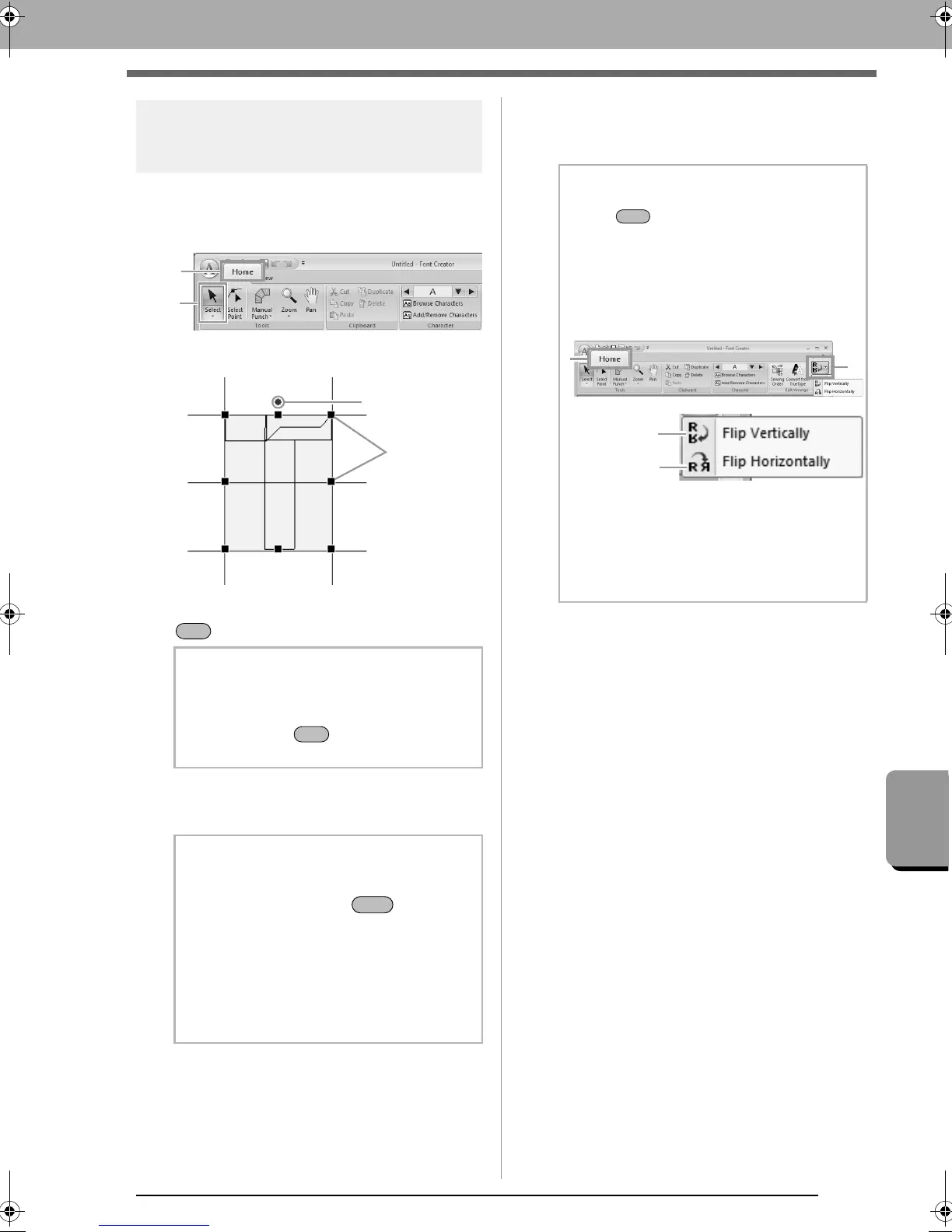
1. To use the Select tool, click 1, then 2.
2. Click the pattern.
3. To select an additional pattern, hold down the
key and click the other pattern.
■ Moving patterns
Selected patterns can be dragged to move them.
■ Scaling patterns
Drag a handle of the selected pattern to adjust its
size. Drag the rotation handle to rotate the pattern.
b Memo:
• You can also select patterns by dragging the
pointer across the pattern.
•
Hold down the key and click a
selected pattern to deselect it.
b Memo:
• To move the pattern horizontally or
vertically, hold down the key while
dragging it.
• Pressing the arrow keys moves the selected
pattern one grid mark in the direction of the
arrow on the key. If the grid is not displayed,
the pattern moves a distance smaller than
the smallest grid interval in the direction of
the arrow on the key.
b Memo:
• If the key is held down while a
handle is dragged, the pattern is enlarged
or reduced from the center of the pattern.
• To flip the selected pattern(s) up/down, click
1
, then
2
, then
Flip
Vertically
(3)
.
To flip the selected pattern(s) left/right, click
1
, then
2
, then
Flip Horizontally
(4)
.
• Using commands other than those
mentioned above, selected patterns can be
edited in other ways, for example,
duplicated or deleted.
c
“Menus/Tools” of “Font Creator”
on page 291.
XE8656-001.book Page 259 Monday, May 24, 2010 5:44 PM






 To Next Page