115
Creating Embroidery Patterns Containing Text
Template Feature
Template Feature
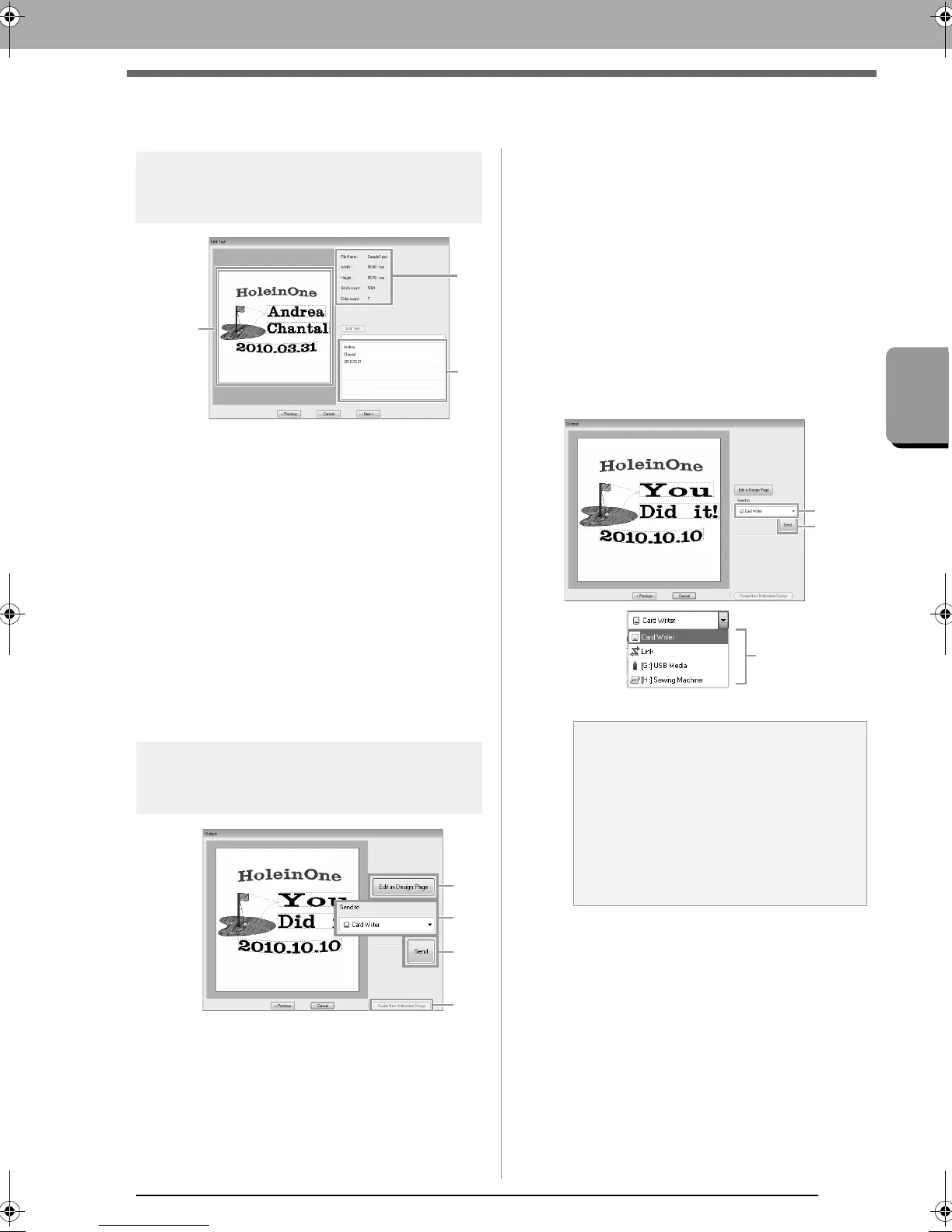
About the Edit Text dialog
box
(1) Lists text that can be edited. Edit the text
here.
(2) Check the results of the edited text.
(3) Shows the embroidery information for the
template.
■ Editing the text
1. Select the text in (1), and then click Edit Text.
The text is highlighted.
2. Use the keyboard to input the text.
3. Repeat steps 1 and 2 for each text.
The results of editing appear in (2).
About the Output dialog
box
(1) Opens the template in a Design Page,
where it can be edited or saved.
(2) Specifies the output destination.
(3) Outputs the template.
(4) Returns to the dialog box for selecting a
template. A different template can be
edited.
■ Outputting the edited template
Send to USB Memory, Send to Your Machine, Write
to Card and Link are available as output
destinations. Select an output destination according
to the method used to transfer data to your
embroidery machine.
1. Depending on the desired output destination,
prepare the original card or USB media.
Otherwise, connect the embroidery machine
to the computer.
2. Select the output destination at (1), and then
click Send (2).
a Note:
Select an output destination according to the
method used to transfer data to your
embroidery machine.
c
“Transferring Embroidery
Designs to Machines” on
page 174 and “Using the Link
Function to Embroider From
the Computer” on page 177
XE8656-001.book Page 115 Monday, May 24, 2010 5:44 PM



 To Next Page
 Loading...


