240
Editing a pattern in Motif Mode
Editing a pattern in Motif Mode
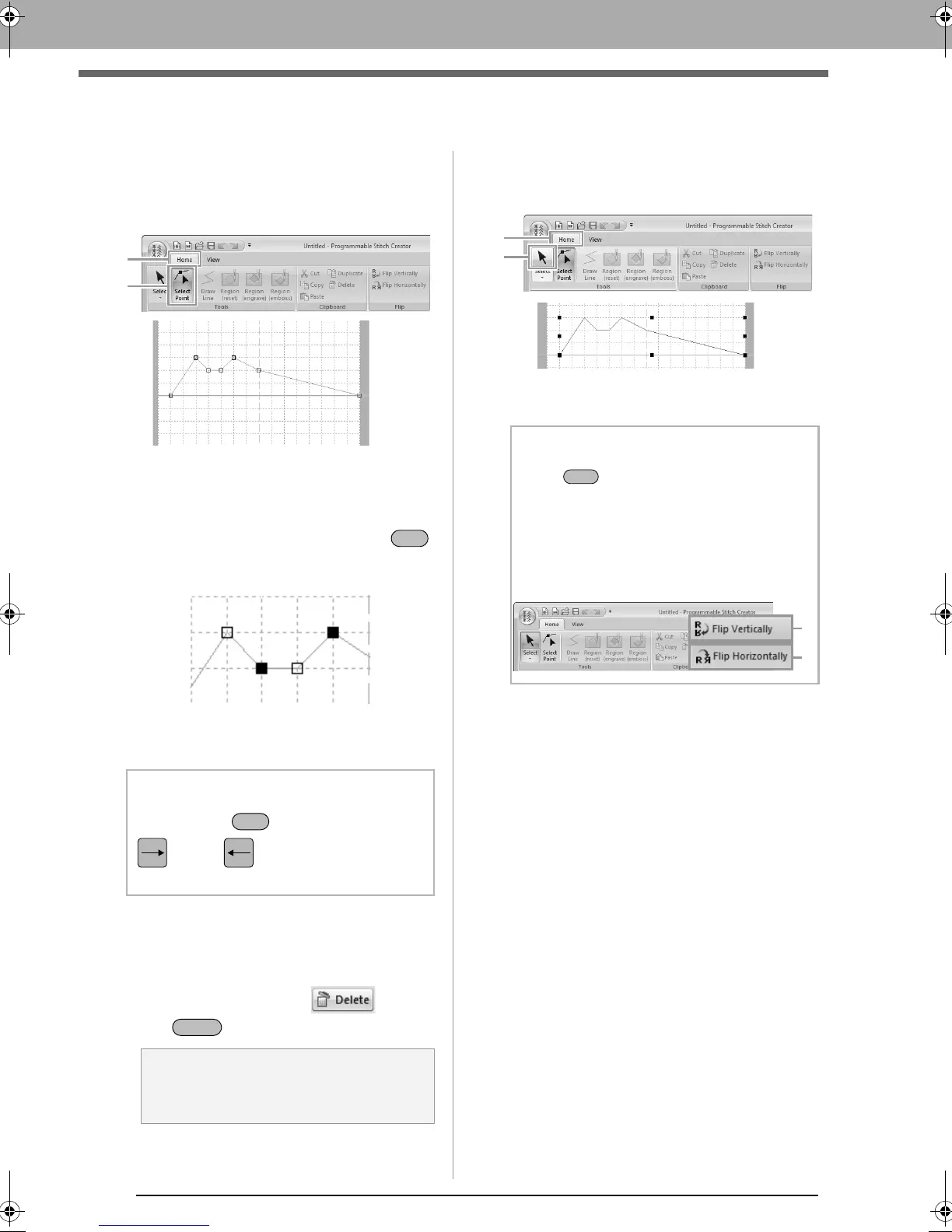
■ Moving and deleting several
points at a time
1. Click 1, then 2.
2. To select a single point, click an empty square.
To select multiple points, hold down the
key while clicking the points, or dragging the
pointer over the points.
3. Edit the points.
• To move the points, drag them to the
desired location.
• To delete the point, click or press
the key.
■ Scaling patterns
1. Click 1, then 2.
2. Drag the handle to adjust the selected
pattern(s) to the desired size.
b Memo:
Hold down the key while pressing the
key or key. The selection
direction changes to the end or start point.
a Note:
The start point (blue square) and end point
(red square) can not be deleted.
Blue square: Start point
Red square: End point
: Selected point
: Unselected point
b Memo:
• If the key is held down while a handle
is dragged, the pattern is enlarged or
reduced from the center of the pattern.
• To flip the pattern along a vertical axis, click
(1)
.
• To flip the pattern along a horizontal axis,
click
(2)
.
XE8656-001.book Page 240 Monday, May 24, 2010 5:44 PM



 To Next Page
 Loading...


