95
Creating Embroidery Patterns Containing Text
Advanced Operations for Entering Text
■ Specifying TrueType font
attributes
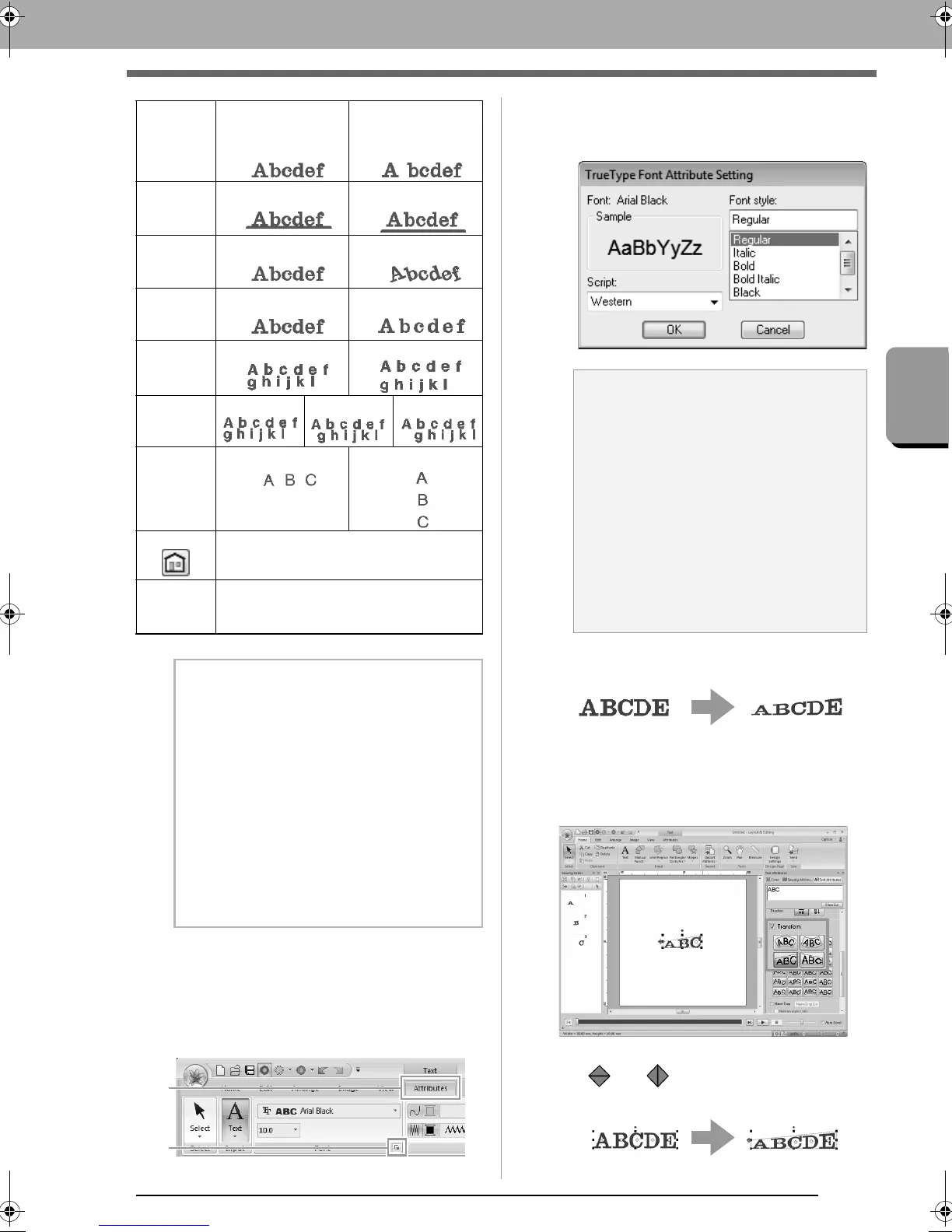
1. Select text in a TrueType font.
2. Click 1, then 2.
3. Select a font style from the Font style
selector, select a character set from the Script
selector, and then click OK.
■ Transforming text
1.
Select the text.
2. Select the Transform check box, and then
click the transformation shape button.
Depending on the selected shape, a dotted
line and or appear around the text.
(1)
Kerning
0.0 mm 5.0 mm
(between “A” and
“b”)
(2)
Vertical
Offset
0.0 mm
2.0 mm
(3)
Rotate
Angle
0°
20°
(4)
Character
Spacing
0.0 mm
2.0 mm
(5)
Line
Spacing
100% 150%
(6)
Alignment
Left Center Right
(7)
Direction
Horizontal Vertical
(8)
Click to return to the default setting.
(9)
Name
Drop
c
“Name Drop Feature
(Replacing Text)” on
page 111.
b Memo:
• Both
Kerning
and
Character Spacing
set
the spacing between characters.
Character
Spacing
is always applied to the entire text
pattern, while
Kerning
can be applied to
individual characters.
c
Refer to “Selecting characters” on
page 97 for more details about
selecting individual characters in
a text pattern.
• Settings (1) (2) (3) specified in the
Text
Attributes
tab are applied to all selected
characters.
a Note:
• The settings for
Font style
and
Script
differ depending on the TrueType font that
is selected.
• If text created from multiple TrueType
fonts is selected, this command is not
available. In addition, if text of the same
font but different font styles or scripts is
selected, this dialog box appears with the
attribute settings for the first letter in the
text. In either case mentioned above,
selecting only one character from within
text displays a dialog box containing only
that character’s attributes.
XE8656-001.book Page 95 Monday, May 24, 2010 5:44 PM



 To Next Page
 Loading...


