92
Advanced Operations for Entering Text
Advanced Operations for Entering Text
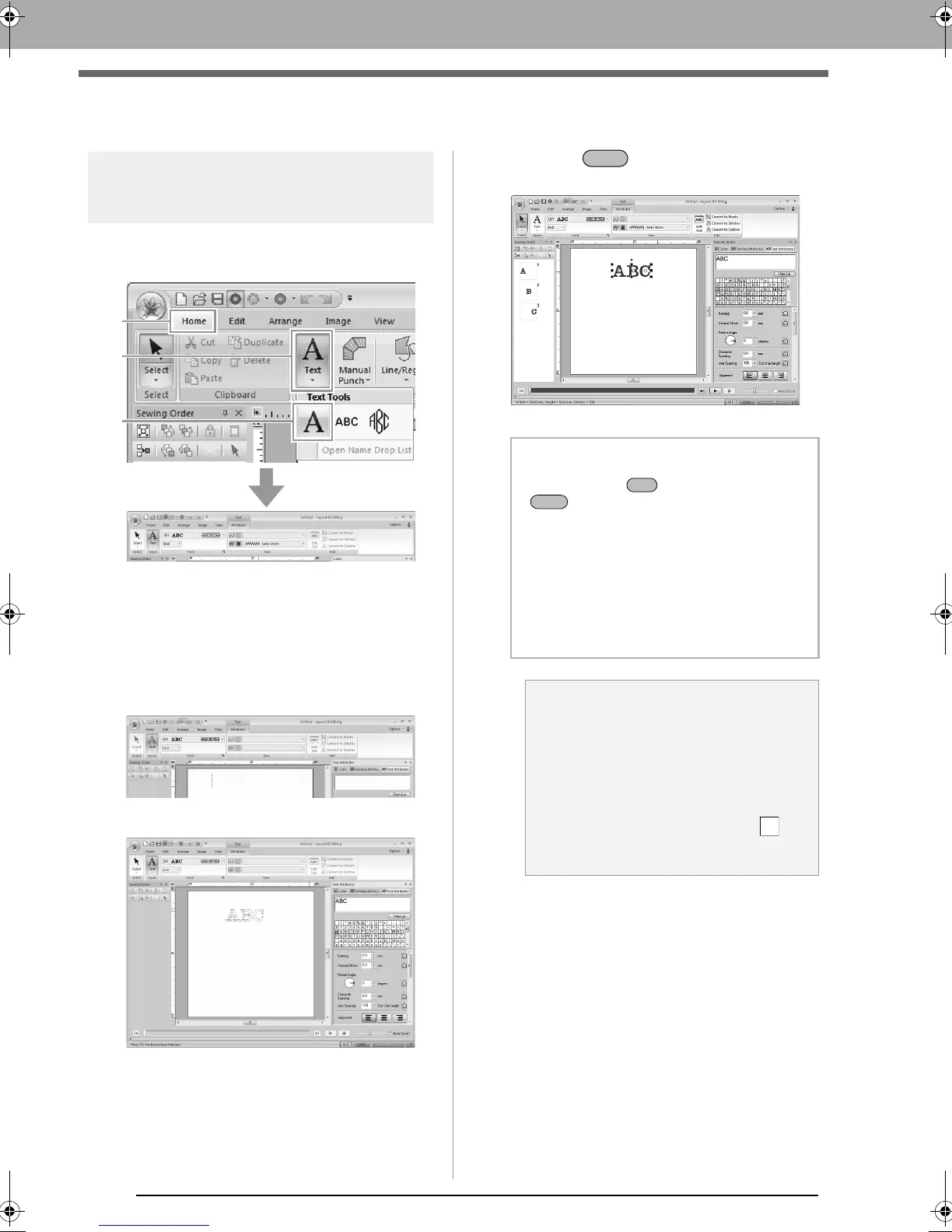
Entering text
1. Select the Text tool by clicking 1, then 2, then
3.
2. If necessary, change the font, text size, color
and sew type.
c
“Setting text attributes” on page 93 and
“Embroidery attributes for text” on
page 100
3. Click in the Design Page.
4. Type the text.
5. Press the key or click the Design
Page.
b Memo:
• Hold down the key and press the
key to enter a new line of text.
• Characters can also be entered by clicking
them in the character table. This is
particularly useful if you have to enter
accented characters that are not available
on your keyboard.
• Click
Hide List
to hide the character table.
While it is hidden, click
Show List
to display
the character table.
a Note:
• Line sewing cannot be switched on with
custom fonts and built-in fonts 025 and
029.
• If the entered character is not available
with the selected font or if the character
cannot be converted to an embroidery
pattern, the character appears as in
the Design Page. If this occurs, enter a
different character.
XE8656-001.book Page 92 Monday, May 24, 2010 5:44 PM



 To Next Page
 Loading...


