200
Figure Handle Stage
Editing outlines
■ Scaling outlines
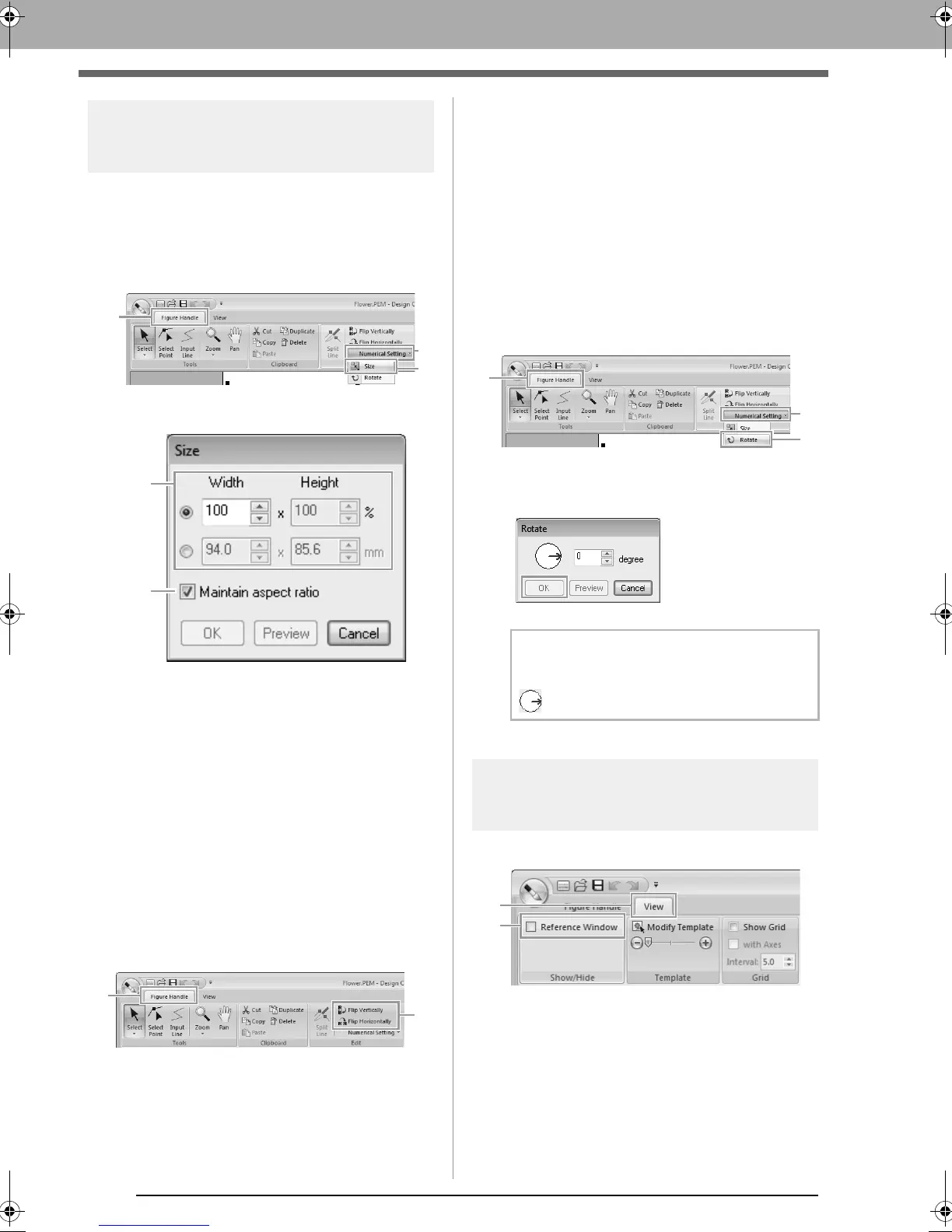
Scaling numerically:
1. Select the outline.
2. Click 1, then 2, then 3.
3. Select a size, and then click OK.
(1) To change the width and height
proportionally, select the Maintain
aspect ratio check box.
(2) Select whether the width and height will
be set as a percentage (%) or a dimension
(millimeters or inches).
Type or select the desired width and
height.
■ Flipping outlines horizontally or
vertically
1.
Select the outline.
2. Click 1, then 2.
■ Rotating outlines
Rotating manually:
1. Select the outline.
2. Move the pointer over the rotation handle. And
then drag.
Rotating numerically:
1. Select the outline.
2. Click 1, then 2, then 3.
3. Type or select the desired rotation angle, and
then click OK.
Viewing outlines in the
Reference Window
Click 1, then 2.
b Memo:
An angle can also be selected by dragging
in the
Rotate
dialog box.
XE8656-001.book Page 200 Monday, May 24, 2010 5:44 PM



 To Next Page
 Loading...


