134
Advanced Stitch Wizard Operations
Advanced Stitch Wizard Operations
Image To Stitch Wizard
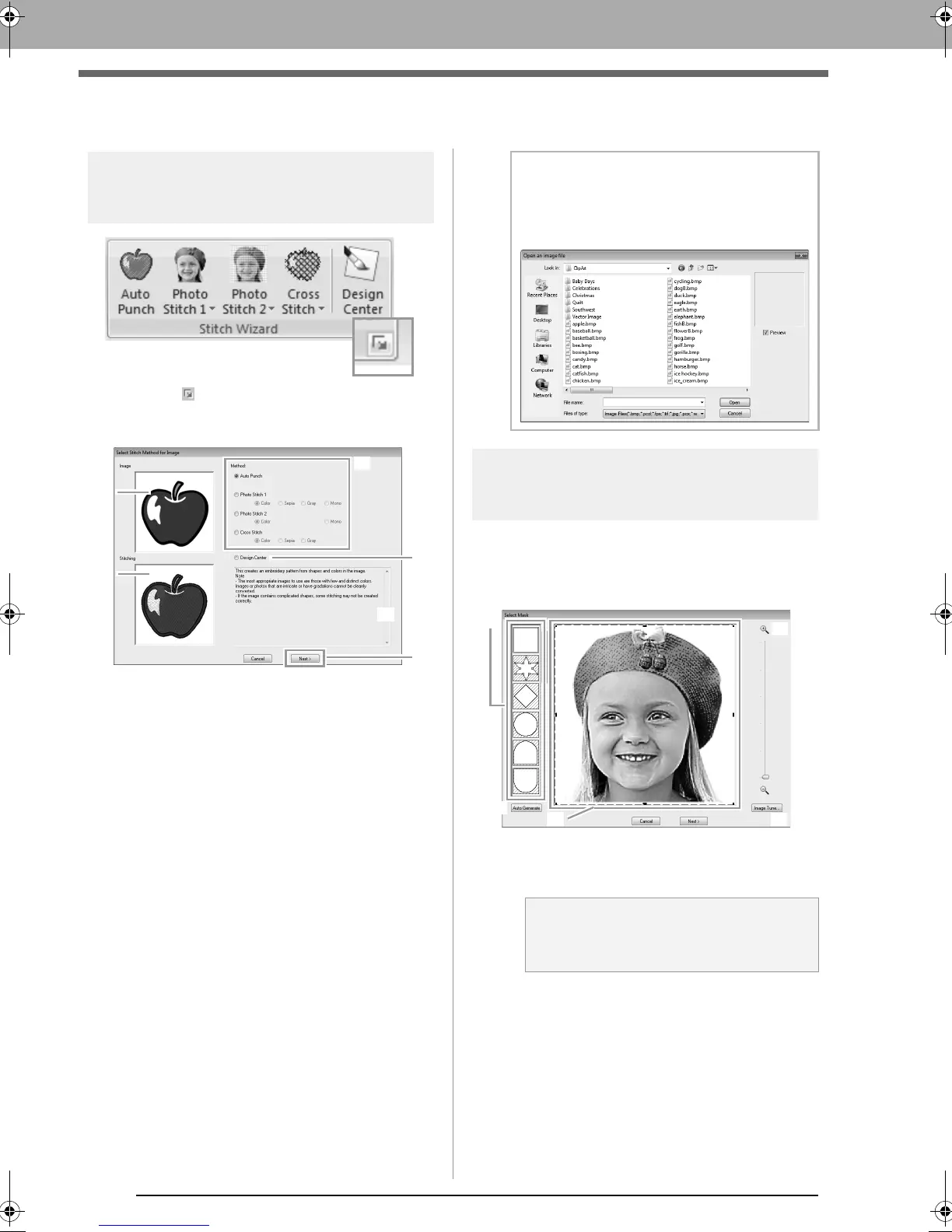
Clicking displays the following dialog box. If
an image has been imported, the next dialog box
appears.
(1) Sample image before being converted
(2) Sample image of embroidery pattern after
being converted
(3) Select the conversion method.
(4) Select to start up Design Center and
import the image into the Design Page.
(5) Description of conversion method
(6) Click to continue to the next step.
Adjusting the Mask and
Image
■ Select Mask dialog box
The Select Mask dialog box appears no matter
which conversion method was selected.
(1) Drag the handles to adjust the shape of
the mask. Drag the mask to adjust its
position.
b Memo:
If no image has been imported into the Design
Page, the
Open an image file
dialog box
appears.
a Note:
With a small original image, it may not be
possible to reduce the size of the mask.
XE8656-001.book Page 134 Monday, May 24, 2010 5:44 PM



 To Next Page
 Loading...


