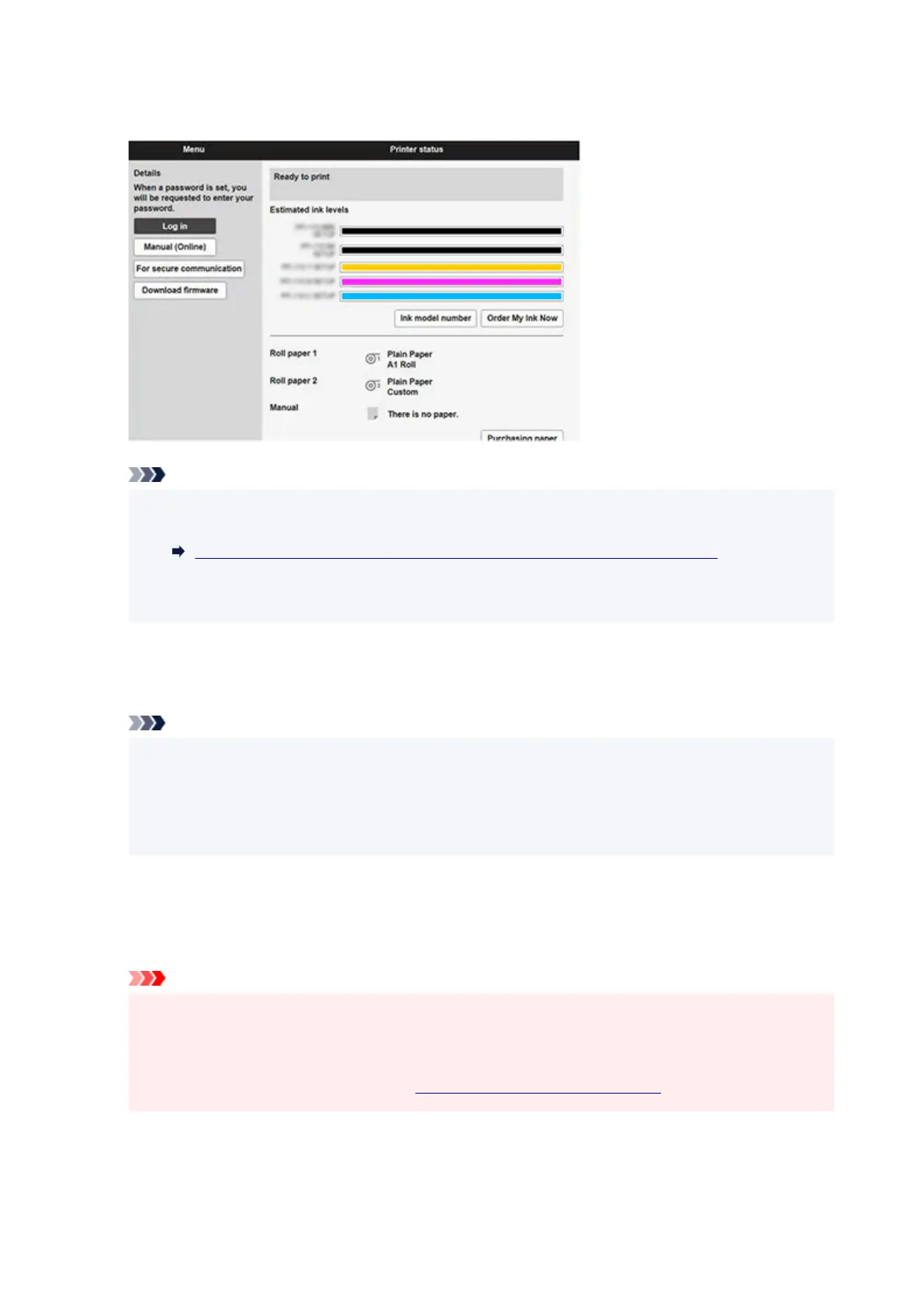
When you access, "Remote UI" will be displayed on the web browser on your smartphone, tablet, or
computer.
Note
• If you display Remote UI for the first time on your smartphone, tablet, or computer, download the
root certificate, and then register it.
Registering Printer's Root Certificate to Web Browser for SSL Communication
• If the root certificate is not registered, a message to warn you that the secure connection is not
guaranteed may appear.
3. Select Log in.3.
The password authentication screen appears.
Note
• When the standard user mode is enabled, choose either administrator mode or standard user•
mode to log on.
After choosing a mode and selecting Log in, the password authentication screen of each mode
appears.
4.
Enter password.
4.
When the password authentication is complete, the menus that can be utilized are displayed on the web
browser.
Important
•
The password is set at the time of purchase. The password is the printer serial number. The
•
printer serial number is printed on the sticker attached on the printer. It consists of 9 alphanumeric
characters (four alphabets followed by five numbers).
For details on setting password, see Setting Passwords Using Remote UI.
5.
Confirm that the main screen of Remote UI is displayed.
5.
For changeable setting items, see below.
344



 To Next Page