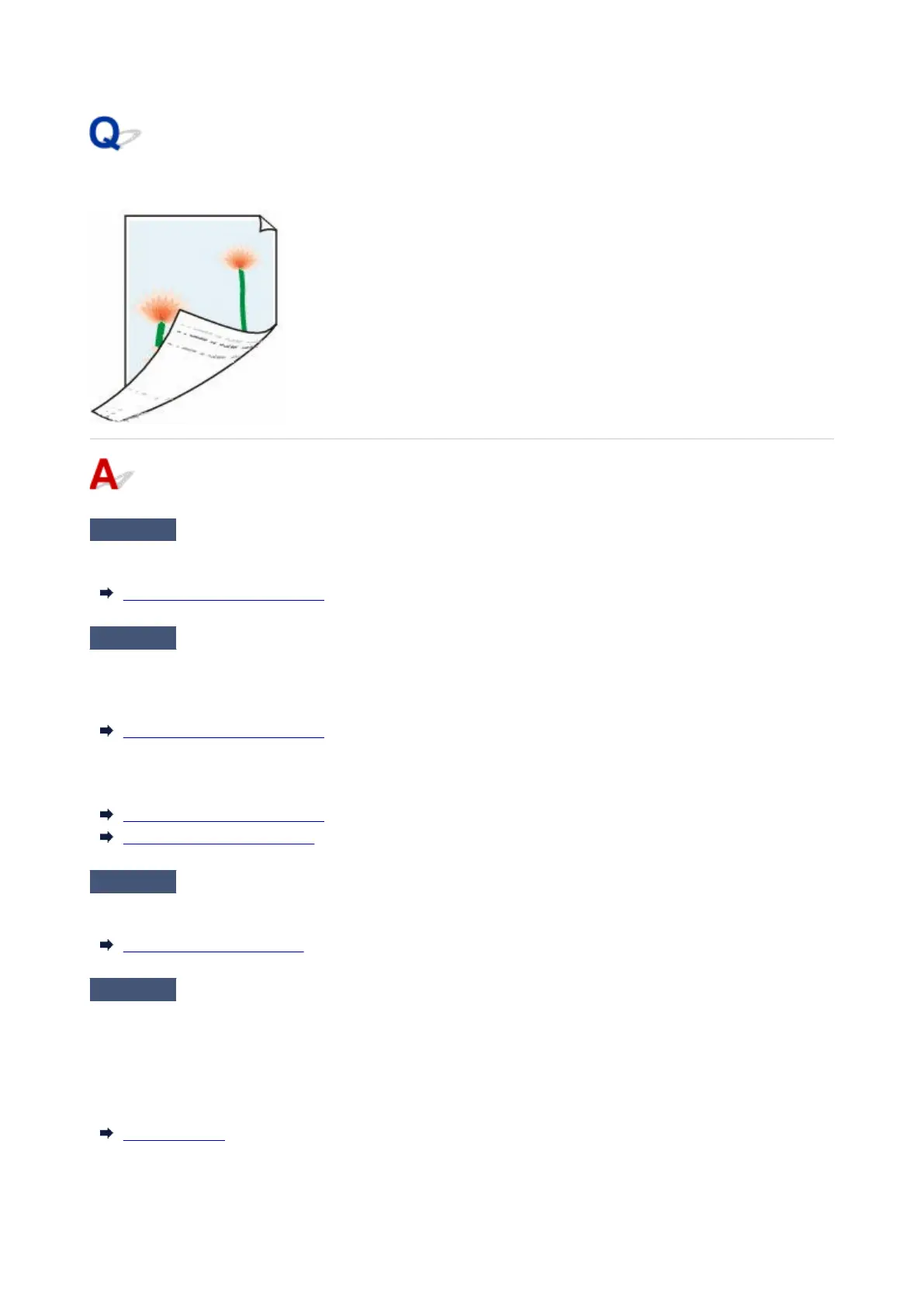
The back side of the paper is dirty
Check 1
Was the previous print job borderless, or printed on small paper?
Open the top cover and clean the platen.
Cleaning Inside the Top Cover
Check 2
Is Detect paper width in the touch screen menu set to Disable?
Printing with Detect paper width set to Disable may cause the platen to be dirtied.
Set Detect paper width in the touch screen menu to Enable, and then open the top cover and clean the platen.
Cleaning Inside the Top Cover
To continue printing with Detect paper width set to Disable, first open the top cover and clean the platen, and
then manually feed roll paper over the platen when printing.
Cleaning Inside the Top Cover
Feeding Roll Paper Manually
Check 3
Paper may be gripped weakly over the platen.
Set a higher Transport unit vacuum strength in the touch screen menu.
Adjusting Vacuum Strength
Check 4
Is the setting of Extension for borderless printing in the touch screen menu
large?
The platen may become dirtied by setting a large amount of extension.
Reduce the setting of Extension for borderless printing in the touch screen menu to less than the current
setting.
Menu Structure
795



 To Next Page