Loading Sheets in the Printer
Follow these steps to load sheets in the printer.
Important
• Paper that is wrinkled or warped may jam. If necessary, straighten the paper and reload it.•
• Load the paper straight. Loading paper askew will cause an error. (See "1317.")•
• If you are not using the stand, make sure there is no object under the printer. If there is any object•
under the printer, it may cause damage of the paper or jamming.
Note
• Before loading cut sheets, check whether or not the inside of the top cover or the output guide is•
soiled. If these areas are dirty, we recommend cleaning them in advance. (See "Cleaning Inside the
Top Cover.").
• Store unused paper in the original package, away from high temperature, humidity, and direct sunlight.•
1. Select sheets as the paper source.1.
•
If a print job was received
•
Sheets are automatically selected, and the media type and size specified by the print job are
shown on the touch screen.
Tap OK and Load paper.
• If no print job was received•
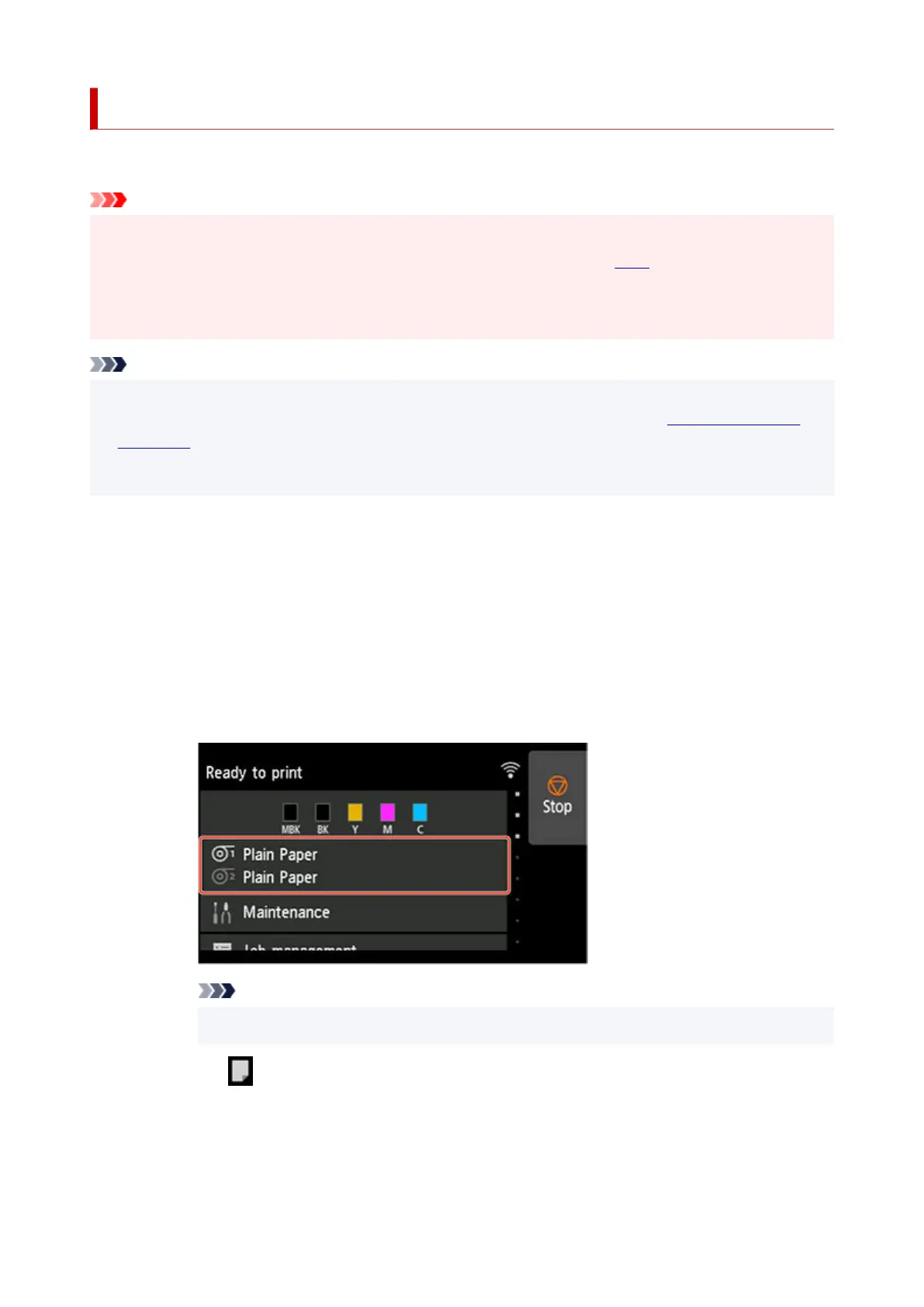
1. Tap paper settings display area on touch screen.1.
Note
•
If the Home screen does not appear, tap the HOME button.
•
2.
Tap area.
2.
3.
Tap Load paper or Replace paper.
3.
152



 To Next Page