Printing Document in Center of Paper
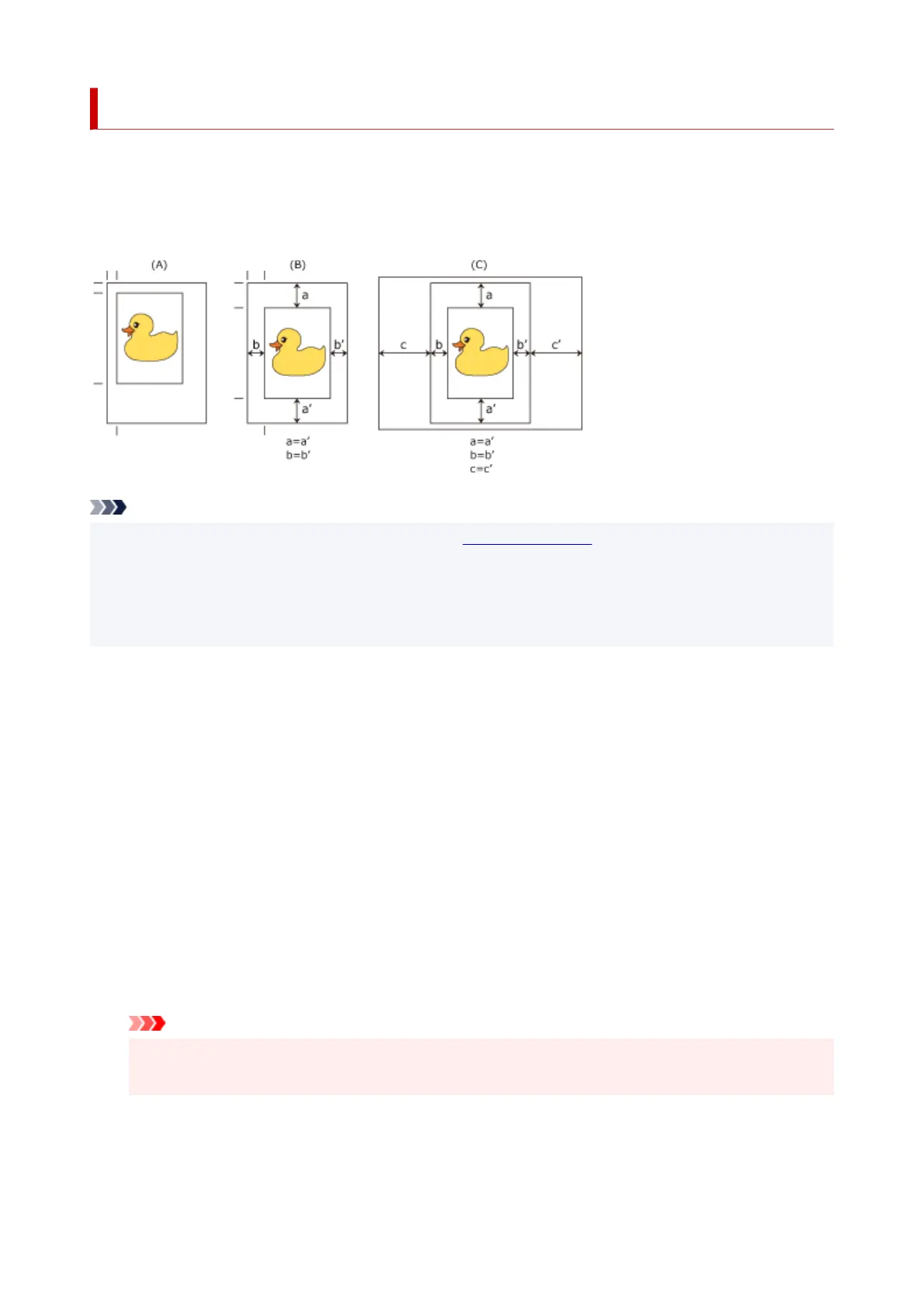
When you want to position the source document in the middle of the cut paper and print, or print with even
margins on the right and left in relation to the width of the roll paper, use the Print Centered function.
The print results when setting with Print Centered are as follows. Normally, if Print Centered is set when
printed as in (A), it will be printed as in (B) for cut paper and (C) for roll paper.
Note
• When setting the magnification using Scale in the Page Setup Dialog, a fixed point at the upper left
corner of a page is always used as a start point for enlarging or reducing the page. For that reason,
when performing reduced printing, the bottom and right margins of the paper will increase. At this time,
if you place a checkmark next to Print Centered, the top, bottom, left and right margins can all be
printed evenly.
The procedure for printing to the center of the paper is as follows:
1. Select the paper size1.
From Paper Size, select the size of the paper you want to print.
2.
Select Quality & Media from the pop-up menu
2.
3.
Select the media type
3.
For Media Type, select the same paper type loaded in the printer.
If Auto (Use Printer Settings) is selected, the paper configured in printer settings is printed.
4.
Select the paper source
4.
For Paper Source, select the setting that matches your purpose.
Important
•
The paper feed method will differ depending on the lower level (roll paper 2) settings or roll unit
option settings.
5.
Select Page Processing from the pop-up menu
5.
6.
Selecting Roll Paper Width
6.
628



 To Next Page