Displaying the Printing Status Screen
Check the print progress according to the following procedure:
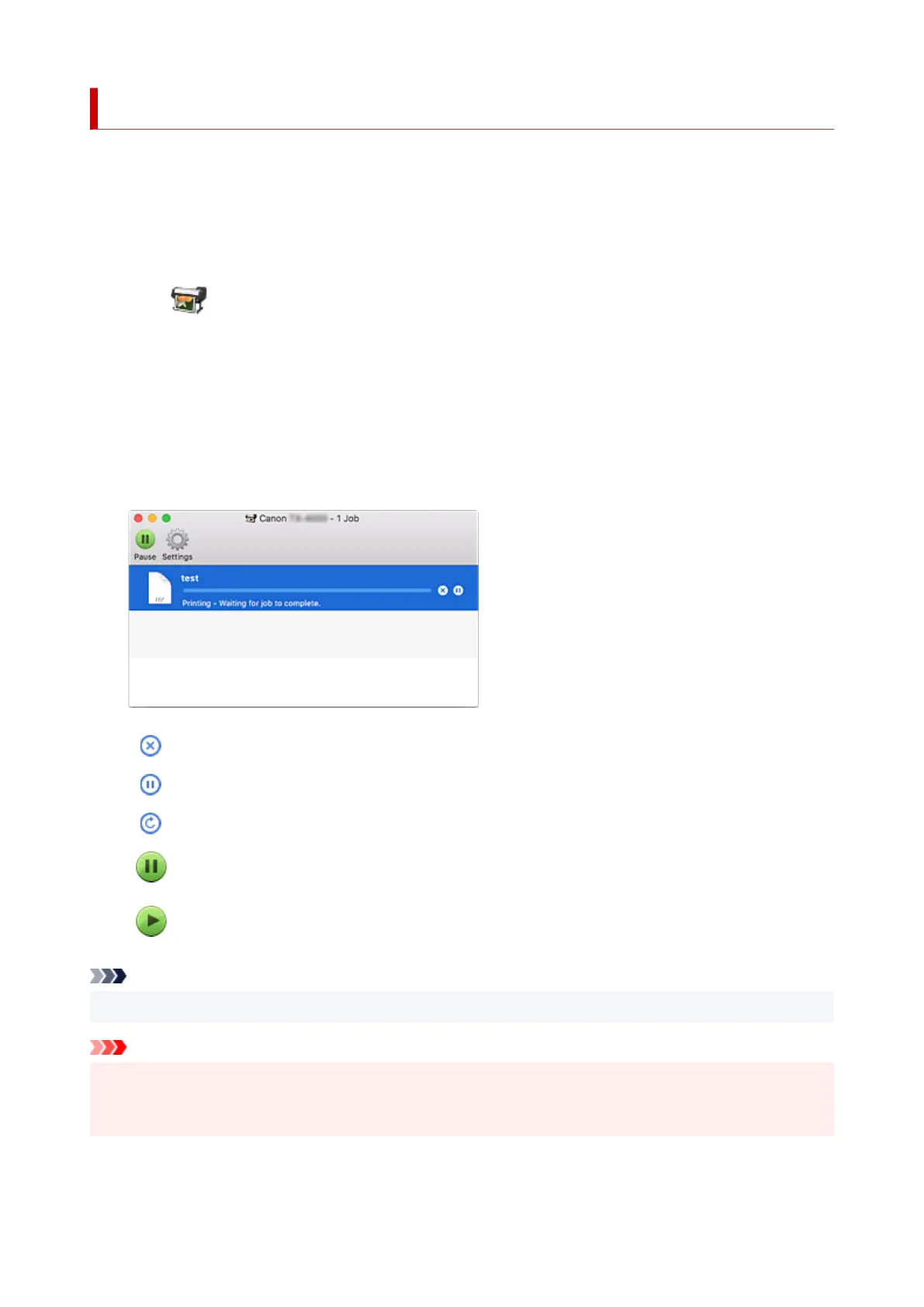
1. Launch the printing status screen1.
•
If the print data has been sent to the printer
•
The printing status screen opens automatically. To display the printing status screen, click the
(the printer icon) displayed on the Dock.
•
If the print data has not been sent to the printer
•
Open System Preferences, and select Printers & Scanners.
To display the printing status screen, select the name of your printer model from the printer list,
and then click Open Print Queue....
2.
Checking the printing status
2.
You can check the name of the file being printed or ready for being printed.
Deletes the specified print job.
Stops printing the specified document.
Resumes printing the specified document.
Stops printing all documents.
Displayed only when printing of all documents is being stopped, and resumes printing all docu-
ments.
Note
• Depending on your model, the printer icon display may be different.
Important
• If an error occurs, an error message will appear on the printing progress confirmation screen.
• The content of the error message may differ depending on the OS version.
• The printer part names in the error message may differ from what is listed in this manual.
679



 To Next Page