Printing by Connecting Multiple Pages
Print documents with several pages as one continuous document. When you do this, the spaces between
the pages will be removed.
The procedure for printing by connecting multiple pages is as follows:
1. Select Quality & Media from the pop-up menu of the Print Dialog1.
2.
Select the paper source
2.
Select Roll Paper (Auto), Roll 1 or Roll 2 that matches your purpose for Paper Source.
Important
•
The paper feed method will differ depending on the lower level (roll paper 2) settings or roll unit
option settings.
3.
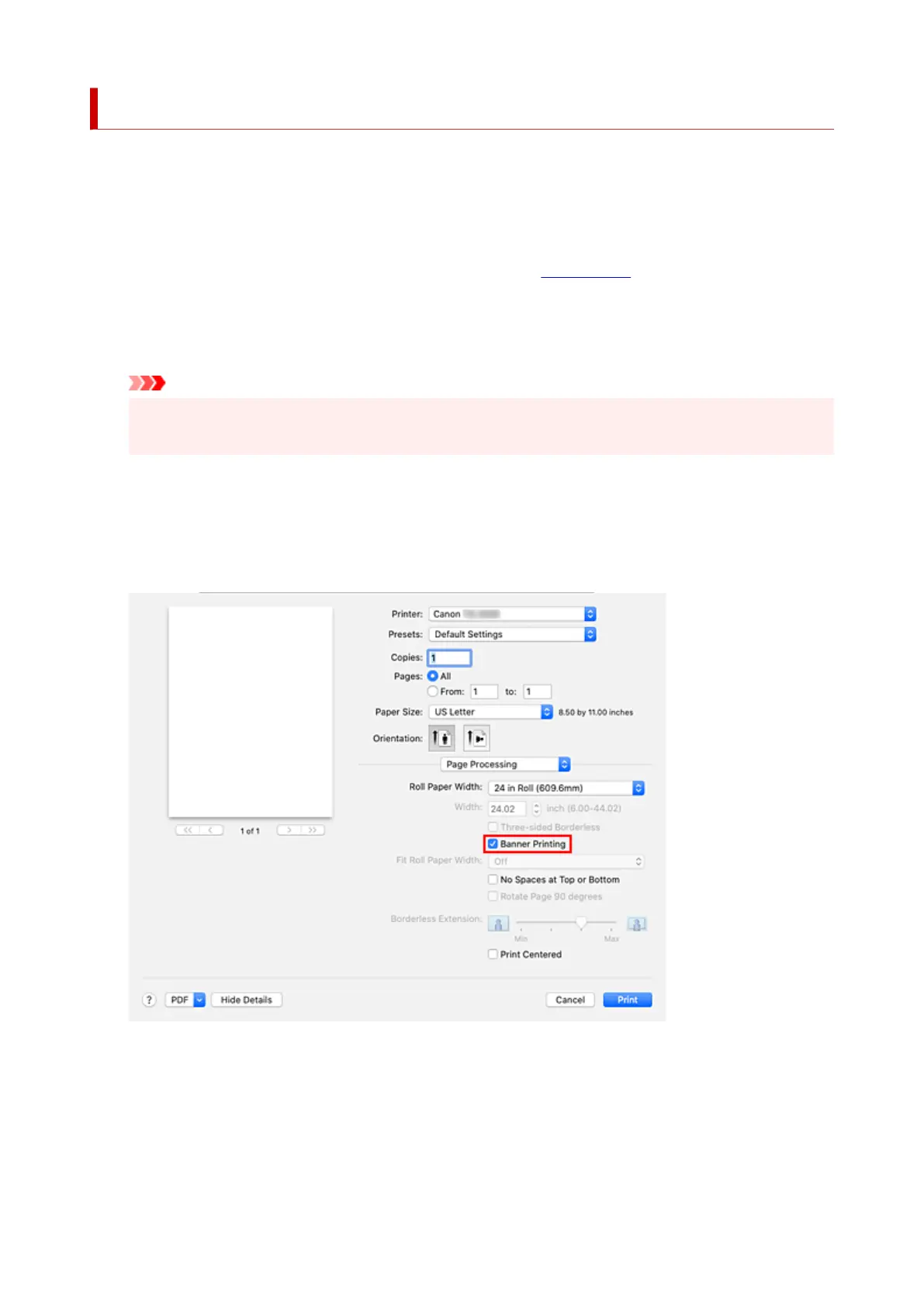
Select Page Processing from the pop-up menu
3.
4.
Setting Banner Printing
4.
Check the Banner Printing check box.
5.
Complete the setup
5.
Click Print.
When you print, the document is printed with the multiple pages connected.
624



 To Next Page