Section 4 — Commissioning
4-8 Part No. 750-363
Some parameters require a password entry before allowing changes. The <Login> button will appear when
any password-protected parameter is displayed on the screen. Default service level password is 9220.
Press <Login> to display the alphanumeric keyboard. Enter password and press <OK>
Change parameter settings by selecting the parameter on the page. A dialog box appears with controls
allowing the user to change the selected value. Press <Clear> to clear the current value. Enter the new
value and press <OK> (press <Cancel> to leave the parameter unchanged).
Safety Parameters
When configuring safety parameters an additional verification step is required to confirm the changes.
1. When a safety parameter is changed, the Safety Parameter Verification page will appear. Press <Begin> to continue.
2. The affected parameter group will be displayed, showing current parameter values and a prompt, “Are these
parameters set to proper values?”. Press <Yes> to continue.
3. The screen will indicate RESET DEVICE NOW. Open the control panel and press the RESET button on the Falcon
controller (press and hold for 3 seconds).
RESET must be pressed within 30 seconds to save changes.
Note: When changing multiple safety parameters, the verification steps do not need to be completed immediately.
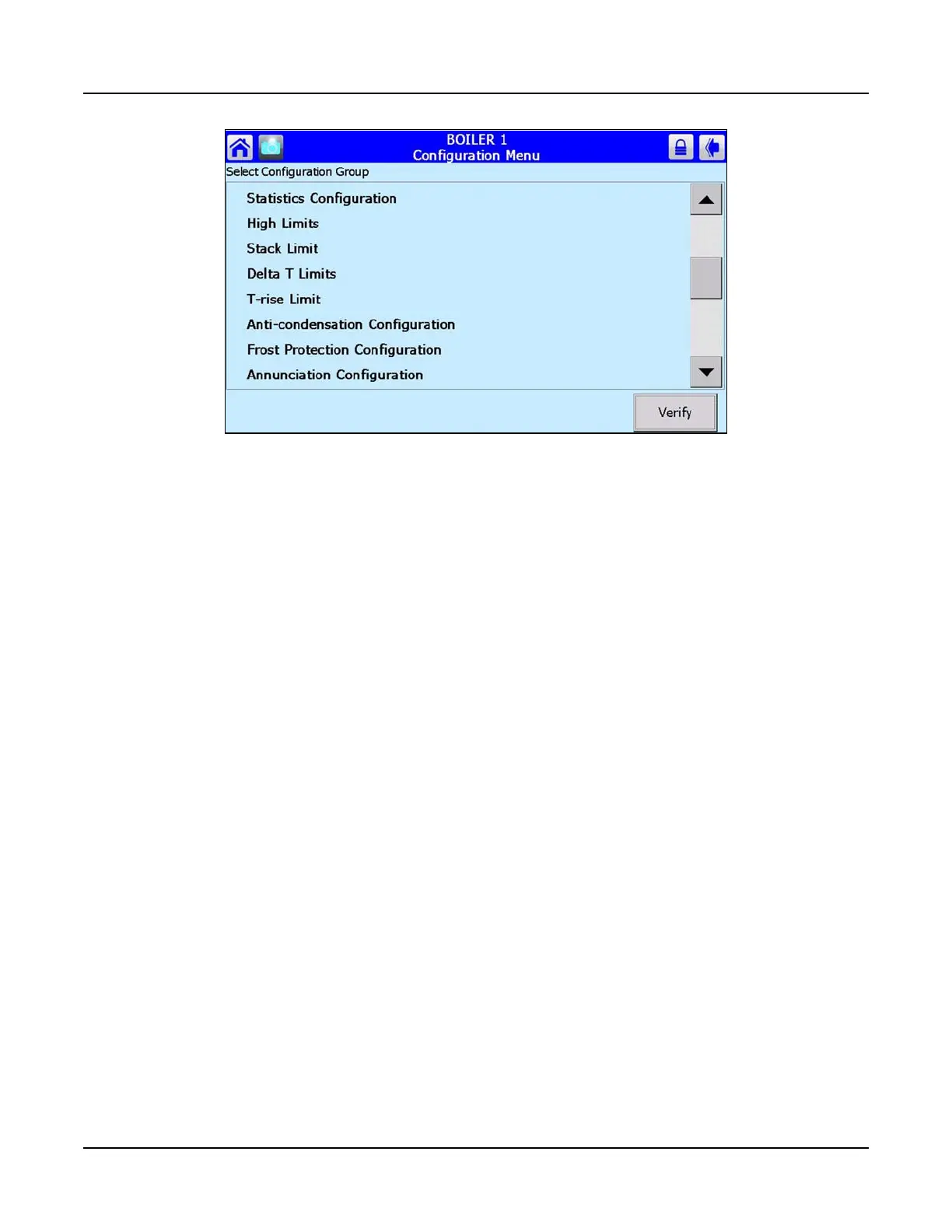
Figure 4-7 Configuration Menu


 To Next Page