ACTIVITIES
ECO Manual
116
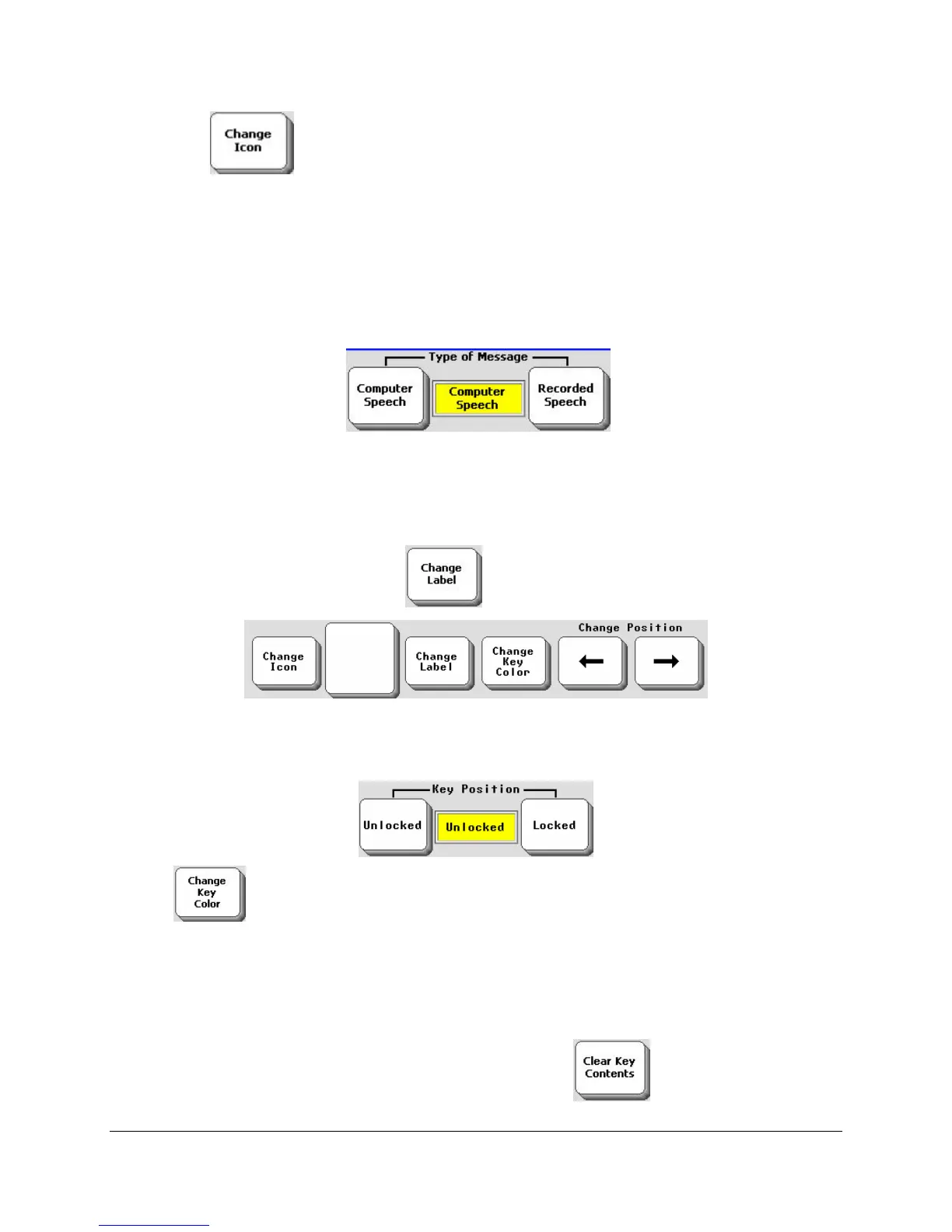
6. Select the Change Icon key near the bottom you’re your screen.
7. Select an icon to go with your key.
When you select an icon, your device automatically inserts the icon name as a text label for
the icon. This saves you some typing if this is what you want your device to speak. If not,
change the icon label later or select a different icon. If you want a blank label, type a space
instead of a word.
8. Add a message to your key. Select Computer or Recorded Speech.
9. If you selected Recorded Speech, spell any text to go with the key, then record your
message.
If you selected Computer, spell your message and/or define the key function. Select OK
when you have finished recording or typing.
10. If you want a different label, select
. Type a new label for your key. Select OK.
11. If you plan to use Picture Prediction
™
, select whether you want this key’s position to be
Locked or Unlocked. If Locked, the key position will never move when Picture Prediction
is turned On in the FEEDBACK menu. (See page
119 for more about Picture Prediction.)
9. Use to change the color of your key. (You could make all the keys in this activity
the same color.)
10. Activate the next key you want to define and repeat these steps.
11. When you have completed defining keys in your Activity, select OK. Then go to your
overlay and test the Activity.
If you make a mistake when you are defining a key, select and start over.



 To Next Page