STORE/ASSIGN TOOLS
ECO Manual
166
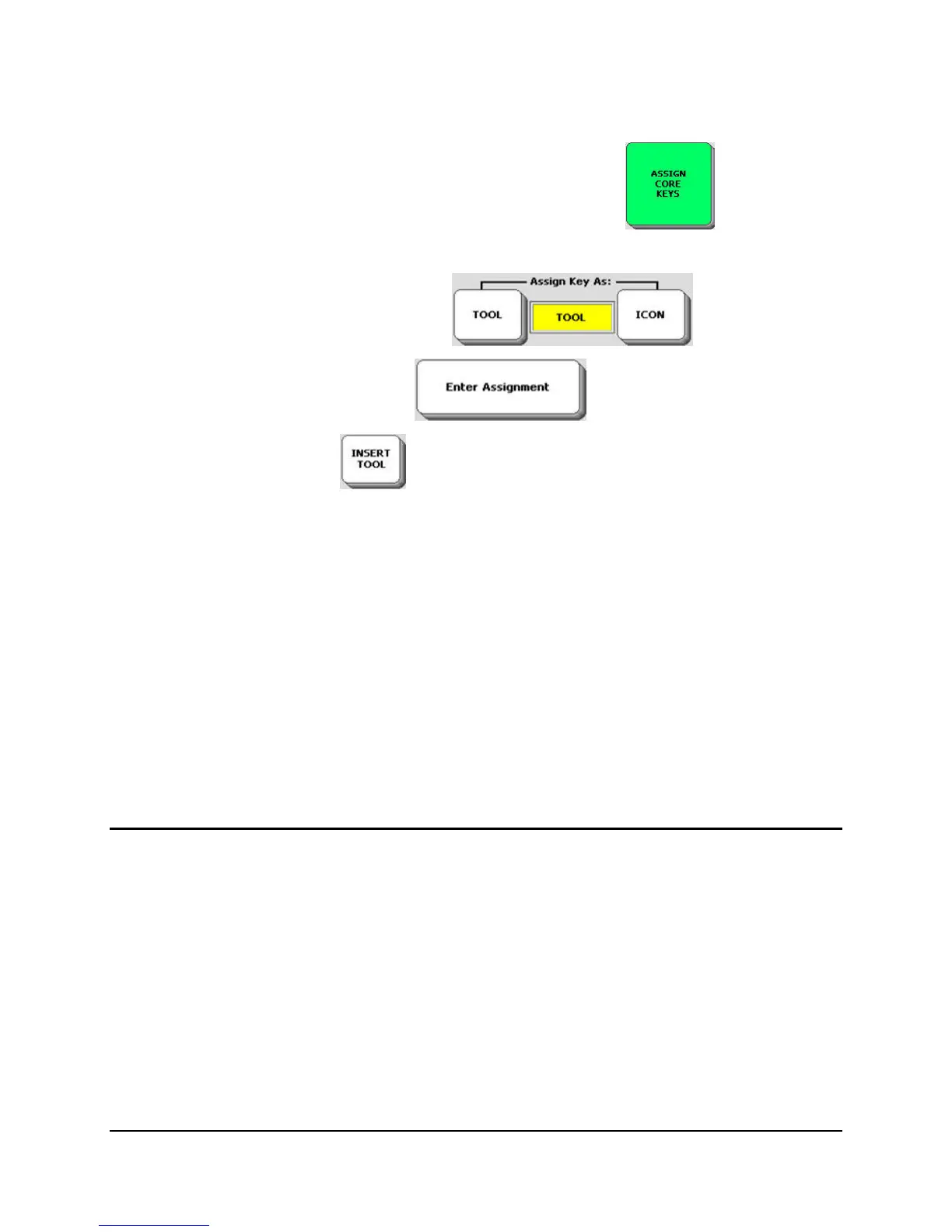
To Assign a Tool to a Core Vocabulary Key:
1. Go to the Toolbox. Activate the ASSIGN CORE KEYS menu
.
2. Activate the key on your overlay where you want to assign the Tool.
3. Activate Tool in the Assign Key As box
.
4. Activate the Enter Assignment key .
5. Activate INSERT TOOL on the Spelling overlay.
6. Now you see the All Tools List. Select the Tool you want to assign to the key.
7. You return to the Spelling keyboard.
8. Activate OK.
9. You return to the ASSIGN CORE KEYS menu.
If you want to change the label, you can do it now. If you want a blank label, type a space
instead of a word. If you want to add an icon to remind you of the Tool stored there, you can do
so now.
Erase the Tool and Restore the Original Icon
Activate ICON in the ASSIGN CORE KEYS menu screen to erase a Tool from a Core key and
restore the original icon. Activate Clear Key Contents to clear everything from the key.
To Erase the Tool and Restore the Icon
1. Go to the Toolbox. Activate the ASSIGN CORE KEYS.
2. Activate the key on your overlay that contains the Tool you want to erase.
3. Select ICON in the Assign Key As box.
4. The original icon is restored.



 To Next Page