PAGES
ECO Manual
136
Go to Your Custom Page
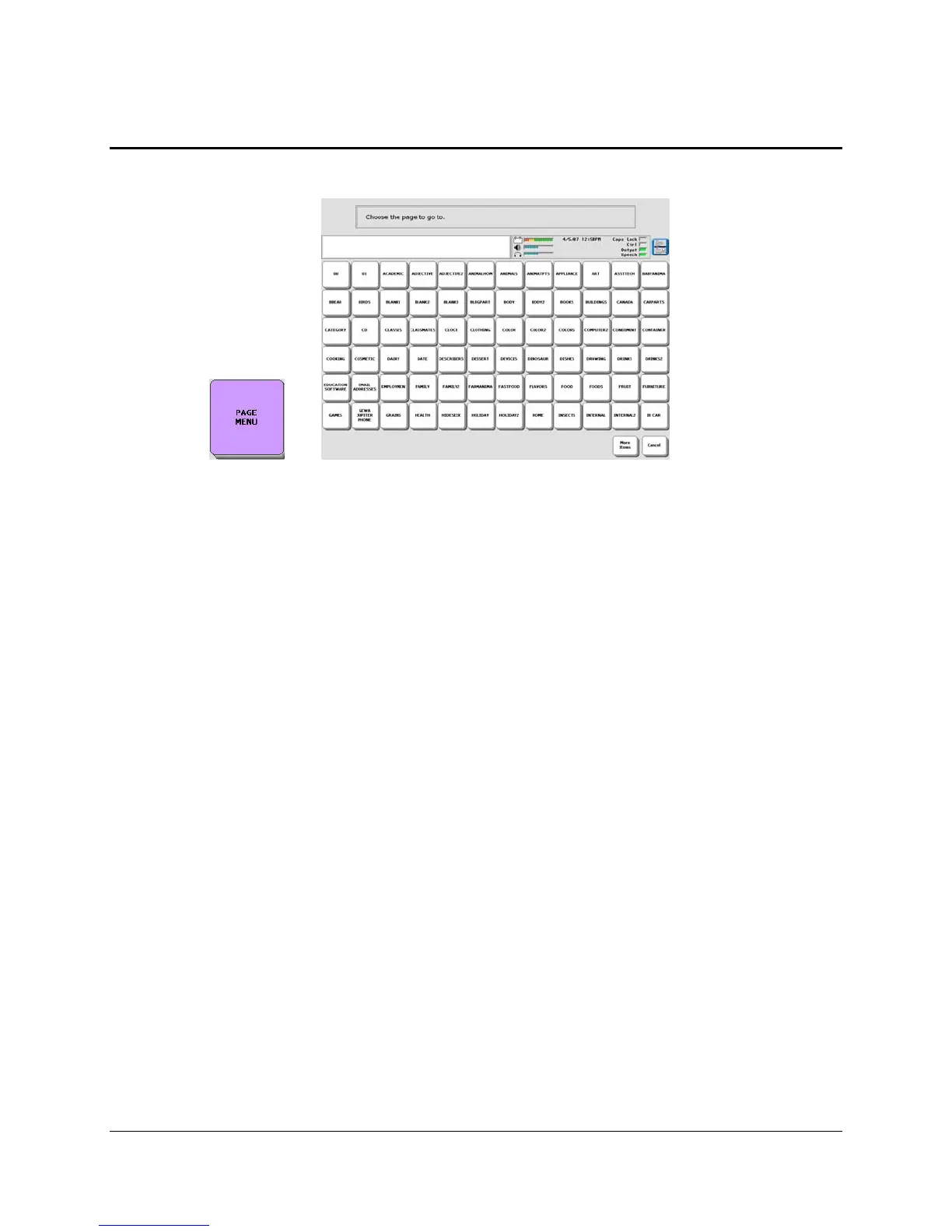
Once you have created a Custom Page, you can go to the Toolbox and activate the PAGE
MENU key
.
The names of any Pages you have created will be listed in this menu. Simply select the page you
want to use.
If you would prefer not to go to the Toolbox every time you want to open a Page, you can store
the PAGE MENU under an icon sequence on your overlay.
If you do not need the whole PAGE MENU, you can store a specific Custom Page under an icon
sequence on your overlay. To do this, you must use INSERT TOOL and the SET PAGE or
SET PAGE TEMPORARY Tool when you store the sequence. (See Appendix A for an
explanation of the SET PAGE and SET PAGE TEMPORARY Tools.)
To Store a Specific Custom Page Under an Icon Sequence:
1. Activate STORE CORE in the Toolbox.
2. Choose the icon sequence you want to use and then activate OK.
3. Select Computer Speech and then select Spell Text to Speak.
4. Spell any text you want to store.
5. Activate INSERT TOOL.
6. Activate SET PAGE or SET PAGE TEMPORARY Tool.
7. Choose the Custom Page you want from the PAGE MENU.
8. Activate OK.
9. Activate OK again.
To Store PAGE MENU under an icon sequence: change Step #6 to PAGE MENU. Delete
Step #7.



 To Next Page