APPENDIX B: NEXT MOUSE RIGHT-CLICK TOOL
Eco Manual
279
Appendix B: Next-Mouse-Right-Click Tool in PASS and
ECO
Next-Mouse-Right-Click in PASS
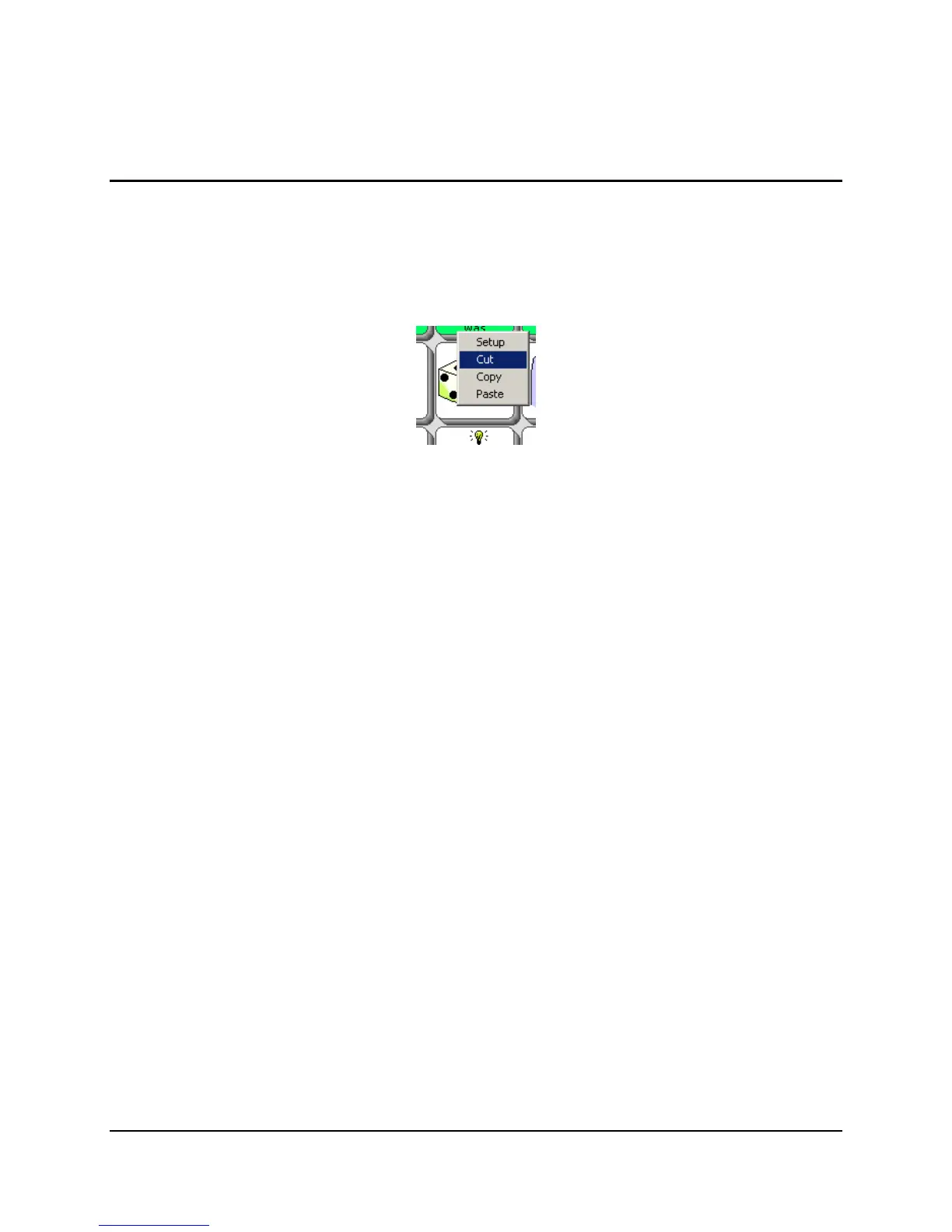
In the ECO PASS software, there is a new feature that lets you use the RIGHT CLICK on a
mouse to speed up programming. When you let your mouse pointer hover over a key, right-
clicking your mouse brings up a small, context-sensitive menu.
Move your cursor to highlight the function you want and then click your mouse.
Setup
This behaves just like the SET-UP key on other PRC devices. It is context sensitive so the menus
that open depend on where your key is.
(a) If you use setup on a Core key, you open up the
ASSIGN CORE KEY menu.
(b) If you use setup while selecting a sequence, you open in the
storing a sequence page.
(c) If you use setup with an Activity
label key, you open the MODIFY ACTIVITY menu.
(d) If you use setup with an Activity key
within an Activity, you open the Modify Item Within
Activity page.
(e) If you use setup on a Page key, you open the
MODIFY PAGE menu for that page.
Cut
Acts like Clear Key Contents in standard Toolbox menus. If you accidentally cut, you can use
Paste to put back the deleted item, so long as you do it immediately.
Copy
Takes the contents of the cell and allows you to paste it elsewhere.
Paste
Takes the current copied item and pastes it into another location. Some items will not copy/paste
across modalities e.g. you can’t copy a Core key and paste it into a Page.



 To Next Page