STORE/ASSIGN TOOLS
ECO Manual
167
5. Activate OK.
If you want to clear the entire contents of the key so it becomes a blank key:
1. Go to the Toolbox. Activate ASSIGN CORE KEYS.
2. Select the key whose contents you want to erase.
3. Activate the Clear Key Contents key.
4. Activate OK.
The key is now blank. It has neither an icon nor any contents.
Assign a Tool to an Activity Row Key
This function allows you to assign a Tool to a key in the Activity Row. This is a useful function
if you need an empty key on your overlay. For example, perhaps you want to assign a tool that
you use frequently to a key on your overlay, but you have no blank keys on the overlay. You
decide if you could just move CLEAR DISPLAY to the Activity Row, you could assign your
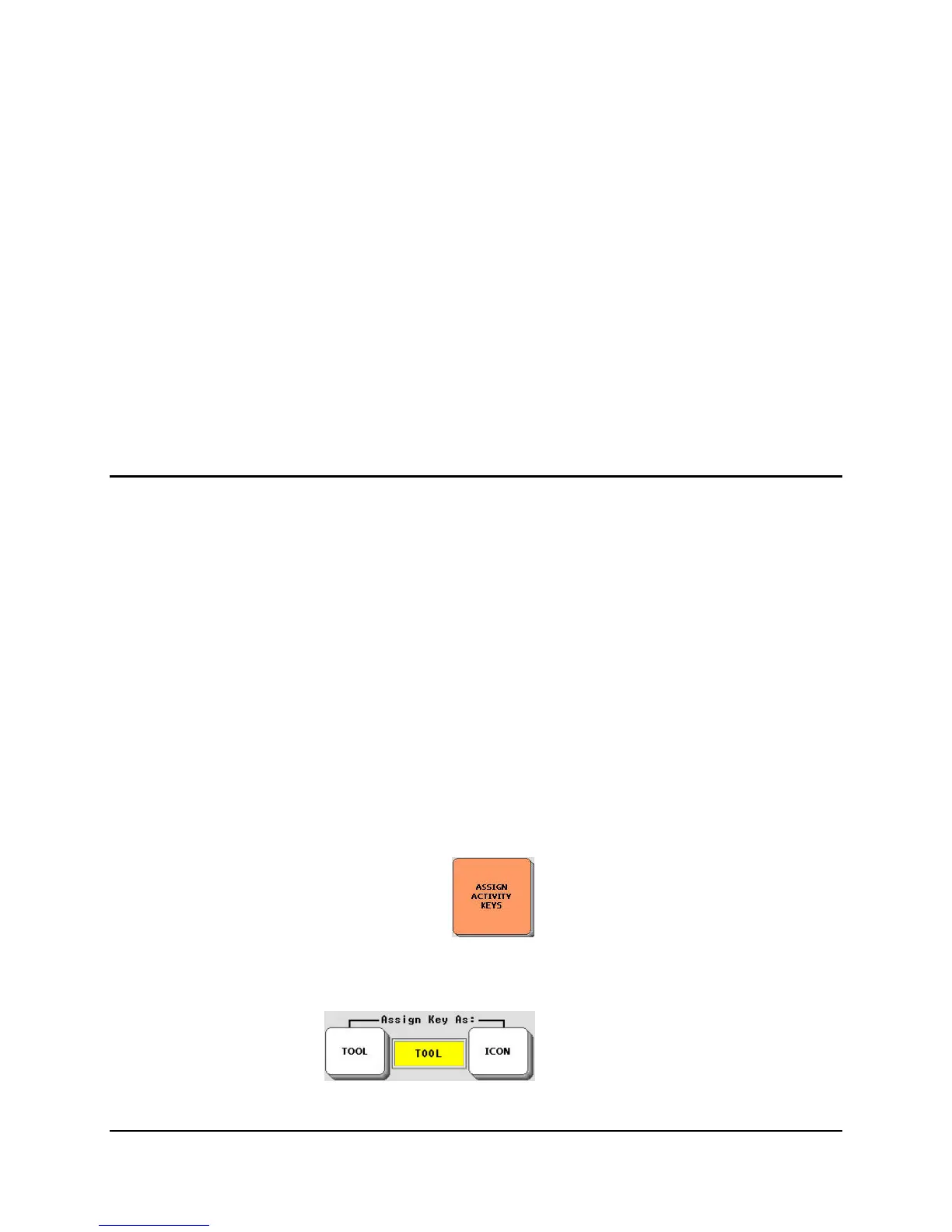
new Tool to the key where CLEAR DISPLAY used to be. ASSIGN ACTIVITY KEYS lets
you do this.
When you assign a Tool to a key in the Activity Row it is like adding a key to the row. You
select a position in the row where there is an Activity, assign the Tool to it and your device will
place the Tool where the Activity was and move the Activity one place to the right in the row
ASSIGN ACTIVITY KEYS will not allow you to assign a Tool to a key within an Activity.
Use the CREATE ACTIVITY or MODIFY ACTIVITY menus for that.
To Assign a Tool to a Key in the Activity Row:
1. Activate ASSIGN ACTIVITIES KEYS in the Toolbox.
2. You see the first row of available Activities.
3. Select the key where you want to assign a Tool.
4. Select the Tool option.



 To Next Page