TRANSFER MEMORY MENU
Eco Manual
207
Memory Transfer using a USB Flash Drive
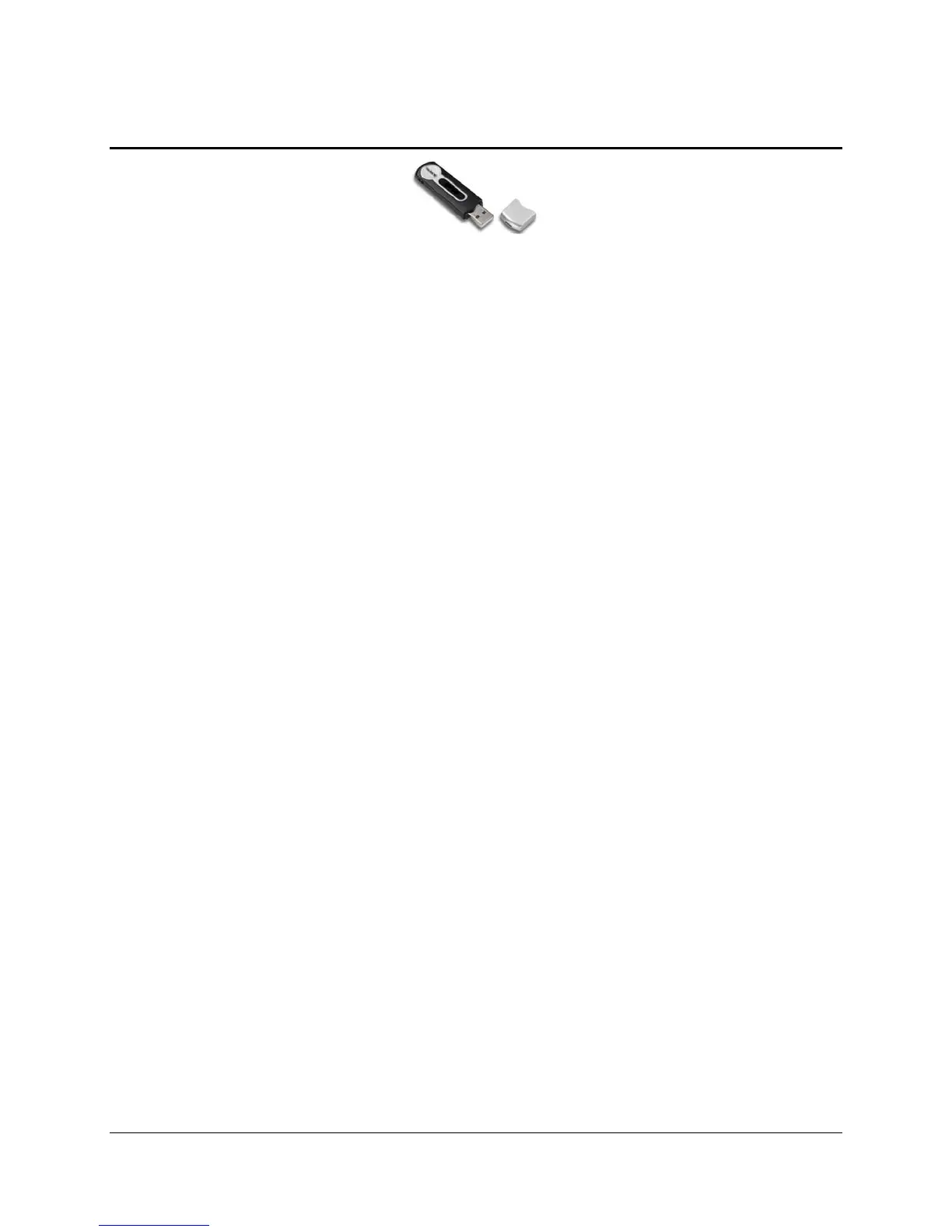
Example of a USB Flash Drive
Save an Area: an example
You must use your USB drive or a "removable media" device to load or save your device
vocabulary.
1. Make sure your USB is drive plugged into your device.
2. Go to the Toolbox and open the
TRANSFER MEMORY MENU.
3. Select
Save One User Area
4. Select the Area you want to save.
5. You see a message that the memory transfer file will be saved in a folder on your USB drive
or whatever removable media you are using. You can use this folder or select a different one
on the drive.
4. Type in a name for the MTI file. Your device will save the Area you selected on your
removable media drive.
5. A dialog box will appear to tell you when the transfer is completed.
Load an MTI File into an Area: an example
1. If you are using a USB drive, make sure it is plugged into your device.
2. Select
Save One User Area
3. Select the Area you want to save.
4. Select
Load One User Area
5. Select the Area you want to load the file into.
6. You see a list of all the files on your removable media drive.
7. Find the file you saved earlier. It will have
.mti at the end of the name.
8. Select the file.
9. A dialogue box will appear to tell you when the transfer is complete.
To load files onto your computer, read the directions that came with your USB flash drive.
For a USB flash drive, in some cases you may need to load a driver. Your storage device
directions will tell you.



 To Next Page