PAGES
ECO Manual
135
.
See Modify a Custom Page for step-by-step instructions using this menu.
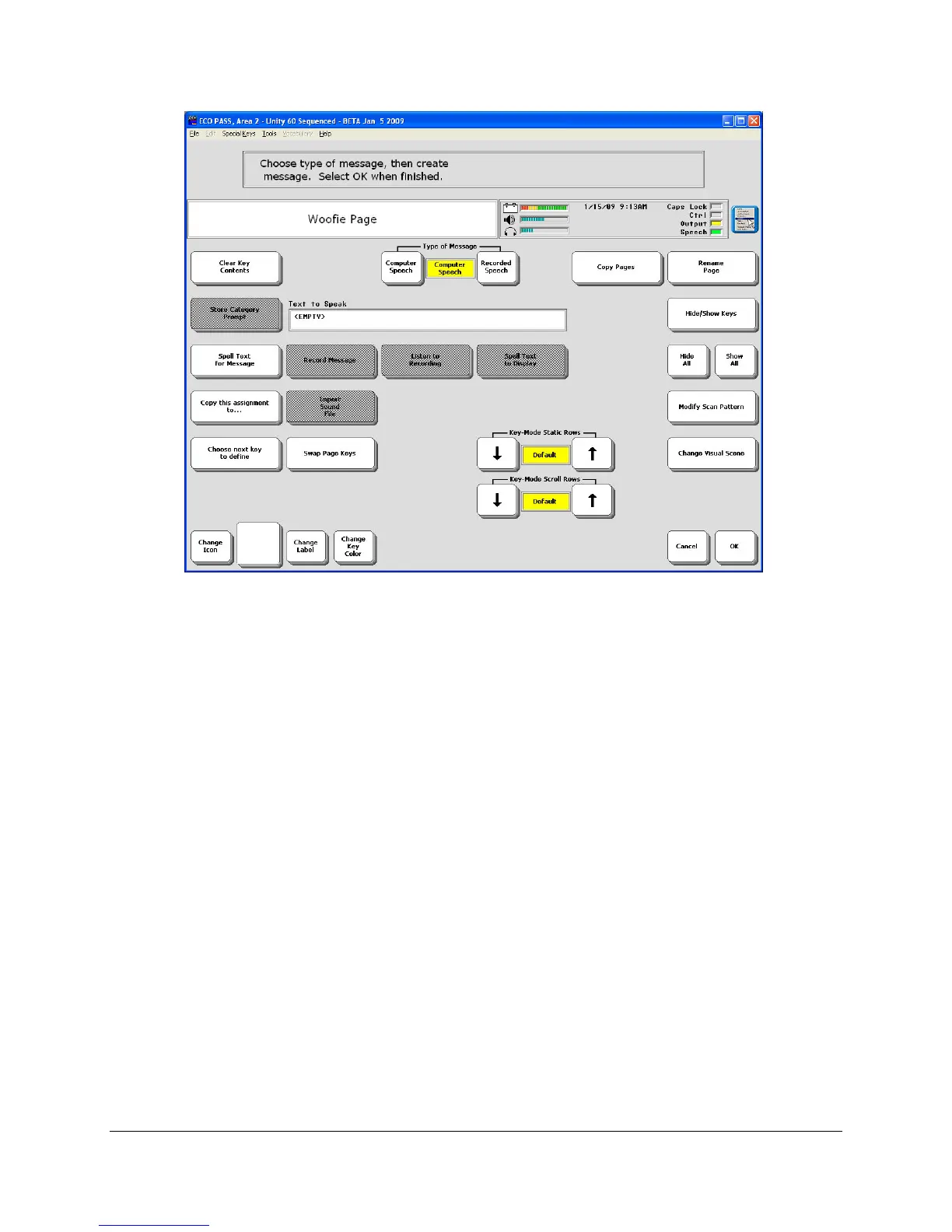
6. Select Computer Speech or Recorded Speech.
7. Select Spell Text… and type in any text that you want your device to speak. If you are
recording something, type in any text that you want to have displayed.
8. Add an icon to your key, change the label or change the key color if you want. A label can
contain up to 32 letters. If you want a blank label, type a space instead of a word. To change
the key color press the Change Key Color key until you see the color you want.
You can hide the key. You can copy the key's assignment to another key on the page. You
can swap the key with another key.
If the key you have selected is in the first row or the first column of keys, you can add an
Auditory Prompt to identify the key.
If you want to scan the page in a specific way, you can create the pattern you want (Modify
Scan Pattern-see Appendix D beginning on page
282 for more information).
If you are creating a page to use with the internal computer, you can set how you want it to
scroll (Key Mode-Static Rows and Scroll Rows-see page
271).
9. When you have finished with the key, select Choose Next Key to Define and repeat steps
5-9 until you have created your custom page. Select OK when finished.



 To Next Page