ACTIVITIES
ECO Manual
126
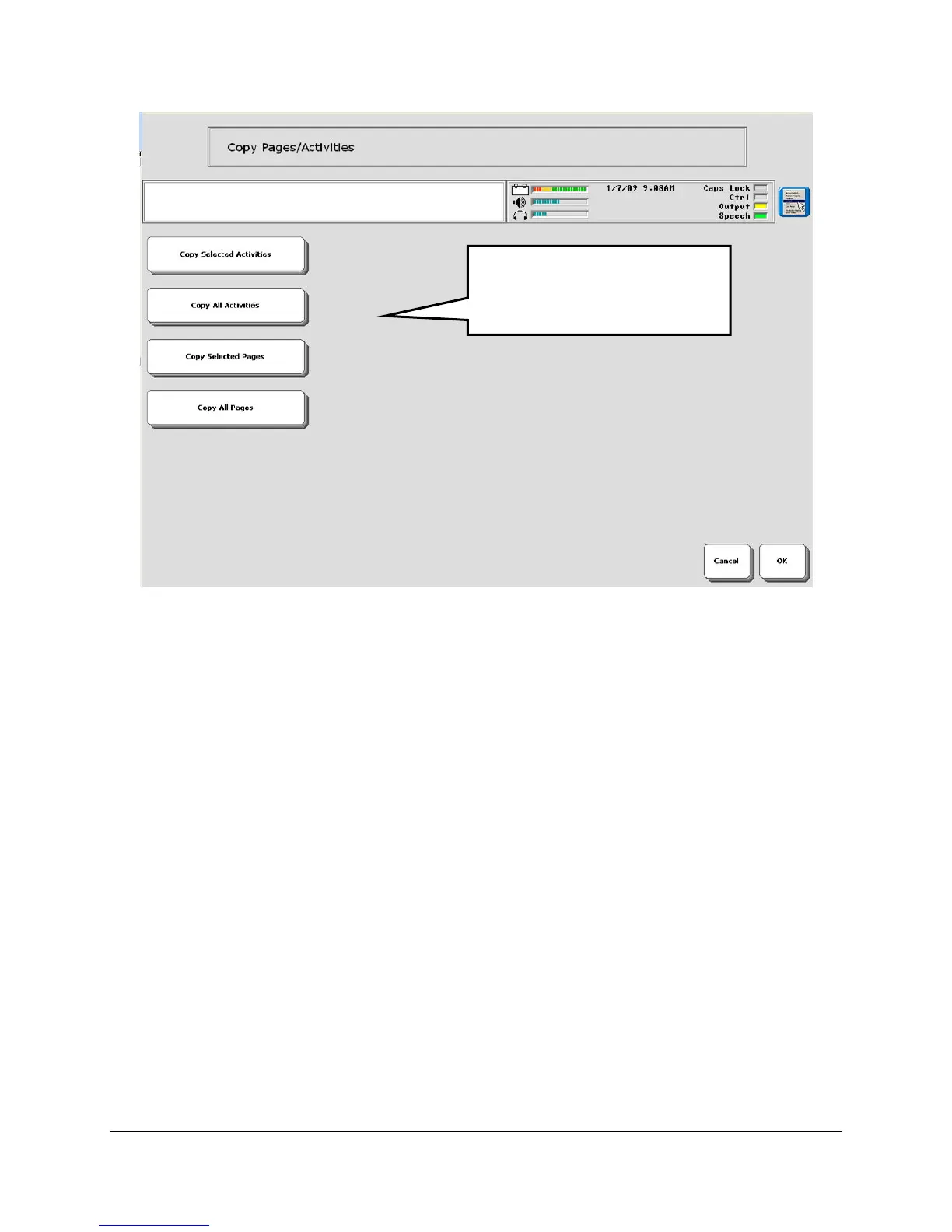
4. If you want to copy only specific Pages or Activities, activate the Copy Selected Pages or
Copy Selected Activities option.
4a. Activate the User Area where you want the Activities or Pages to be copied to.
4b. Activate the Pages or Activities you want to copy. The Activity or Page you select will turn
gray. Continue to select specific keys until you have selected all you want.
4c. Activate OK when you are finished.
4d. Answer YES to continue copying or NO to cancel.
5. If you want to copy all the Pages or Activities in a User Area, activate the Copy All
Activities or Copy All Pages option.
5a. Activate the User Area where you want to copy the Pages or Activities to.
5b. Answer YES to continue the copying or NO to cancel.
You may have to adjust the Activities in the Activity Row if you expanded into an area. They
may not be in the position you are used to due to the size of the new area or overlay, especially if
they were locked. This is also true if you copy Pages.
Select one of the options on
this screen to copy Activities
or Pages.



 To Next Page