GETTING ACQUAINTED WITH YOUR ECO
ECO Manual
20
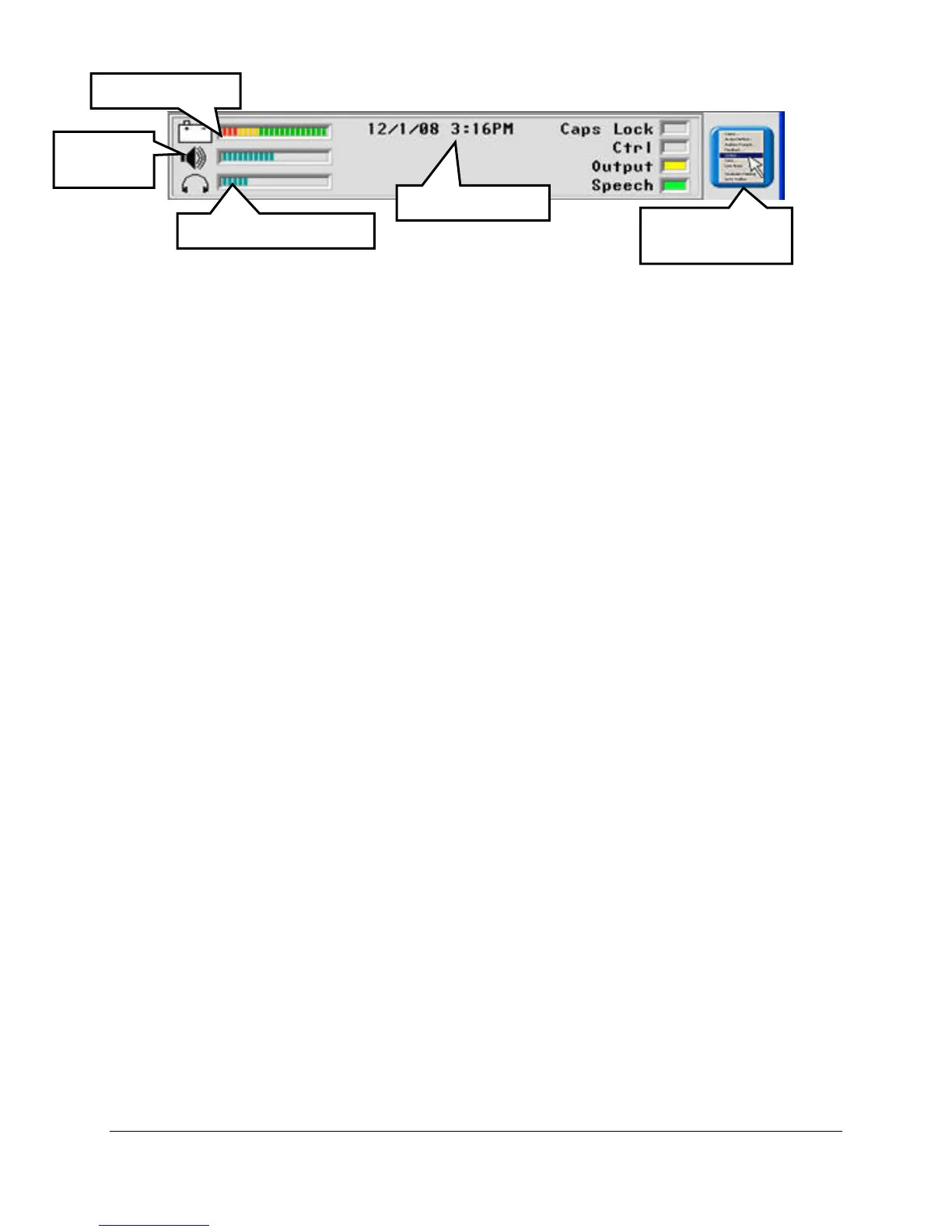
Status Display Area
Date and Time
Set this in the CLOCK MENU in the Toolbox to display the current date and time.
Battery Bar Graph
This shows the status of the batteries. A FULL battery shows mostly green lines, with only a
few red and yellow lines. A LOW battery shows only red and yellow lines. Plug in the charger.
You cannot store when the battery is low.
An ALMOST DEAD battery shows only red lines. You will hear a warning beep that the ECO
is going to shut down. Plug in the charger.
Speaker Icon and Headphone Icon
These indicate speaker and headphone volume. When the lines fill up the bar graph, the volume
is at its loudest.
Caps Lock
When this is lit, you have turned Caps lock on in your spelling overlay. All letters you type will
be in CAPITAL letters.
Note: Do not use Caps Lock when storing messages for RealSpeak voices.
Ctrl
When this is lit, you are sending a CONTROL command.
Output
When this is lit, your Output option is On in the OUTPUT MENU. Anything you type, or any
messages you retrieve will appear on the Text Display Area of your overlay and will also be sent
to the internal computer.
Speech
When this is lit, your device will speak anything that appears in the Text Display Area.
Drop-Down Menu
This mini-menu to the right of the Status Display Area gives you quick access to some of the
menus in the Toolbox. You can open this menu by touching it with your finger or a stylus or by
plugging in and using a USB mouse.
Battery Status
Speaker
Volume
Headphone Volume
Date and Time
Toolbox Drop
Down Menu



 To Next Page