WORD PREDICTION
ECO Manual
85
Large Selection Area On or Off
Predicted words are visible in the area below the regular Text Display Area. You select a word
by pressing on it. If this area is too small for easy use, you can turn the Large Selection Area
option to On. This allows you to select a word by pressing on it in the Word Prediction Area or
by pressing on the space above the word in the Text Display Area. The default for this option is
Off.
Letter Case
You can select to see predicted words in UPPER CASE or lower case.
Color
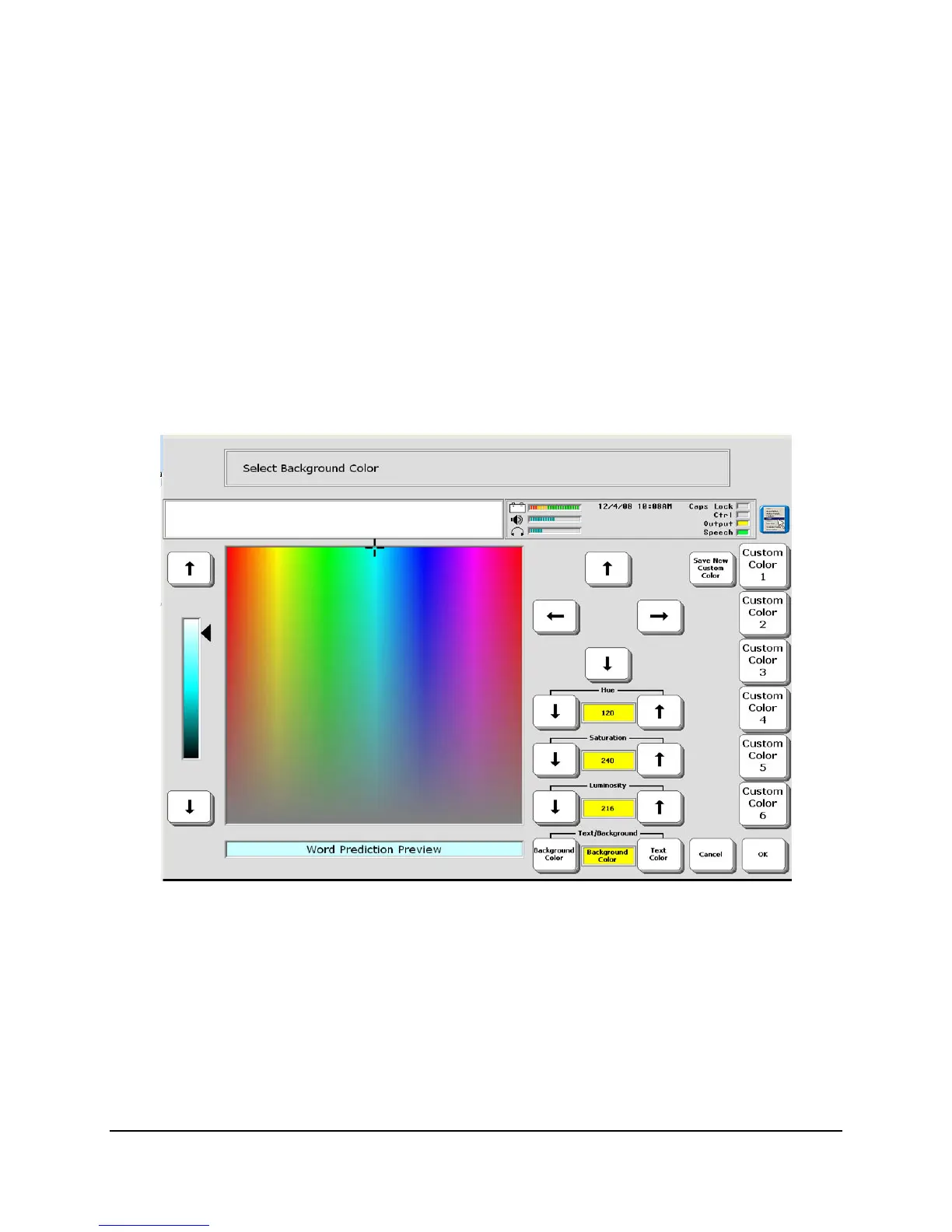
The words in the Word Prediction window can be highlighted in any color. The background area
can be a different color. Activate the Highlight Color option to select the background color and
the text color that you want to use.
In the Text/Background option, select Background Color box or Text Color box. Select a
color area in the large box and then use the color bar and arrows to the left of the screen. The
very top of the color bar is always white and the very bottom of it is always black. You can
touch areas of the large color chart to change colors and then move the arrows to select a color.
The four arrows to the right of the screen move the cursor on the color chart in increments of



 To Next Page