EasyManua.ls Logo

evertz 3025EMC - Page 204

Default Icon
228 pages
Print Icon
To Next Page IconTo Next Page
To Previous Page IconTo Previous Page
Loading...
3025EMC Master Control Switching & Channel Branding
Page 190 Revision 3.0.3
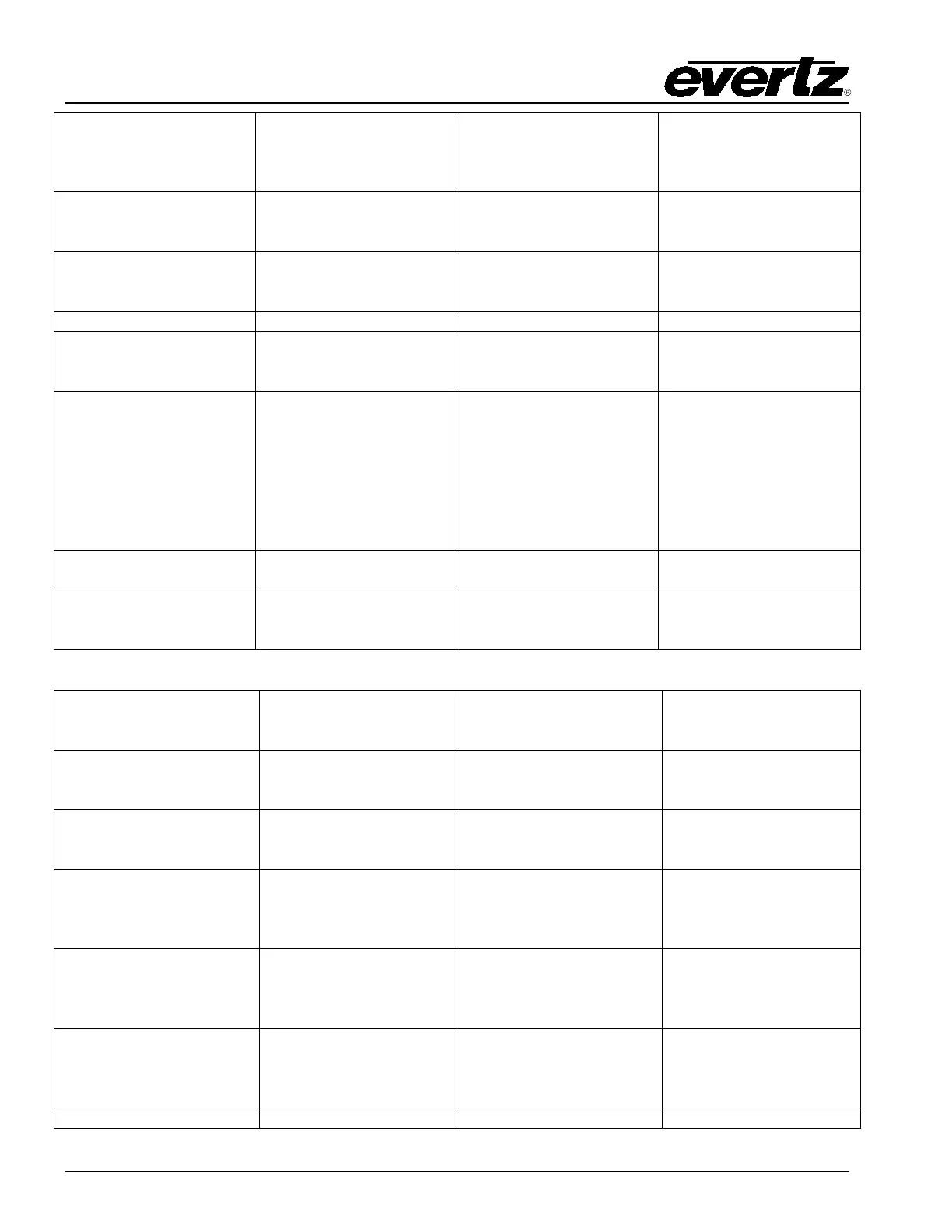
Aux Pre-Shuffle Stereo
Sources
Route pre-shuffler
Stereo Sources to the
selected Aux Monitor
Destination
Define the bus and
stereo channels.
N/A
Aux Pre-Mix Stereo
Sources
Route pre-mixer Stereo
Sources to the selected
Aux Monitor Destination
Define the bus and
stereo channels.
N/A
Aux Post-Mix Stereo
Sources
Route post-mixer Stereo
Sources to the selected
Aux Monitor Destination
Define the bus and
stereo channels.
N/A
Default Input Audio
Not Supported
Shuffle Store
All Busses/Selected Bus
and Shuffle Store
Number
Map the pre-defined
audio shuffle store to the
selected bus (es).
N/A
Shuffle Detection Key
Assign to either PGM or
PST Bus.
Key will tally with the
name of the last shuffle
store recalled against
th
at bus and will also
tally if a manual/M2100
audio shuffle matches a
pre-
configured shuffle
store audio mapping.
If a user legend is
defined to the key such
as “Shuf None” this will
be displayed if not
shuffle store is
active/matching to be
displayed in th
e Shuffle
Detection Key.
Audio Input
(Bus + Channel)
All Buses/Selected Bus
and Audio Channel
Select the required bus
and audio channel.
N/A
Audio Gain Adjust
(Currently Selected)
Adjust Up/Adjust Down
Adjust the audio input
gain of the selected
channel.
Note: Channel selection
using “Audio Input (Bus
+ Channel)” key type.
Mono Mix Toggle
Current Selection
Toggle the Mono Mix
state of the selected
channel.
Note: Channel selection
using “Audio Input (Bus
+ Channel)” key type.
Audio Input Mute
Toggle
Bus and Channel
Number
Toggle the selected
audio channel mute and
un-mute state.
N/A
Audio Bus Mute Key
Bus, Mute Enable/Mute
Disable
Toggle the selected
audio bus mute and un-
mute state.
N/A
Audio Input Store
Recall
Bus and Store Number
Apply a pre-configured
audio bus store to the
selected bus.
Note: These are
configured in the “Audio
Input Defaults/Stores”
tab of EMC-Setup.
Audio Inp. Store Item
Default
Bus
Sets the audio bus back
to default as configured
in EMC-Setup.
N/A
Wipe Preset
Scrolling or Preset
Number 1 to 5
Select a wipe preset.
Note: Wipe Presets are
configured in the
“Wipes” tab of EMC-
Setup.
Wipe Type
(scrolling)
Select the wipe type.
N/A

Table of Contents

Related product manuals