MDS 05-6632A01, Rev. F MDS Orbit MCR/ECR Technical Manual 295
Prioritization is based on priority classes that categorize packets based on QoS classifiers. Each class
assigns a priority to packets that match the classifier. Create up to eight priority classes per policy.
The Default priority will be applied to all packets that do not match any priority class in the policy. The
value can be a number from 1-16, where 1 is the highest priority and 16 is the lowest. For this example,
we choose 1.
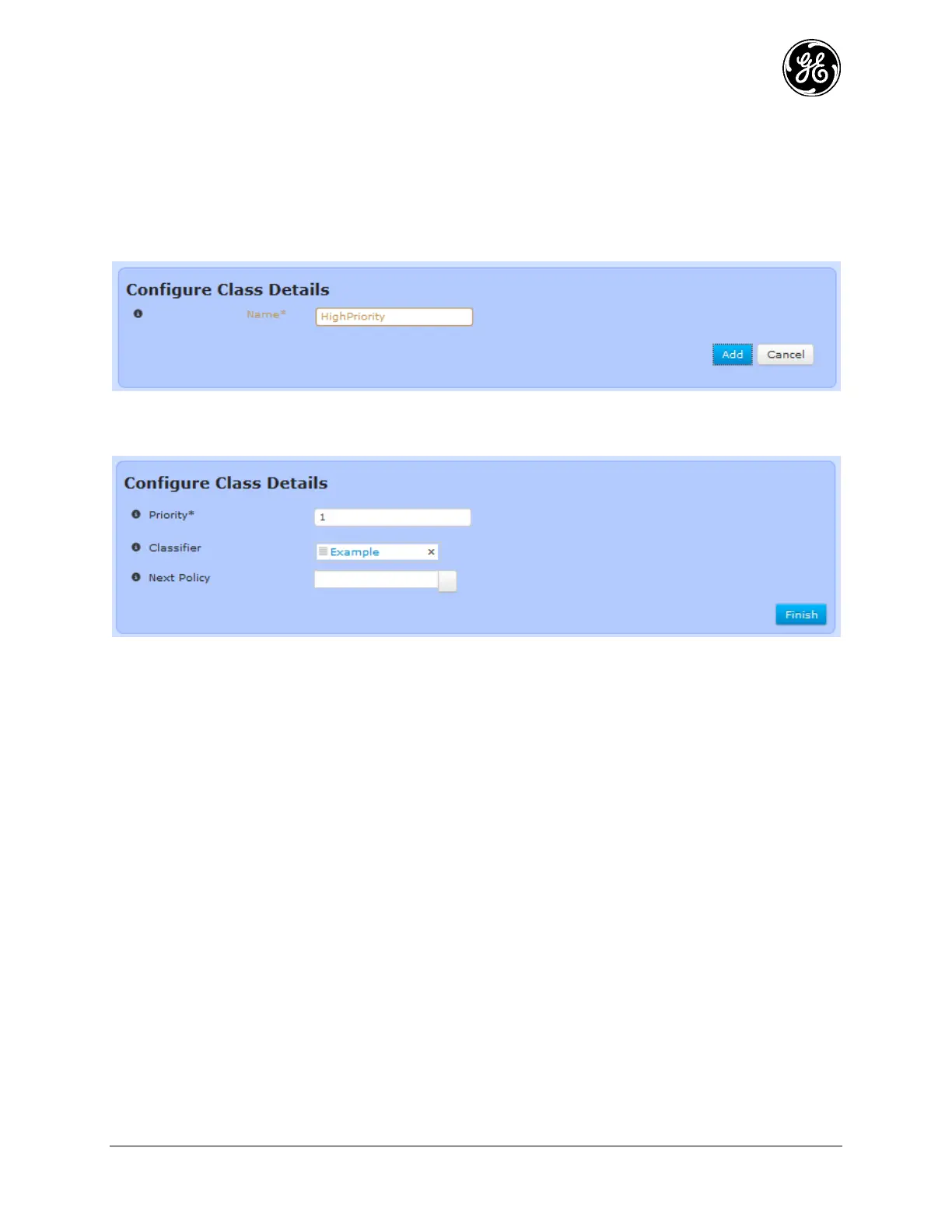
Click the Add button in the class submenu to create a new priority class. The Configure Class Details
appears.
Figure 3-220. Naming a new QoS priority class
Enter a name for the priority class and click Add. A menu bearing the policy’s name appears.
Figure 3-221. Configuring a QoS priority class
The following options are configurable:
Priority – 1-16. This is the priority to be assigned to packets that match the classifier. 1 is the highest
priority and 16 is the lowest.
Classifier – Any existing QoS classifier.
Next policy – If a QoS fairness policy was created, it may be applied it to this priority class. In this
case, traffic matching this priority class’ classifier will also be governed be a fairness scheme, where
traffic sent from a single IP address or protocol will not monopolize the entire link.
Select the name of the classifier that was created for this example from the Classifier dropdown box. This
incorporates the classifier, which selects all GOOSE messages, into the new priority class. Since this
example makes GOOSE messages the highest priority, enter 1 as the priority. Click Save. The configured
QoS classifiers and policies are listed at QoS Services ---> Basic Config.



 To Next Page
 Loading...