KDC User Manual BLUETOOTH
112
4. Bluetooth -
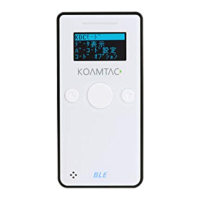
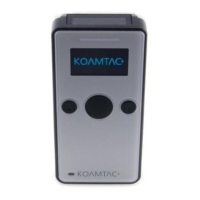
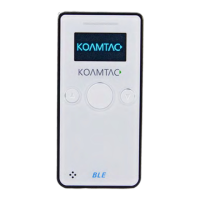
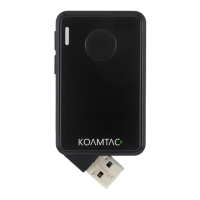
KDC20/30/200/250/270/280/300/350/400
/470/500
The KDC20/30/200/250/270/300/350/400/470 supports HID (Human Interface Device) normal,
HID iOS, SPP (Serial Port Profile) and SPP2.0 profiles. The KDC500 supports SPP only. The
KDC20i/30i/200i/250i/270i/300i/350i/400i/470i/500i supports MFi (Made for iPhone/iPad/iPod
touch) profiles. KDC280C is BLE4.1 device and supports HID, SPP, and OPEN profiles.
For PCI PTS compliance, KDC500 can support only SPP and MFi profiles.
The KDC200/250/270/280/300/350/500’s
Bluetooth
options may be configured by using the KDC
menu, PC KTSync and special barcodes. The KDC20/30/400/470’s Bluetooth options may be
configured by using the PC KTSync and special barcodes.
4.1 Bluetooth Config
Connect Device
The KDC supports both Serial Port Profile (SPP) and Human Interface Device Profile (HID). The
user may choose amongst SPP2.0, SPP (2.1), HID normal, or HID iOS profiles to communicate
with the host device. An additional MFi (Made for iPhone/iPad/iPod touch) option is available for
KDC20i/30i/200i/250i/270i/300i/350i/400i/470i/500i models when MFi mode is
enabled.(SystemConfig Menu). KDC500i doesn’t have MFi mode option and supports MFi by
default.
If the BT Toggle option(KDC500 doesn’t support) in BT Config is enabled, the user may connect
and disconnect the Bluetooth connection with the host device by pressing the UP and DOWN
buttons. It normally takes 3 seconds to connect and 1 second to disconnect. This is a very useful
feature for iPhone and iPad applications.
Keyboard does not appear on iPhone/iPad/iPod touch when KDC is connected in HID iOS mode,
the user can press the DOWN button to toggle the onscreen keyboard. For the KDC400/470/475
it is the small button located on the left side of the KDC.


 To Next Page