KDC User Manual SYNCHRONIZATION
175
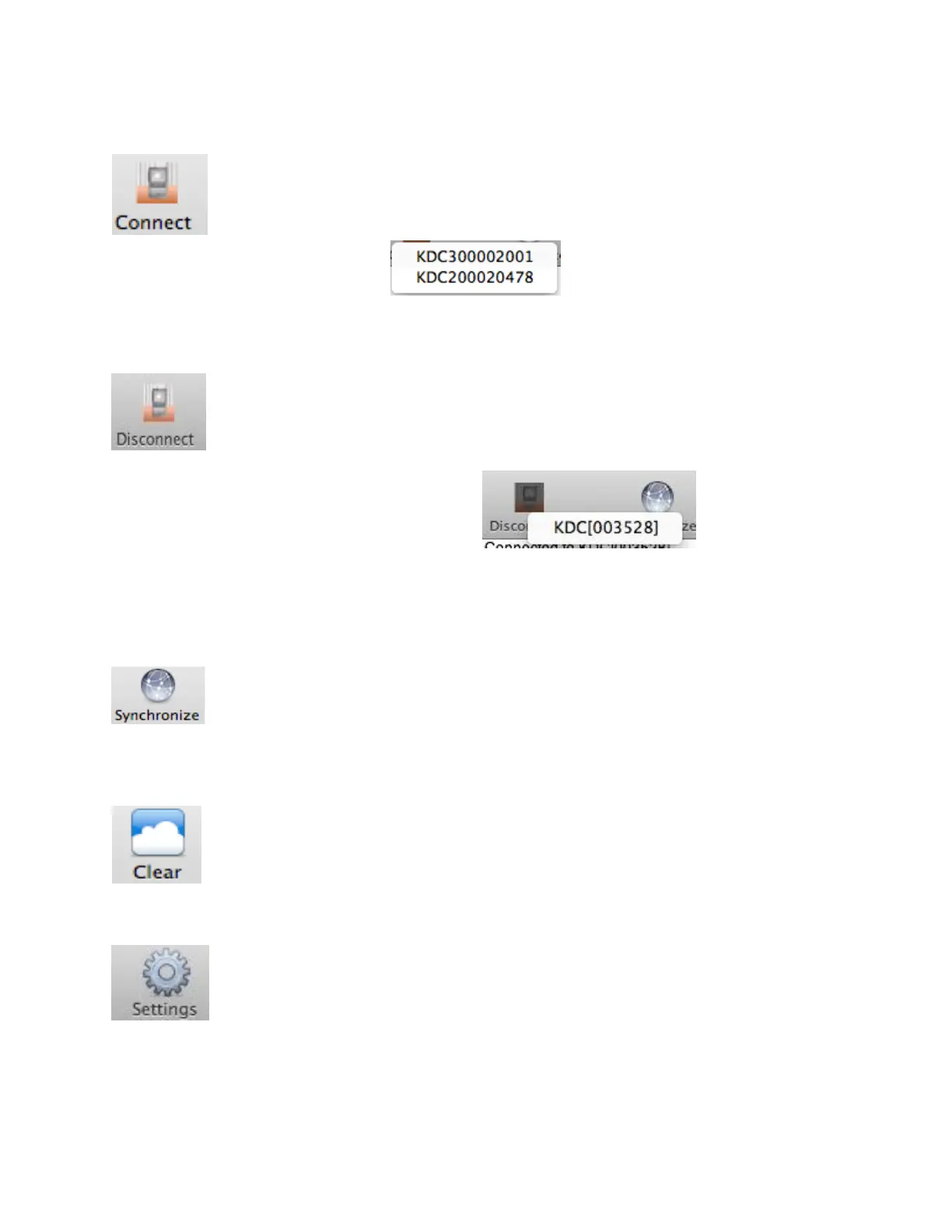
Connect Button
The user may connect the Mac with the KDC that is paired or plugged into the
USB port by clicking the Connect button. The following screen will be displayed
when this button is pressed, and KTSync will start to connect to the selected KDC.
Disconnect Button
KTSync changes Connect button to Disconnect button once the KDC is
connected. The user may disconnect the KDC manually by selecting connected
KDC on the following screen.
Synchronize Button
The user may start the synchronization process by pressing the Synchronize button. The user
may select the destination of barcode data in the settings menu. There are 4
selectable destinations: File, Internal viewer, Active window, and User application.
Clear Button
The user may press this button to clear the KTSync internal viewer.
Settings Button
The user may configure synchronization options on the following screen by
pressing the Settings button.


 To Next Page