KDC User Manual BLUETOOTH
58
Upgrading BLE (Bluetooth Low Energy) Firmware (KDC280C only)
Requires: Windows PC, USB cable, KDC driver, BLE firmware application.
1.
Download KDC driver at: https://www.koamtac.com/downloads/drivers/
•
Extract the folder, run Setup.exe only.
•
Follow the instructions on the installation wizard.
Note: Once it is installed before, you can skip this step.
2.
Download BLE Firmware at: https://koamtac.com/downloads/firmware/
•
Choose your KDC model & its BLE firmware.
•
Extract the folder, open the BLE firmware upgrade application.
NOTE: Or download the BLE firmware from the link that Koamtac provides.
3.
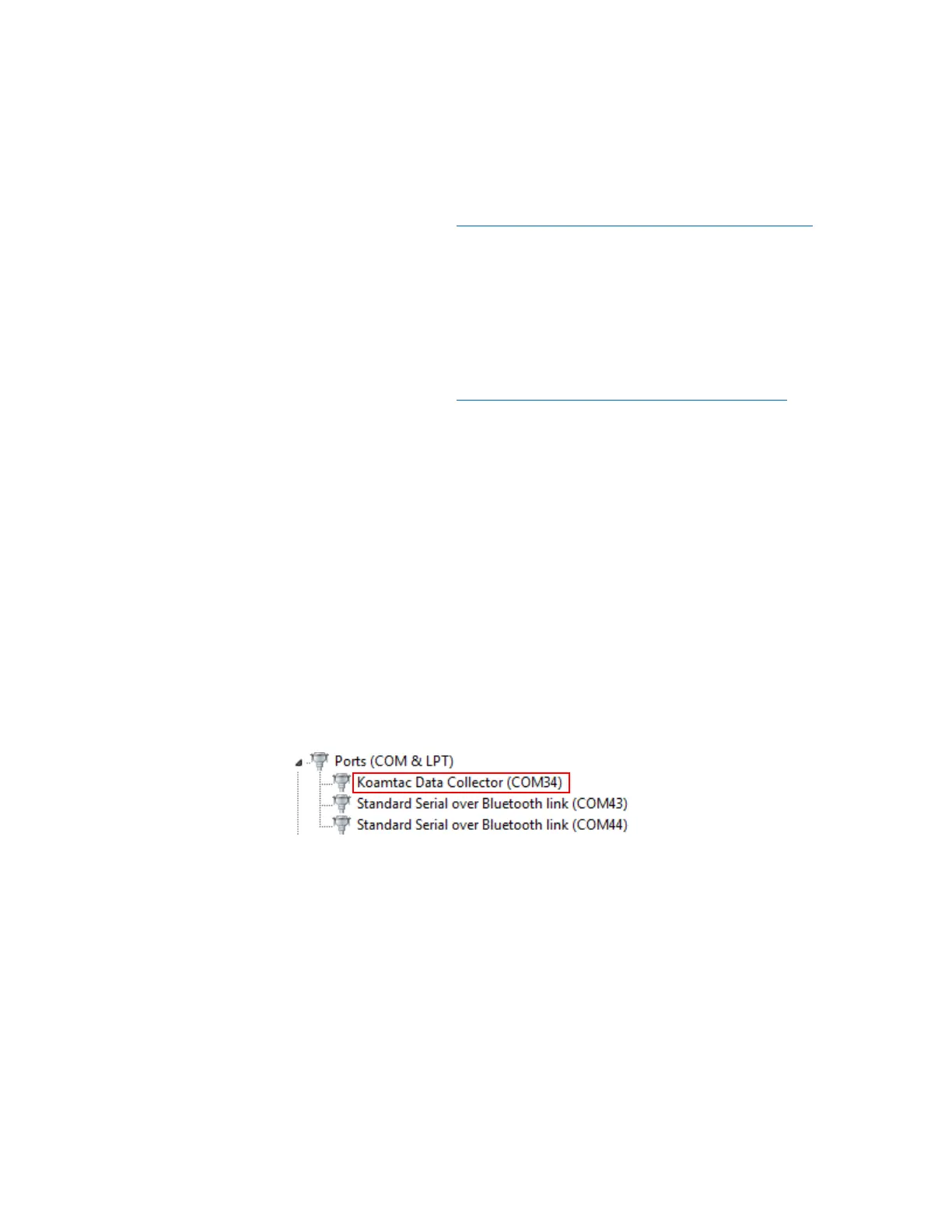
Confirm the KDC Driver installed properly.
•
Plug in KDC to PC via USB.
•
Navigate to Device Manager [Start > Control Panel > System and Security >
System
> Device Manager].
•
Click on Ports (COM & LPT). The KDC should be listed as
Koamtac Data
Collector
.
4.
In the upgrade application, click ‘Step 1: Select KDC’
•
Make sure
all
programs are closed & KDC is not connected to any device via Bluetooth.
•
This should automatically detect the COM port the KDC is using.
•
If no device is connected, it will display “No KDC device found!”.
5.
Click ‘Step 2: Check BLE Module Version’
•
This will verify the current BLE firmware version of the KDC.


 To Next Page