KDC User Manual BLUETOOTH
54
Reading NFC Tags (KDC350N/400N/KDC500)
1. Enable the NFC Power option in the NFC Config menu.
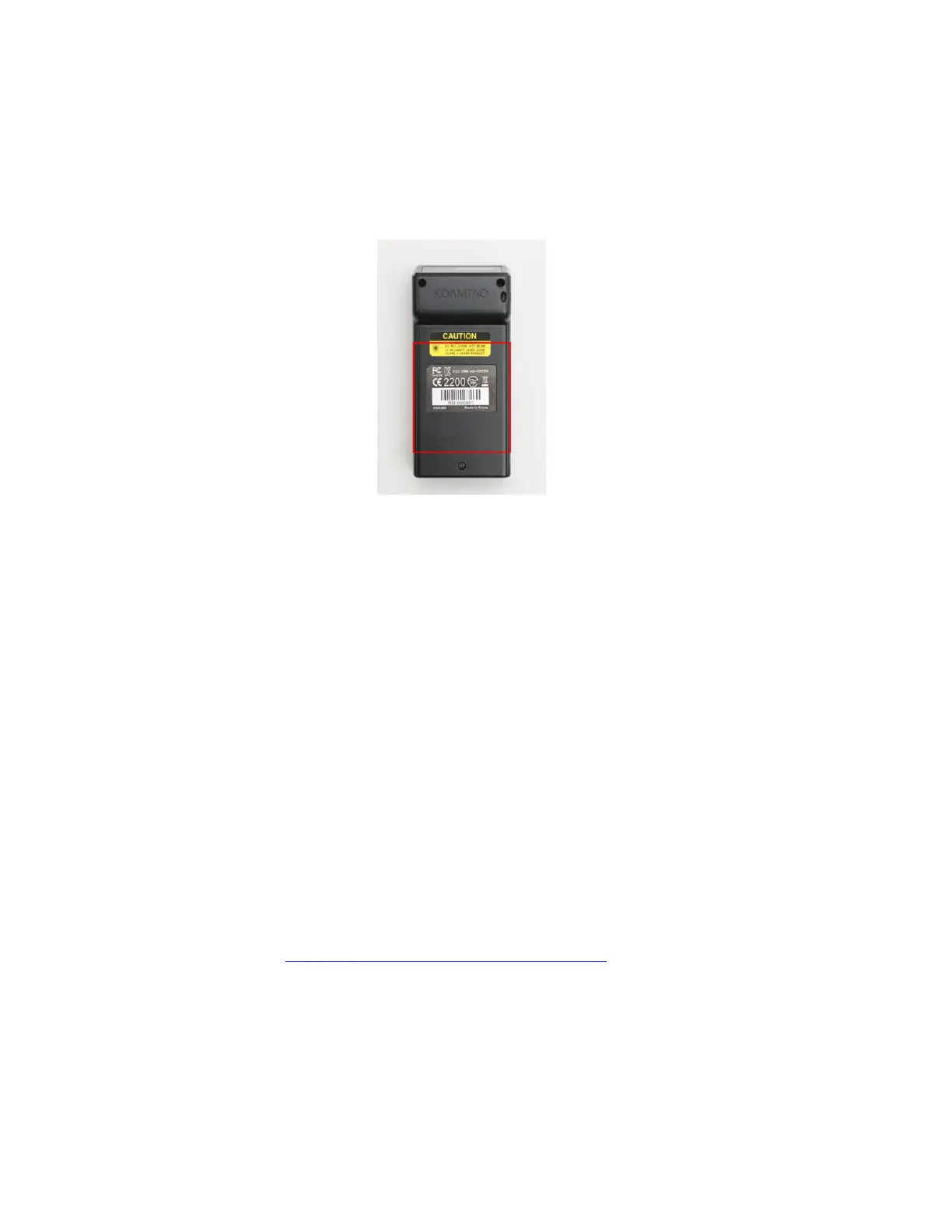
2. Touch the NFC tag to the back of the KDC350N/400N case (or NFC logo on the front of the
KDC500 case), and make sure the tag and case are within 5cm of each other.
Figure 16 - Location for reading NFC Tag
3. The KDC will show the NFC tag UID and the user will hear a short beep if it has been read
successfully.
Reading HF RFID Tags (KDC450/470)
The KDC450/470 may virtually read any ISO/IEC 14443 A or B compliant smartcards, or ISO/IEC
15693 compliant HF RFID tags.
To read a HF RFID tag, touch the RFID card to the back of the KDC450/470 case, and make sure
the tag and case are within 5cm of each other. The user will hear a short beep if it has been read
successfully.
Inputting Data by Using a Keypad (KDC350)
The KDC350 Enables users to input barcode data by using its keypad. The user may switch
between Num mode and Abc mode by using the Mode button.
To switch between uppercase and lowercase letters, the user may press the Shift button while
in Abc mode. To save the data input, press the Enter or SCAN button. For data input, press the
Menu button. Refer to 1.5 Input data by using a keypad (KDC350) for more detailed information
about the process.
Read Magnetic-Stripe (MS) Card(KDC500)
1. The paired host application sends a command to enable the MS Card Reader.
2. Swipe MS Card either top to bottom or bottom to top. Make sure the magnetic stripe of the


 To Next Page