KDC User Manual BLUETOOTH
42
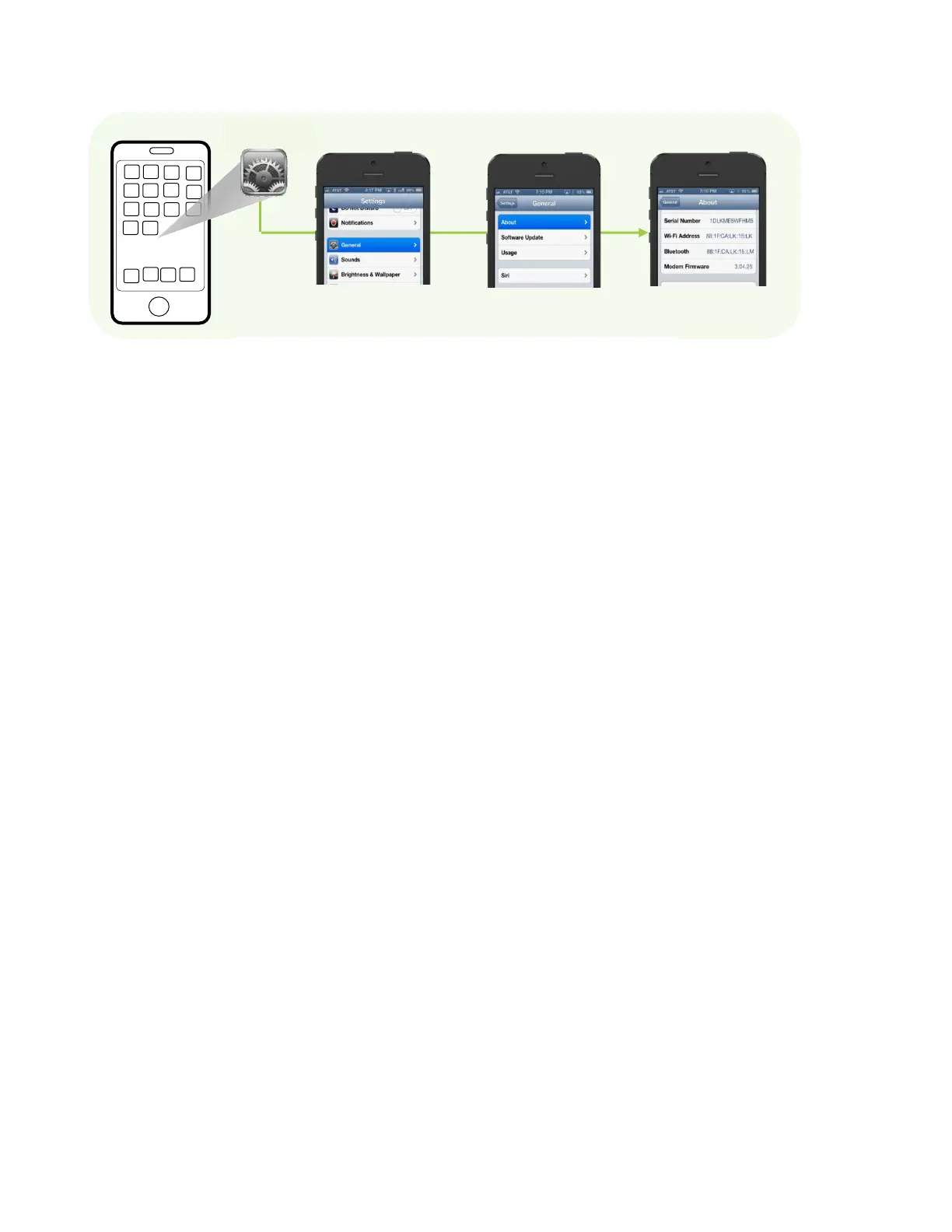
Tap on General Tap on About Bluetooth address
2. Create the Bluetooth MAC Address Barcode according to the format below as an example
based on “http://www.terryburton.co.uk/barcodewriter/generator/”.
For 1D scanners like KDC20/200/250/270L/270D/350L/410/411/415/470L/470D/500L,
Bluetooth MAC Address: 1234567890AB
Barcode Type (Symbology): Code 128
Contents: ^FNC3651234567890AB
Options: parsefnc
For 2D scanners like KDC30/300/270C/350C/420/421/425/450/470C/500C,
Bluetooth MAC Address: 1234567890AB
Barcode Type (Symbology): QR Code
Contents: ^022M^013KDC651234567890AB.
Options: eclevel=M parse
3. Print the Bluetooth MAC Address
Note:
2D barcode scanners such as the KDC30/270C/300/350C/420/421/425/450/470C/500C
models may read barcodes that have been printed QR barcodes that are on a LCD screen.
1D CCD barcode scanners may read barcodes that have been printed barcodes that are on
a LCD screen.
1D laser barcode scanners such as the
KDC20/100/200/250/270L/270D/350L/410/411/415/470L/470D/500L models are not
designed to read barcodes from a LCD screen and will only read printed barcodes.


 To Next Page