KDC User Manual SYNCHRONIZATION
155
6.2 File Menu
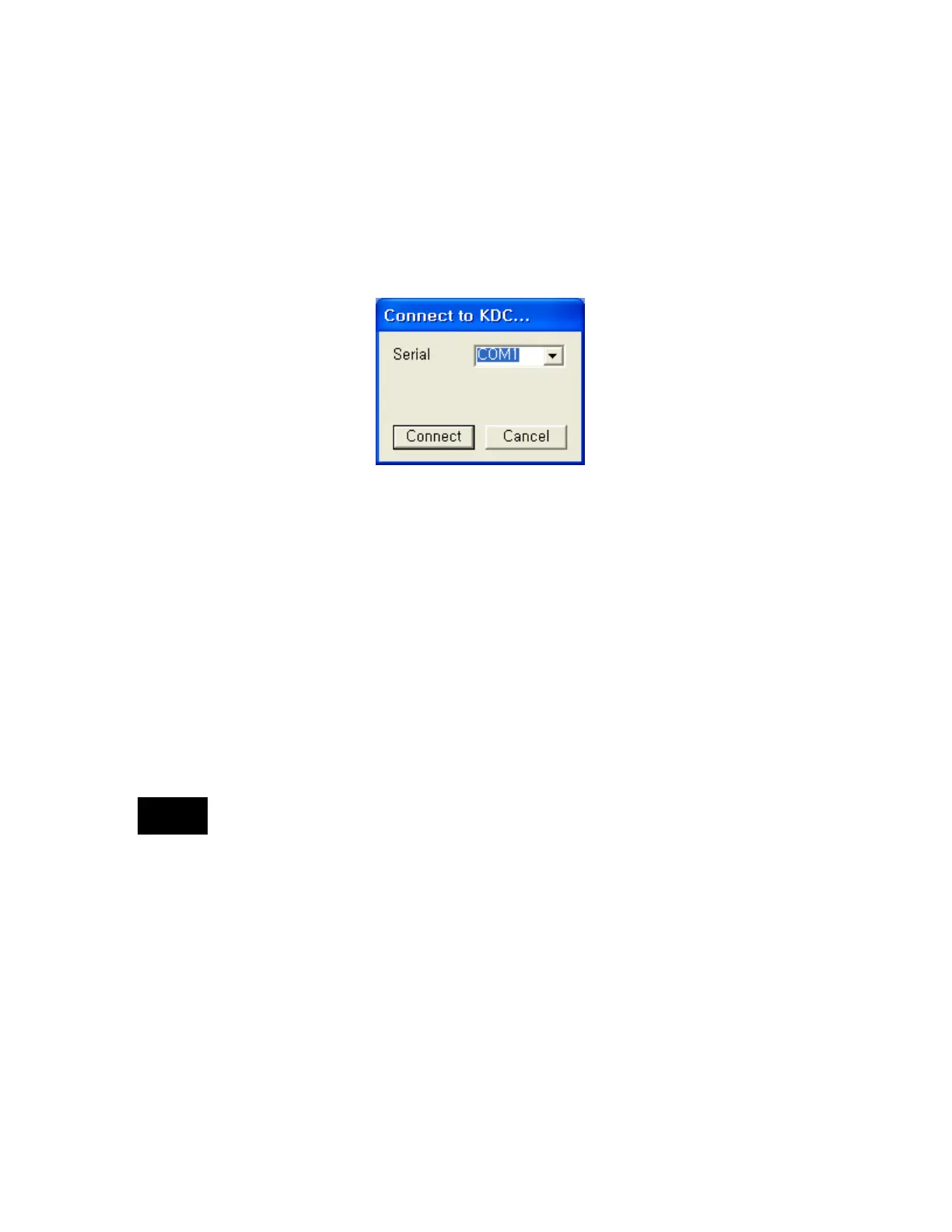
Connect to KDC
The KDC automatically connects to a COM port when connected to the PC’s USB port. If
needed, the user may manually assign the KDC COM port by using the KTSync Connection
submenu under the File menu.
⚫ The COM port assignment is found in the Windows Device Manager.
⚫ KTSync will not connect to the KDC if it is in the KDC Menus. You must EXIT from
the KDC Menus.
⚫ If KTSync fails to connect automatically to the KDC, please follow these steps:
1. Exit KTSync.
2. Check to make sure that you have connected the KDC to a USB port on your PC.
3. Make sure that the user is using the cable provided with the KDC.
4. Check to make sure that the KDC is not in KDC Mode Menu.
5. Restart KTSync.
You may manually assign the COM port using KTSync Connect option under the
File menu.
Synchronize
Located under the File Menu, this option enables the user to manually synchronize data on KDC
with the host. This option is similar to clicking on the Synchronize button in the KoamTac Data
Synchronizer box.
Erase KDC Memory
Erase all stored data in the KDC internal memory.


 To Next Page