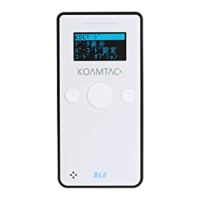
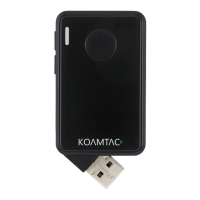
KDC User Manual BLUETOOTH
120
Follow the below steps in order to pair and connect KDC models for MFi and iOS4.0+ in HID
mode.
1. Go to the MFi menu of KDC SystemConfig Menu
2. Change MFi option to Disabled
3. Change ConnectDevice to HID iOS mode
4. Remove previous KDC connection and RESET the device
5. Change KDC to Pairing mode
6. The iPhone/iPad/iPod touch will find a new device as
Keyboard
7. Click
Keyboard
device
iOS Soft Keyboard Toggling using BT Toggle Option.
Users need to select the option to use this feature in BT Config>BT Toggle. Press the DOWN
button to toggle a soft keyboard.
Auto Pairing
For SPP and MFi mode, user used to select host profile before pairing. However, user doesn’t
need to select host device profile if this option is enabled. KDC automatically detects if host
device is a SPP or MFi mode. This option is supported from KDC Bluetooth firmware version
2.2.O.


 To Next Page