L-Gate User Manual 151 LOYTEC
Version 3.2 LOYTEC electronics GmbH
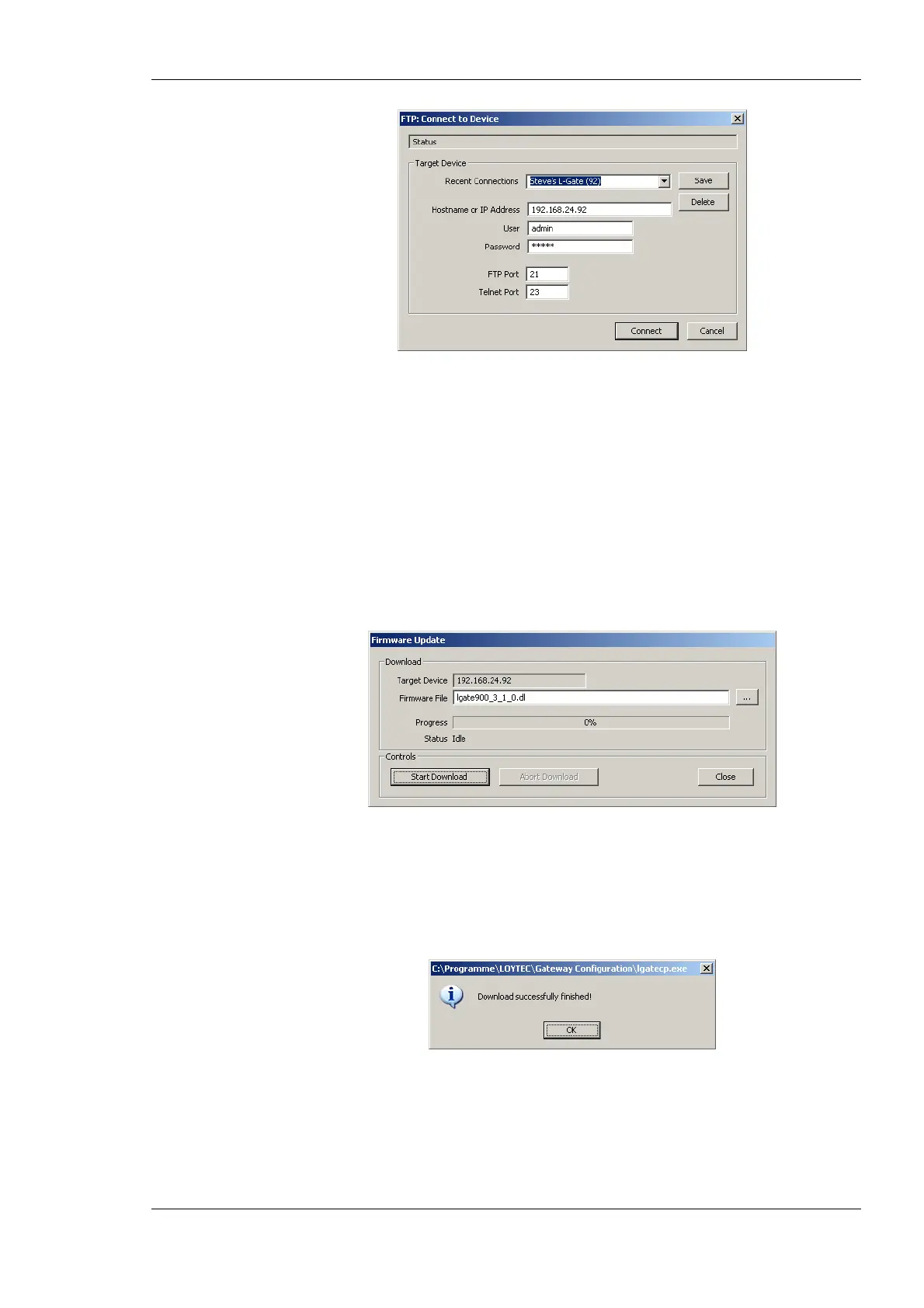
Figure 115: FTP connection dialog.
3. In the FTP connection dialog enter the IP address of the device to upgrade and the FTP
user name and password. The default user name and password are ‘admin’ and
‘admin’. This can be changed via the Web interface (see Section 4.1) and reset via the
console UI (see Section 10.2.2).
4. Click on Connect.
5. Select the menu: Firmware Æ Update …
6. This opens the Firmware Update dialog as shown in Figure 116. Click on the button
“…” and select the firmware image (“lgate900_3_1_0.dl”).
Figure 116: Firmware Update dialog of the L-Gateway configuration software.
7. Click on Start Download.
8. Observe the download progress. When the download is complete the dialog shown in
Figure 117 appears.
Figure 117: FTP download success dialog.
9. Click Ok.
10. In the Firmware Update dialog click Close.
11. The device’s firmware has now been successfully upgraded.



 To Next Page