L-Gate User Manual 36 LOYTEC
Version 3.2 LOYTEC electronics GmbH
Data Point Status Description
normal The data point is in normal operation state and possesses a value.
invalid value The data point has no valid value.
offline (config) The data point has a value but it is not reflected on the network
due to a configuration error (not commissioned, no binding, no
client mapping, etc.)
offline The data point has a value but it is not reflected on the network
due to a communication error (e.g., the peer node is not online).
unreliable
(offline)
The data point has a value but it is considered unreliable because
it was derived from a source, which was offline (e.g., the value
was fed from a connection, where the source is offline).
unreliable (range) The data point has a value but it is considered unreliable because
the value source specified an out-of-range value. The value is
limited to the supported range.
unreliable The data point has a value but it is considered unreliable for an
unspecified reason.
not configured The data point is mapped to a port, which is not configured (e.g.,
the port is disabled).
Line grayed-out The data point is inactive. Values can be written but no network
communication is triggered. This can be the case, if a data point
is not used in the configuration or it is connected to a BACnet
server object, which is not present on the device.
Table 5: Data Point States.
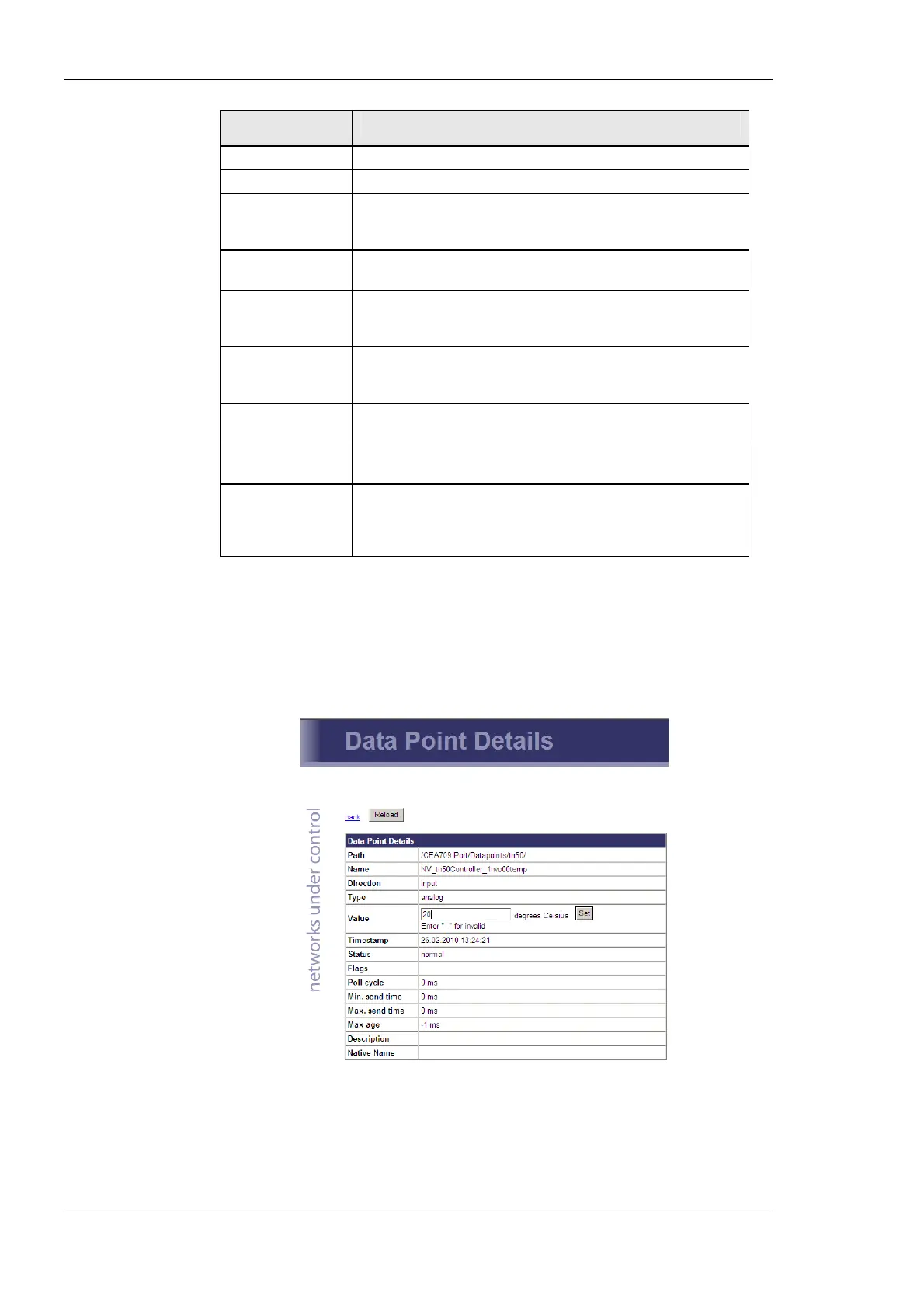
The data point names are links. Clicking on such a link opens a detailed page on that data
point. If the data point supports it, the user can also enter a new data point value as
depicted in Figure 26. The Status field is discussed in Table 5. The Flags, Poll cycle,
Min/Max send time and Max age fields are the common timing parameters for the data
point. See Section 5.2.2 for a closer discussion on timing parameters.
Figure 26: Data point details page
Clicking on the Set button writes the new value to the device’s data server. When setting a
value, the Web page displays the status of the action:
• Successfully set value: The new value has been successfully set in the data point and
the update has been sent on the network, if it is a network data point.



 To Next Page