Build 21 v21.4.1
© 2007-2010 RED.COM INC. FEBRUARY 23, 2010
102 102
MEDIA CAPACITY REMAINING STATUS
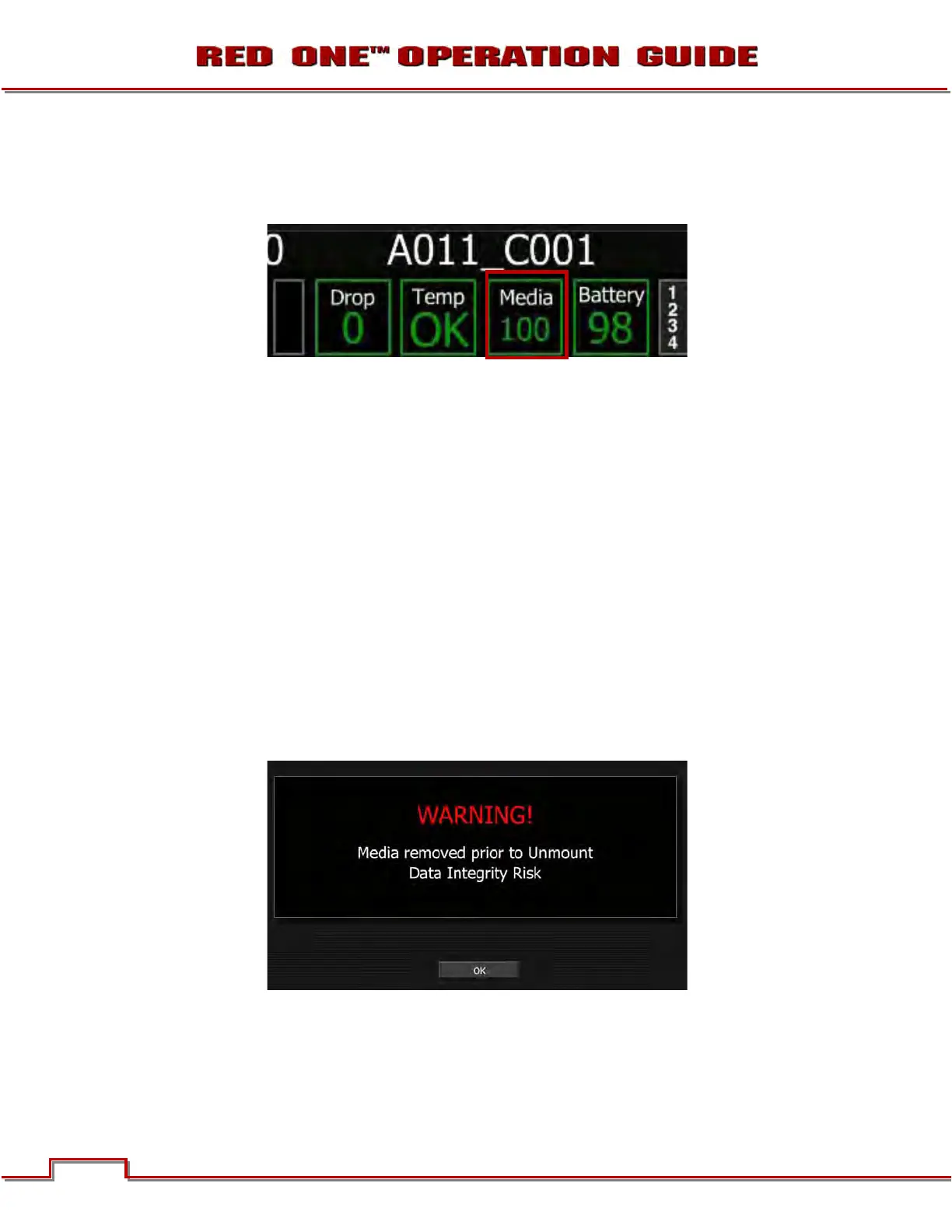
During a recording, the rear status screen, and monitor outputs will display the % of remaining media ca-
pacity in the MEDIA box (100% is shown).
At 10% remaining capacity the media status box will turn yellow, at 5% it will turn red. At 2% remaining
the camera will cease recording. This reserves a small amount of capacity for ancillary data to be written
to the media.
REMOVE MEDIA FROM CAMERA (UNMOUNT)
IMPORTANT: Media must always be un-mounted prior to removal or disconnection from the cam-
era. This ensures power is removed from the digital media and any open data files are closed. Fail-
ure to do so may result in lost data or corrupted files.
Removing a CF card or disconnecting a RED-DRIVE or RED-RAM without first un-mounting it will not
physically damage the media, however it does increase the risk of file corruption, so it’s good operational
practice to un-mount the media if possible before removing or disconnecting.
IMPORTANT: Un-mounting the digital media takes a few seconds, protects the integrity of your
recorded data and helps clips mount instantly to your workstation once in postproduction, so it’s a
recommended habit to develop. If you don’t un-mount the media the camera will offer a warning –
your files may not be damaged, but you will have been warned!
NOTE: The camera will respond to physical removal of the media without un-mounting and display
the following warning:
UNMOUNTING of digital media can be performed in one of two ways:
PROCEDURE A
1. Push and hold the UNDO button.
2. While holding the UNDO button, push the EXIT button.


 To Next Page