Build 21 v21.4.1
© 2007-2010 RED.COM INC. FEBRUARY 23, 2010
104 104
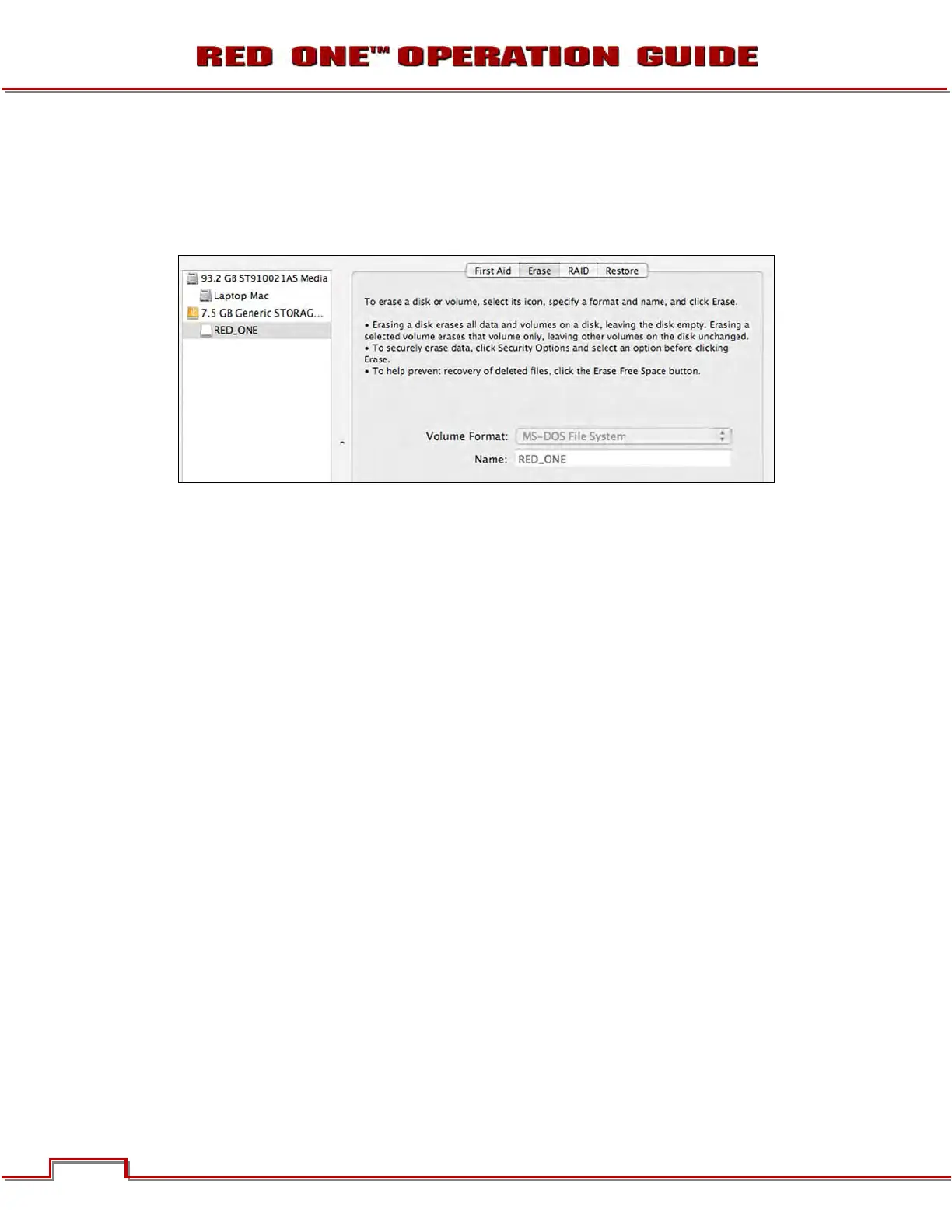
ERASING MEDIA USING MACINTOSH OS X
1. Connect the CF card via a CF card reader, or the RED-DRIVE or RED-RAM via a standard FireWire
400 / 800 cables.
2. Open the Disk Utility.
3. Carefully choose the drive from the list on the left.
4. Select the Erase tab.
5. Choose MS-DOS (FAT) as the Volume Format. You can add a Name if desired, however the camera
will overwrite this.
IMPORTANT: BEFORE PERFORMING THE NEXT STEP, DOUBLECHECK THAT THIS IS THE COR-
RECT CF CARD OR RED-DRIVE OR RED-RAM THAT YOU WISH TO ERASE DATA FROM.
6. Select Erase. When the pop up window appears click on the Erase button.
7. When the media is erased, drag its icon to the trash can and physically disconnect it.
8. The media will need to be formatting by the camera before use. Refer to FORMATTING.
ERASING MEDIA USING WINDOWS
1. Connect the CF card via a CF card reader, or the RED-DRIVE or RED-RAM via a standard FireWire
400 / 800 cable or USB cable and power supply.
2. Open Windows Explorer (go to my computer icon, right click and select EXPLORE).
3. Double-click on the dive you wish to erase files from.
4. Select all the files on the drive you wish to erase.
IMPORTANT: BEFORE PERFORMING THE NEXT STEP, DOUBLECHECK THAT THIS IS THE COR-
RECT CF CARD OR RED-DRIVE OR RED-RAM THAT YOU WISH TO ERASE DATA FROM.
5. Press the “DELETE” key on the keyboard, select FILE > DELETE or right-click on selected file and
choose DELETE. When the pop up window appears click YES.
6. The media will need to be formatting by the camera before use. Refer to FORMATTING MEDIA.


 To Next Page