Build 21 v21.4.1
© 2007-2010 RED.COM INC. FEBRUARY 23, 2010
30 30
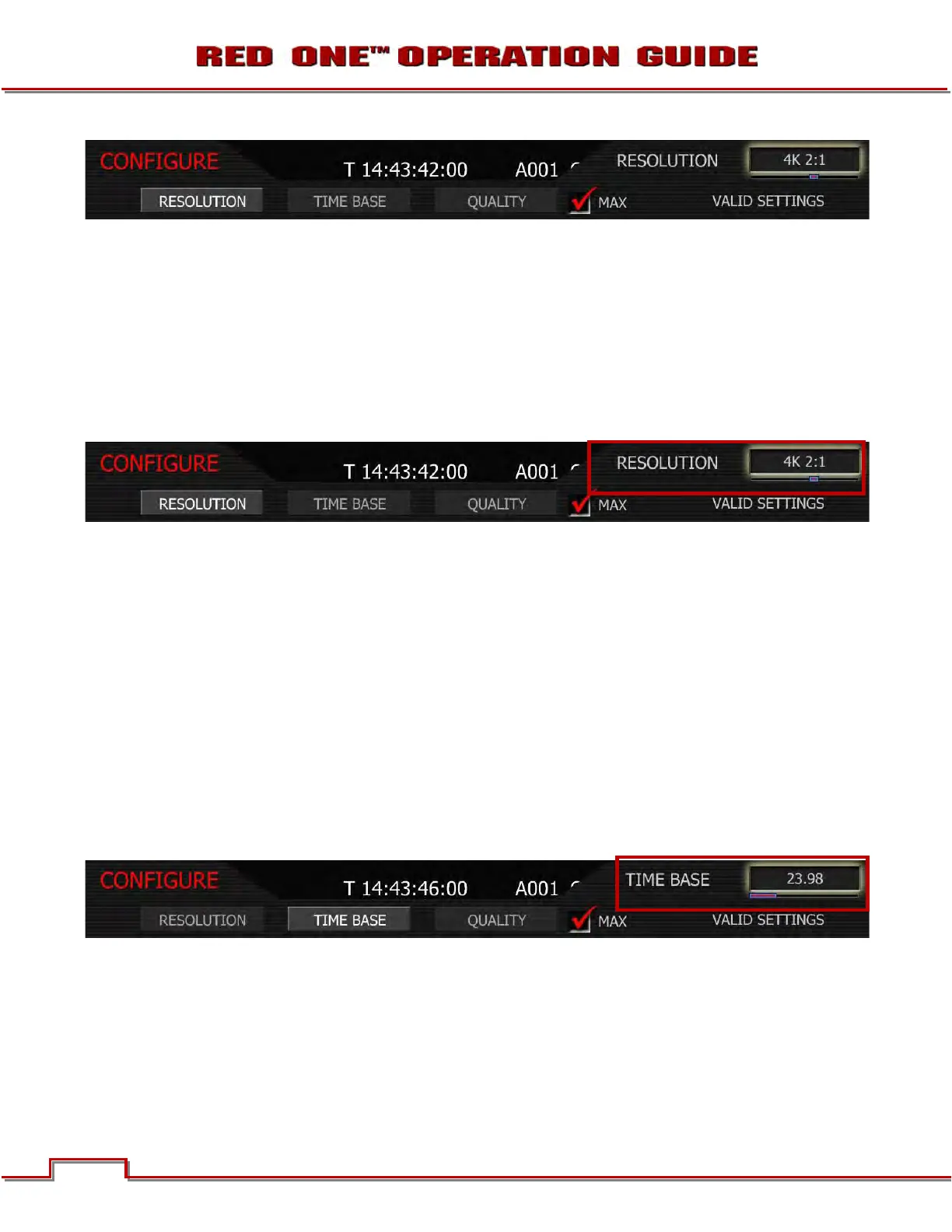
5. Select each item to set up your project using the joystick. Push joystick in or down to enter.
NOTE: Leave MAX box checked, unless recording 4K HD and needing real time software decode.
RESOLUTION
Selecting RESOLUTION will highlight the upper right hand menu item and give you the following options:
• 2K 2:1
• 2K 16:9
• 2K ANA
• 3K 2:1
• 3K 16:9
• 3K ANA
• 4K 2:1
• 4K HD
• 4K 16:9
• 4K ANA
• 4.5K
1. To view options, twist joystick.
2. Choose 4.5K, 4K, 3K or 2K, or 2:1 variants. Use 2K or 2K 2:1 for S16mm/B4 lenses.
3. Push joystick in or down to set the selected resolution.
NOTE: A project can only support one project Time Base as this defines the frame rate to be used
for timecode and for clip playback. It is also the primary frame rate for acquisition, but variable
speed (over-crank and under-crank) recordings can be made above and below this base frame
rate. On playback these recordings will be displayed at the Project Frame Rate
NOTE: If operating on a multi-camera production, enter a different Camera I.D for each camera us-
ing the SLATE menu; otherwise skip this step; the camera is ready to shoot.
TIME BASE
Selecting TIME BASE will highlight the upper right hand menu item and give you the following fps options:
• 23.98 • 24.00 • 25.00 • 29.97
1. To view options, twist joystick.
2. Choose 23.98, 24.00, 25.00 or 29.97fps.
3. Push joystick in or down to set the selected time base.
NOTE: The time base establishes the base frame rate for a project, and so should not be adjusted.
Use Varispeed if shooting above or below this base frame rate for slow motion effects.
NOTE: 2K and 3K record resolutions also support 50.00 and 59.94 fps Project Time Bases.


 To Next Page